> ## Documentation Index
> Fetch the complete documentation index at: https://docs.skyhook.io/llms.txt
> Use this file to discover all available pages before exploring further.
# Argo Workflows
Argo Workflows in Skyhook provide workflow orchestration for multi-step batch processes. Built on [Argo Workflows](https://argo-workflows.readthedocs.io/), they enable you to model workflows as sequences of steps or directed acyclic graphs (DAGs), with support for parameters, artifact passing, conditional logic, and advanced retry strategies.
Use Argo Workflows when you need to coordinate multiple steps with dependencies, pass data between steps, or reuse workflow templates with different parameters - regardless of whether each individual step is simple or complex.
## Workflow Types
Skyhook supports two Argo workflow types:
**Multi-step orchestration**
Workflows with multiple steps, dependencies, and data flow. Best for ETL pipelines, ML training, and processes requiring step coordination.
**Scheduled orchestration**
Recurring multi-step workflows with cron scheduling. Best for periodic data pipelines and processes with coordinated stages.
### Argo Workflow
One-time multi-step workflows perfect for ETL pipelines, ML training, and complex data processing.
**What Skyhook provides:**
* Template deployment through UI
* Parameter management and execution
* Real-time monitoring with Argo UI integration
* Step-by-step logs and status tracking
[Learn more about Argo Workflows →](https://argo-workflows.readthedocs.io/en/latest/walk-through/)
### Argo CronWorkflow
Scheduled multi-step workflows that combine Argo's orchestration with cron scheduling.
**What Skyhook provides:**
* Common Argo Workflow features + cron scheduling in the UI
* Timezone-aware schedule configuration
* Manual execution outside schedule ("Execute Now" button)
* Parameter support for each execution
[Learn more about Argo CronWorkflows →](https://argo-workflows.readthedocs.io/en/latest/cron-workflows/)
## Template-Based Architecture
Argo workflows use a template/instance model optimized for reusability. The **WorkflowTemplate** (reusable definition) is stored in Git and deployed to your cluster. Each execution creates a **Workflow instance** dynamically at runtime. These instances are ephemeral and cleaned up based on TTL settings.
**Execution flow:**
```mermaid theme={"system"}
graph LR
A[Click Execute in UI] --> B[GitHub Actions Workflow]
B --> C[Workflow Instance Created]
C --> D[Pods Execute Steps]
```
### Repository Structure
Your workflow lives in Git with Kustomize-based structure for environment-specific overrides:
```
my-workflow/
├── base/
│ ├── argo-workflowtemplate.yaml # Reusable workflow definition
│ └── kustomization.yaml
│
└── overlays/
├── dev/
│ ├── kustomization.yaml
│ ├── argo-workflowtemplate-patch.yaml # Dev template overrides
│ └── .env
│
├── staging/
│ ├── kustomization.yaml
│ ├── argo-workflowtemplate-patch.yaml # Staging template overrides
│ └── .env
│
└── prod/
├── kustomization.yaml
├── argo-workflowtemplate-patch.yaml # Prod template overrides
└── .env
```
### WorkflowTemplate Example
The `WorkflowTemplate` in the base directory defines reusable workflow logic:
```yaml theme={"system"}
apiVersion: argoproj.io/v1alpha1
kind: WorkflowTemplate
metadata:
name: data-processing-template
namespace: default
labels:
app: data-processing
spec:
entrypoint: main
arguments:
parameters:
- name: input-file
value: "default-input.csv"
- name: batch-size
value: "1000"
templates:
- name: main
container:
image: my-registry/data-processor:latest
command: ["python", "process.py"]
args:
- "--input={{workflow.parameters.input-file}}"
- "--batch={{workflow.parameters.batch-size}}"
resources:
requests:
cpu: "1"
memory: "2Gi"
limits:
cpu: "2"
memory: "4Gi"
```
[Learn more about WorkflowTemplates →](https://argo-workflows.readthedocs.io/en/latest/workflow-templates/)
### Environment-Specific Patches
Each environment can override settings using Kustomize patches:
**Development** (`overlays/dev/argo-workflowtemplate-patch.yaml`):
```yaml theme={"system"}
apiVersion: argoproj.io/v1alpha1
kind: WorkflowTemplate
metadata:
name: data-processing-template
spec:
templates:
- name: main
container:
resources:
requests:
cpu: "500m"
memory: "1Gi"
env:
- name: LOG_LEVEL
value: "debug"
```
**Production** (`overlays/prod/argo-workflowtemplate-patch.yaml`):
```yaml theme={"system"}
apiVersion: argoproj.io/v1alpha1
kind: WorkflowTemplate
metadata:
name: data-processing-template
spec:
templates:
- name: main
container:
resources:
requests:
cpu: "4"
memory: "8Gi"
env:
- name: LOG_LEVEL
value: "warning"
```
### Workflow Instance Creation
When you execute a workflow from the Skyhook UI:
1. GitHub Actions workflow (`execute_job.yml`) is triggered
2. Workflow authenticates with your cluster
3. Uses `argo submit` CLI command to create a Workflow instance
4. Passes parameters you provided in the execution dialog
5. Workflow executes in your cluster
**Example Argo CLI command:**
```bash theme={"system"}
argo submit --from workflowtemplate/data-processing-template \
-p input-file="prod-data-2024-01-15.csv" \
-p batch-size="5000" \
--name data-processing-20240115
```
**Benefits:**
* Template defined once, executed many times with different parameters
* Environment-specific overrides without duplicating workflow logic
* Clean Git history (only templates tracked, not ephemeral instances)
## Creating a Workflow
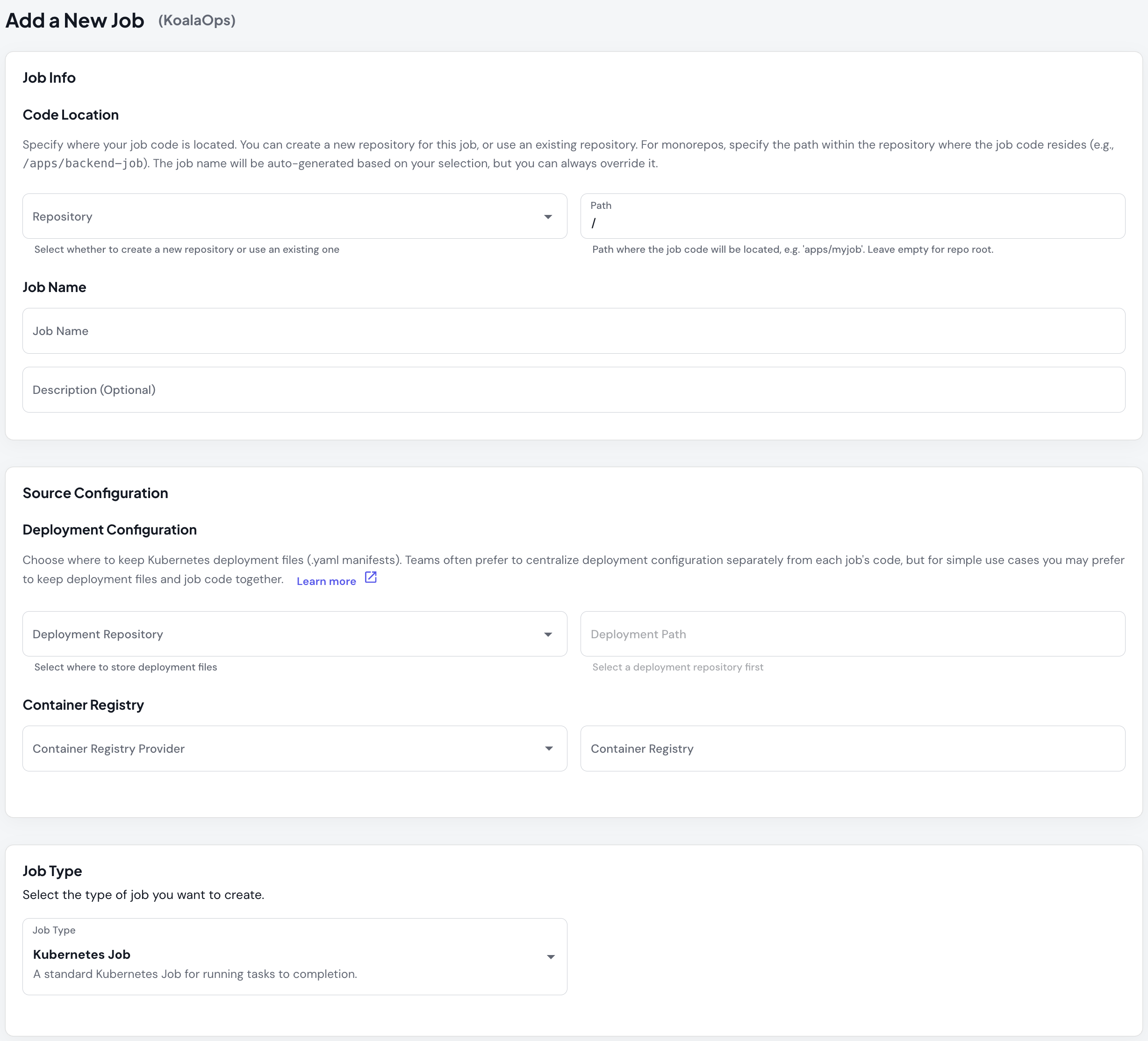
### 1. Access the Job Creation Form
1. Navigate to **Jobs** in the Skyhook UI
2. Click **Create New Job**
3. Select **Argo Workflow** or **Argo CronWorkflow** as job type
 ### 2. Basic Details
Same as Kubernetes Jobs - configure name, description, container registry, and repository.
### 3. Job Type Selection
Choose **Argo Workflow** (one-time) or **Argo CronWorkflow** (scheduled).
For CronWorkflow, configure:
* **Cron Schedule** - Standard cron expression
* **Timezone** - IANA timezone for accurate scheduling
* **Concurrency Policy** - How to handle overlapping runs
### 4. Add Environments
Configure where your workflow will run (dev, staging, prod).
**Repository Configuration:** Like Kubernetes Jobs, Argo Workflows support [multiple jobs in one repository](/application/repository/monorepos) and [flexible deployment repository options](/application/repository/deployment-repositories). See the Kubernetes Jobs documentation for detailed repository configuration options.
### 5. Configure Parameters (Optional)
After creating the workflow, go to the **Settings** tab to define parameters under **Workflow Parameters**:
Each parameter has:
* **Name** - Identifier used in your workflow (e.g., `input-file`, `batch-size`)
* **Default Value** - Used if not overridden at execution time
* **Description** - Help text displayed to users in the Execute dialog
Parameters are referenced in your workflow YAML using `{{workflow.parameters.parameter-name}}` syntax. When users execute the workflow, they can override default values via the execution dialog.
## Executing Workflows
### 2. Basic Details
Same as Kubernetes Jobs - configure name, description, container registry, and repository.
### 3. Job Type Selection
Choose **Argo Workflow** (one-time) or **Argo CronWorkflow** (scheduled).
For CronWorkflow, configure:
* **Cron Schedule** - Standard cron expression
* **Timezone** - IANA timezone for accurate scheduling
* **Concurrency Policy** - How to handle overlapping runs
### 4. Add Environments
Configure where your workflow will run (dev, staging, prod).
**Repository Configuration:** Like Kubernetes Jobs, Argo Workflows support [multiple jobs in one repository](/application/repository/monorepos) and [flexible deployment repository options](/application/repository/deployment-repositories). See the Kubernetes Jobs documentation for detailed repository configuration options.
### 5. Configure Parameters (Optional)
After creating the workflow, go to the **Settings** tab to define parameters under **Workflow Parameters**:
Each parameter has:
* **Name** - Identifier used in your workflow (e.g., `input-file`, `batch-size`)
* **Default Value** - Used if not overridden at execution time
* **Description** - Help text displayed to users in the Execute dialog
Parameters are referenced in your workflow YAML using `{{workflow.parameters.parameter-name}}` syntax. When users execute the workflow, they can override default values via the execution dialog.
## Executing Workflows
Template deployment + parameterized execution
Argo Workflows separate template deployment from workflow execution:
**1. Deploy Template First** (one-time setup, or when workflow logic changes)
1. Click **Deploy Template**
2. Select deployment options (build new or deploy existing)
3. Choose Git references
4. Deploy to environment
This installs/updates the WorkflowTemplate in your cluster.
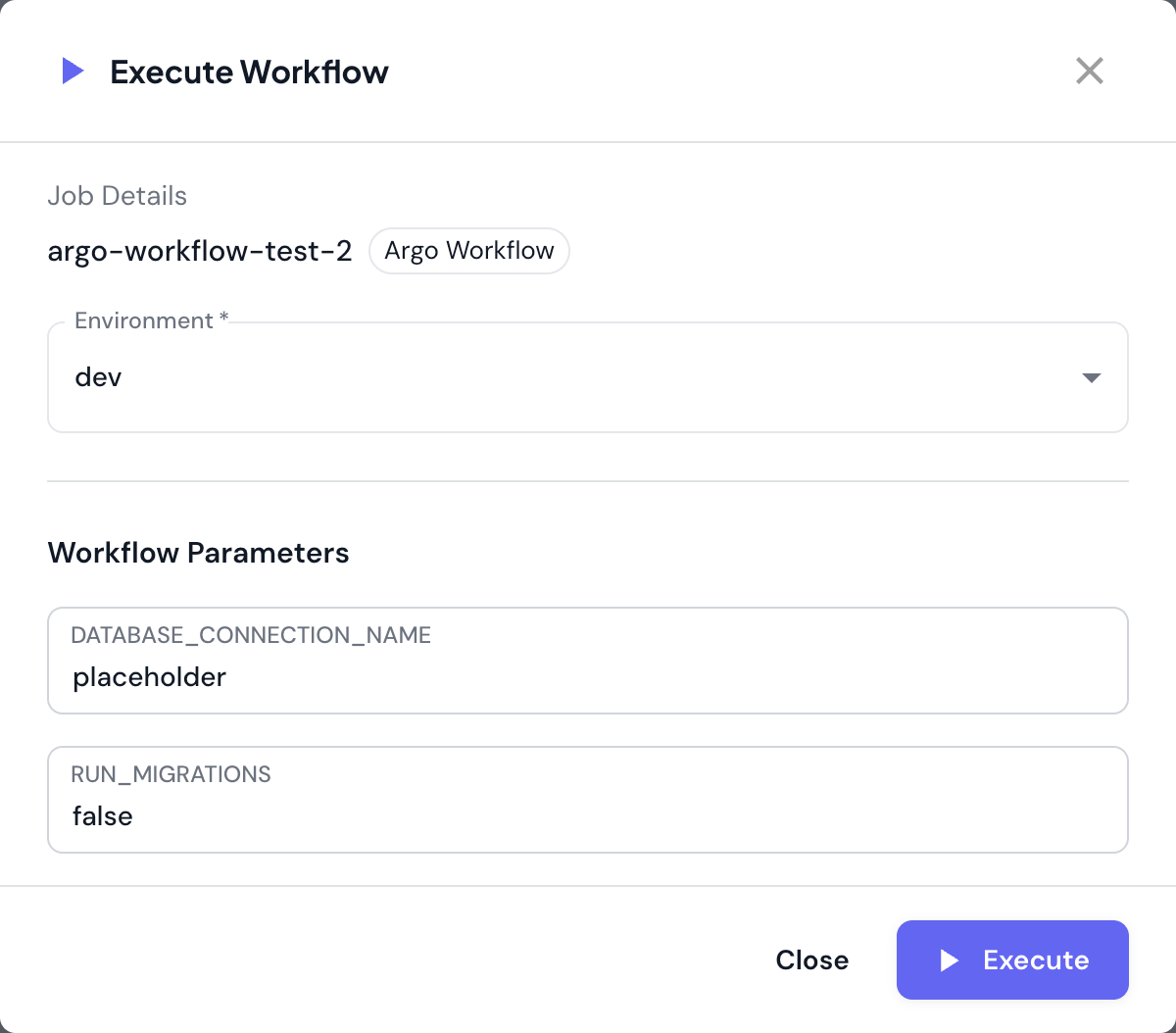
**2. Execute Workflow** (run the workflow with specific parameters)
1. Click **Execute Workflow**
2. Execution dialog appears with:
* **Environment** - Select where to execute
* **Parameters** - Fill in parameter values (if defined)
3. Review parameter values
4. Click **Execute**
This creates a Workflow instance from the template.
 **What happens:**
* Workflow instance created from template
* Parameters injected into workflow
* Workflow orchestrator executes steps in sequence
* Each step creates pods as needed
* Workflow tracks progress through completion
**What happens:**
* Workflow instance created from template
* Parameters injected into workflow
* Workflow orchestrator executes steps in sequence
* Each step creates pods as needed
* Workflow tracks progress through completion
Scheduled workflows with parameters
Combines scheduled execution with parameterized workflows.
**Scheduled Execution (Automatic):**
* Runs automatically on cron schedule
* Uses default parameter values from template
* Creates workflow instance at scheduled time
**Manual Execution:**
1. Click **Execute Now**
2. Select environment
3. Provide parameter values (if defined)
4. Click **Execute**
**What happens:**
* Same as Argo Workflow execution
* Does not affect next scheduled run
* Custom parameters only apply to this execution
## Monitoring Workflows
### Executions Tab
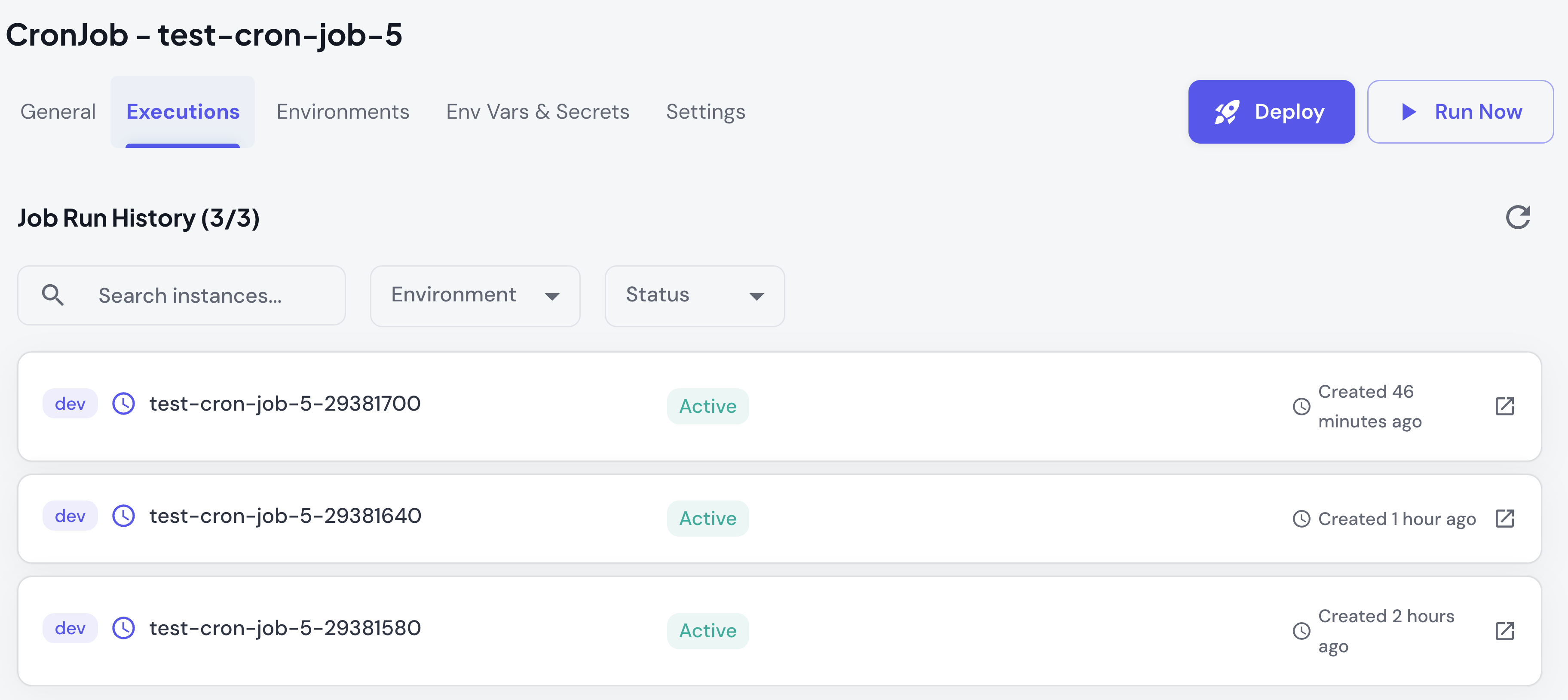 **What you see:**
* List of all workflow instances
* Status (Pending/Running/Succeeded/Failed)
* Start time, completion time, duration
* Environment where workflow ran
| Status | Description | Indicates |
| --------------- | ------------------------------------ | ------------------------ |
| 🟡 **Pending** | Workflow created but not yet running | Waiting to start |
| 🔵 **Running** | Workflow currently executing | Steps are running |
| ✅ **Succeeded** | Workflow completed successfully | All steps succeeded |
| ❌ **Failed** | Workflow did not complete | One or more steps failed |
### Workflow Details
Execution details show:
**What you see:**
* List of all workflow instances
* Status (Pending/Running/Succeeded/Failed)
* Start time, completion time, duration
* Environment where workflow ran
| Status | Description | Indicates |
| --------------- | ------------------------------------ | ------------------------ |
| 🟡 **Pending** | Workflow created but not yet running | Waiting to start |
| 🔵 **Running** | Workflow currently executing | Steps are running |
| ✅ **Succeeded** | Workflow completed successfully | All steps succeeded |
| ❌ **Failed** | Workflow did not complete | One or more steps failed |
### Workflow Details
Execution details show:
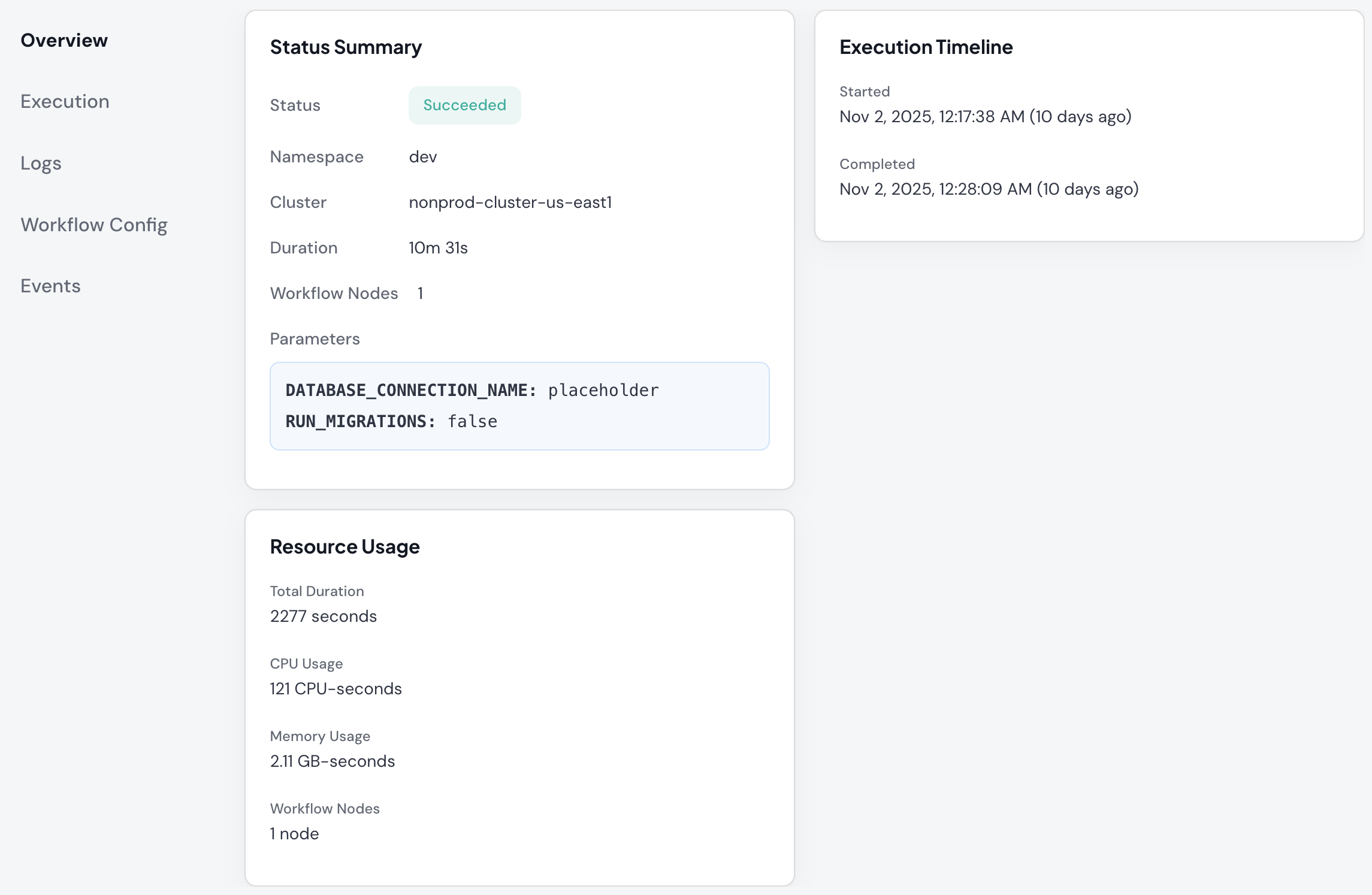 **Workflow Phase:**
* Overall workflow status
**Node Information:**
* Total nodes (steps) in workflow
* Completed nodes
* Current executing node
* Failed nodes (if any)
**Step Progress:**
* Visual representation of workflow steps
* Individual step status
* Step dependencies and execution order
* Time spent per step
**Workflow Specifications:**
* Workflow template used
* Parameters provided
* Service account
* Execution limits
**Actions:**
* View individual step logs
* Inspect step containers
* Access Argo UI for detailed visualization
### Argo UI Integration
For advanced visualization, access the Argo Workflows UI:
1. Click on a workflow execution
2. Click **View in Argo UI** link
3. Opens Argo Workflows dashboard
**Argo UI features:**
* Graphical workflow visualization
* DAG (Directed Acyclic Graph) view
* Step-by-step execution timeline
* Artifact browser
* Advanced debugging tools
### Viewing Logs
**Access Step Logs:**
1. Click on a workflow execution
2. Select specific step/container
3. Click **View Logs**
4. See logs for that step
## Advanced Configuration
Advanced Argo Workflow configuration options using WorkflowTemplate YAML.
Define parameters that can be passed at execution time.
**In WorkflowTemplate:**
```yaml theme={"system"}
spec:
arguments:
parameters:
- name: input-file
value: "default.csv"
- name: batch-size
value: "1000"
- name: environment
value: "dev"
```
**Use in templates:**
```yaml theme={"system"}
templates:
- name: process
container:
args:
- "--input={{workflow.parameters.input-file}}"
- "--batch={{workflow.parameters.batch-size}}"
- "--env={{workflow.parameters.environment}}"
```
**Override at execution** via the Skyhook UI when you click "Execute Workflow" - you'll be prompted to provide values for each parameter.
Configure automatic retry behavior for failed steps.
**Exponential Backoff (Recommended):**
```yaml theme={"system"}
templates:
- name: flaky-step
retryStrategy:
limit: "3"
retryPolicy: "OnFailure"
backoff:
duration: "30s"
factor: "2"
maxDuration: "5m"
```
**Fixed Delay:**
```yaml theme={"system"}
retryStrategy:
limit: "3"
backoff:
duration: "30s"
factor: "1"
```
**Immediate Retry:**
```yaml theme={"system"}
retryStrategy:
limit: "3"
retryPolicy: "Always"
# No backoff = immediate
```
**Good candidates for retries:**
* Network operations (API calls, database connections)
* External service dependencies
* Transient infrastructure issues
* Resource contention scenarios
**Poor candidates for retries:**
* Logic errors in code
* Missing required files or data
* Authentication failures
* Resource exhaustion (will keep failing)
Automatically clean up completed workflows.
**Clean up all workflows after 1 hour:**
```yaml theme={"system"}
spec:
ttlStrategy:
secondsAfterCompletion: 3600
```
**Different TTL for success vs failure:**
```yaml theme={"system"}
spec:
ttlStrategy:
secondsAfterSuccess: 3600 # 1 hour for successful
secondsAfterFailure: 86400 # 24 hours for failed (debugging)
```
**Recommended TTL values:**
* Development: 1-6 hours
* Staging: 6-24 hours
* Production: 24-72 hours (keep longer for audit)
Control when workflow pods are deleted.
**Delete pods when workflow completes:**
```yaml theme={"system"}
spec:
podGC:
strategy: OnWorkflowCompletion
```
**Delete pods only on success:**
```yaml theme={"system"}
spec:
podGC:
strategy: OnWorkflowSuccess
# Failed workflow pods retained for debugging
```
**Delete each pod when it completes:**
```yaml theme={"system"}
spec:
podGC:
strategy: OnPodCompletion
# Minimizes resource usage
```
**Never delete pods automatically:**
```yaml theme={"system"}
spec:
podGC:
strategy: Never
# Manual cleanup required
```
Configure CPU and memory for workflow steps.
**Per-template resources:**
```yaml theme={"system"}
templates:
- name: process-data
container:
resources:
requests:
cpu: "2"
memory: "4Gi"
limits:
cpu: "4"
memory: "8Gi"
```
**Template defaults (apply to all steps):**
```yaml theme={"system"}
spec:
templateDefaults:
container:
resources:
requests:
cpu: "1"
memory: "2Gi"
limits:
cpu: "2"
memory: "4Gi"
```
**GPU resources:**
```yaml theme={"system"}
resources:
limits:
nvidia.com/gpu: "1"
```
Set time limits for workflow execution.
**Active deadline (workflow timeout):**
```yaml theme={"system"}
spec:
activeDeadlineSeconds: 3600 # 1 hour max
```
**Per-step timeout:**
```yaml theme={"system"}
templates:
- name: api-call
container:
image: my-app:v1
activeDeadlineSeconds: 300 # 5 minutes
```
**Recommended limits:**
* API calls: 5-15 minutes
* Data processing: 30-60 minutes
* ML training: 2-6 hours
* ETL pipelines: 2-12 hours
Execute steps sequentially.
```yaml theme={"system"}
templates:
- name: multi-step-workflow
steps:
- - name: fetch-data
template: fetch
- - name: process-data
template: process
arguments:
parameters:
- name: input
value: "{{steps.fetch-data.outputs.result}}"
- - name: upload-results
template: upload
```
[Learn more about Steps →](https://argo-workflows.readthedocs.io/en/latest/walk-through/steps/)
Execute steps in parallel with dependencies.
```yaml theme={"system"}
templates:
- name: dag-workflow
dag:
tasks:
- name: fetch-data
template: fetch
- name: process-a
dependencies: [fetch-data]
template: process
arguments:
parameters:
- name: type
value: "A"
- name: process-b
dependencies: [fetch-data]
template: process
arguments:
parameters:
- name: type
value: "B"
- name: combine
dependencies: [process-a, process-b]
template: combine
```
[Learn more about DAGs →](https://argo-workflows.readthedocs.io/en/latest/walk-through/dag/)
Configure environment variables for workflow steps.
**Static env vars:**
```yaml theme={"system"}
templates:
- name: process
container:
env:
- name: LOG_LEVEL
value: "info"
- name: ENVIRONMENT
value: "production"
```
**From parameters:**
```yaml theme={"system"}
env:
- name: INPUT_FILE
value: "{{workflow.parameters.input-file}}"
```
**From secrets:**
```yaml theme={"system"}
env:
- name: API_KEY
valueFrom:
secretKeyRef:
name: my-secrets
key: api-key
```
**From ConfigMaps:**
```yaml theme={"system"}
env:
- name: CONFIG
valueFrom:
configMapKeyRef:
name: my-config
key: config.json
```
Control where workflow pods run.
**Node selector:**
```yaml theme={"system"}
templates:
- name: gpu-task
nodeSelector:
gpu: "true"
instance-type: "g4dn.xlarge"
```
**Tolerations:**
```yaml theme={"system"}
tolerations:
- key: "special"
operator: "Equal"
value: "true"
effect: "NoSchedule"
```
**Affinity:**
```yaml theme={"system"}
affinity:
nodeAffinity:
requiredDuringSchedulingIgnoredDuringExecution:
nodeSelectorTerms:
- matchExpressions:
- key: gpu
operator: In
values:
- "true"
```
## Best Practices
**Workflow Design:**
* Keep each step focused on a single responsibility
* Use DAGs for parallelizable work
* Set appropriate timeouts and retries per step
* Pass data between steps via parameters or artifacts
**Parameters & Resource Management:**
* Provide clear parameter descriptions with sensible defaults
* Validate parameter values in your code
* Set realistic resource requests/limits based on actual usage
* Use larger resources in production than development
* Enable TTL cleanup to prevent workflow accumulation
**Security:**
* Always use secrets for sensitive data (API keys, credentials)
* Rotate secrets regularly
* Use different secrets per environment
* Never hardcode credentials in workflow definitions
**Workflow Phase:**
* Overall workflow status
**Node Information:**
* Total nodes (steps) in workflow
* Completed nodes
* Current executing node
* Failed nodes (if any)
**Step Progress:**
* Visual representation of workflow steps
* Individual step status
* Step dependencies and execution order
* Time spent per step
**Workflow Specifications:**
* Workflow template used
* Parameters provided
* Service account
* Execution limits
**Actions:**
* View individual step logs
* Inspect step containers
* Access Argo UI for detailed visualization
### Argo UI Integration
For advanced visualization, access the Argo Workflows UI:
1. Click on a workflow execution
2. Click **View in Argo UI** link
3. Opens Argo Workflows dashboard
**Argo UI features:**
* Graphical workflow visualization
* DAG (Directed Acyclic Graph) view
* Step-by-step execution timeline
* Artifact browser
* Advanced debugging tools
### Viewing Logs
**Access Step Logs:**
1. Click on a workflow execution
2. Select specific step/container
3. Click **View Logs**
4. See logs for that step
## Advanced Configuration
Advanced Argo Workflow configuration options using WorkflowTemplate YAML.
Define parameters that can be passed at execution time.
**In WorkflowTemplate:**
```yaml theme={"system"}
spec:
arguments:
parameters:
- name: input-file
value: "default.csv"
- name: batch-size
value: "1000"
- name: environment
value: "dev"
```
**Use in templates:**
```yaml theme={"system"}
templates:
- name: process
container:
args:
- "--input={{workflow.parameters.input-file}}"
- "--batch={{workflow.parameters.batch-size}}"
- "--env={{workflow.parameters.environment}}"
```
**Override at execution** via the Skyhook UI when you click "Execute Workflow" - you'll be prompted to provide values for each parameter.
Configure automatic retry behavior for failed steps.
**Exponential Backoff (Recommended):**
```yaml theme={"system"}
templates:
- name: flaky-step
retryStrategy:
limit: "3"
retryPolicy: "OnFailure"
backoff:
duration: "30s"
factor: "2"
maxDuration: "5m"
```
**Fixed Delay:**
```yaml theme={"system"}
retryStrategy:
limit: "3"
backoff:
duration: "30s"
factor: "1"
```
**Immediate Retry:**
```yaml theme={"system"}
retryStrategy:
limit: "3"
retryPolicy: "Always"
# No backoff = immediate
```
**Good candidates for retries:**
* Network operations (API calls, database connections)
* External service dependencies
* Transient infrastructure issues
* Resource contention scenarios
**Poor candidates for retries:**
* Logic errors in code
* Missing required files or data
* Authentication failures
* Resource exhaustion (will keep failing)
Automatically clean up completed workflows.
**Clean up all workflows after 1 hour:**
```yaml theme={"system"}
spec:
ttlStrategy:
secondsAfterCompletion: 3600
```
**Different TTL for success vs failure:**
```yaml theme={"system"}
spec:
ttlStrategy:
secondsAfterSuccess: 3600 # 1 hour for successful
secondsAfterFailure: 86400 # 24 hours for failed (debugging)
```
**Recommended TTL values:**
* Development: 1-6 hours
* Staging: 6-24 hours
* Production: 24-72 hours (keep longer for audit)
Control when workflow pods are deleted.
**Delete pods when workflow completes:**
```yaml theme={"system"}
spec:
podGC:
strategy: OnWorkflowCompletion
```
**Delete pods only on success:**
```yaml theme={"system"}
spec:
podGC:
strategy: OnWorkflowSuccess
# Failed workflow pods retained for debugging
```
**Delete each pod when it completes:**
```yaml theme={"system"}
spec:
podGC:
strategy: OnPodCompletion
# Minimizes resource usage
```
**Never delete pods automatically:**
```yaml theme={"system"}
spec:
podGC:
strategy: Never
# Manual cleanup required
```
Configure CPU and memory for workflow steps.
**Per-template resources:**
```yaml theme={"system"}
templates:
- name: process-data
container:
resources:
requests:
cpu: "2"
memory: "4Gi"
limits:
cpu: "4"
memory: "8Gi"
```
**Template defaults (apply to all steps):**
```yaml theme={"system"}
spec:
templateDefaults:
container:
resources:
requests:
cpu: "1"
memory: "2Gi"
limits:
cpu: "2"
memory: "4Gi"
```
**GPU resources:**
```yaml theme={"system"}
resources:
limits:
nvidia.com/gpu: "1"
```
Set time limits for workflow execution.
**Active deadline (workflow timeout):**
```yaml theme={"system"}
spec:
activeDeadlineSeconds: 3600 # 1 hour max
```
**Per-step timeout:**
```yaml theme={"system"}
templates:
- name: api-call
container:
image: my-app:v1
activeDeadlineSeconds: 300 # 5 minutes
```
**Recommended limits:**
* API calls: 5-15 minutes
* Data processing: 30-60 minutes
* ML training: 2-6 hours
* ETL pipelines: 2-12 hours
Execute steps sequentially.
```yaml theme={"system"}
templates:
- name: multi-step-workflow
steps:
- - name: fetch-data
template: fetch
- - name: process-data
template: process
arguments:
parameters:
- name: input
value: "{{steps.fetch-data.outputs.result}}"
- - name: upload-results
template: upload
```
[Learn more about Steps →](https://argo-workflows.readthedocs.io/en/latest/walk-through/steps/)
Execute steps in parallel with dependencies.
```yaml theme={"system"}
templates:
- name: dag-workflow
dag:
tasks:
- name: fetch-data
template: fetch
- name: process-a
dependencies: [fetch-data]
template: process
arguments:
parameters:
- name: type
value: "A"
- name: process-b
dependencies: [fetch-data]
template: process
arguments:
parameters:
- name: type
value: "B"
- name: combine
dependencies: [process-a, process-b]
template: combine
```
[Learn more about DAGs →](https://argo-workflows.readthedocs.io/en/latest/walk-through/dag/)
Configure environment variables for workflow steps.
**Static env vars:**
```yaml theme={"system"}
templates:
- name: process
container:
env:
- name: LOG_LEVEL
value: "info"
- name: ENVIRONMENT
value: "production"
```
**From parameters:**
```yaml theme={"system"}
env:
- name: INPUT_FILE
value: "{{workflow.parameters.input-file}}"
```
**From secrets:**
```yaml theme={"system"}
env:
- name: API_KEY
valueFrom:
secretKeyRef:
name: my-secrets
key: api-key
```
**From ConfigMaps:**
```yaml theme={"system"}
env:
- name: CONFIG
valueFrom:
configMapKeyRef:
name: my-config
key: config.json
```
Control where workflow pods run.
**Node selector:**
```yaml theme={"system"}
templates:
- name: gpu-task
nodeSelector:
gpu: "true"
instance-type: "g4dn.xlarge"
```
**Tolerations:**
```yaml theme={"system"}
tolerations:
- key: "special"
operator: "Equal"
value: "true"
effect: "NoSchedule"
```
**Affinity:**
```yaml theme={"system"}
affinity:
nodeAffinity:
requiredDuringSchedulingIgnoredDuringExecution:
nodeSelectorTerms:
- matchExpressions:
- key: gpu
operator: In
values:
- "true"
```
## Best Practices
**Workflow Design:**
* Keep each step focused on a single responsibility
* Use DAGs for parallelizable work
* Set appropriate timeouts and retries per step
* Pass data between steps via parameters or artifacts
**Parameters & Resource Management:**
* Provide clear parameter descriptions with sensible defaults
* Validate parameter values in your code
* Set realistic resource requests/limits based on actual usage
* Use larger resources in production than development
* Enable TTL cleanup to prevent workflow accumulation
**Security:**
* Always use secrets for sensitive data (API keys, credentials)
* Rotate secrets regularly
* Use different secrets per environment
* Never hardcode credentials in workflow definitions