> ## Documentation Index
> Fetch the complete documentation index at: https://docs.skyhook.io/llms.txt
> Use this file to discover all available pages before exploring further.
# Kubernetes Jobs
Kubernetes Jobs in Skyhook handle one-time and scheduled batch workloads using native Kubernetes Job and CronJob resources. They're ideal for standalone, single-container tasks that run to completion without requiring multi-step orchestration or dependencies between steps.
## Job Types
Skyhook supports two Kubernetes job types:
**One-time execution**
Single-container tasks that run once and exit. Best for standalone operations like migrations, data imports, and one-off scripts.
**Scheduled tasks**
Recurring single-container jobs on cron schedule with timezone support. Best for backups, cleanups, and regular maintenance.
### Kubernetes Job
**Key features:**
* **Deploy & Run** - Single button that deploys job manifest and triggers immediate execution
* **Built-in retry mechanisms** - Automatic pod restart on failure
* **Automatic resource cleanup** - TTL-based pod cleanup after completion
* **Pod parallelism** - Run multiple pods concurrently for the same job
* **Completion tracking** - Kubernetes tracks job completion status
### Kubernetes CronJob
**Key features:**
* **Cron schedule syntax** - Standard cron expressions (e.g., `0 2 * * *` for daily at 2 AM)
* **Timezone support** - Schedule in local timezone, not just UTC
* **Concurrency policies** - Prevent overlapping runs (Allow, Forbid, Replace)
* **Job history retention** - Configure how many completed jobs to keep
* **Manual trigger** - Execute immediately outside schedule with "Run Now"
## Creating a Job
### 1. Access the Job Creation Form
1. Navigate to **Jobs** in the Skyhook UI
2. Click **Create New Job**
3. The job creation form appears with multiple configuration sections
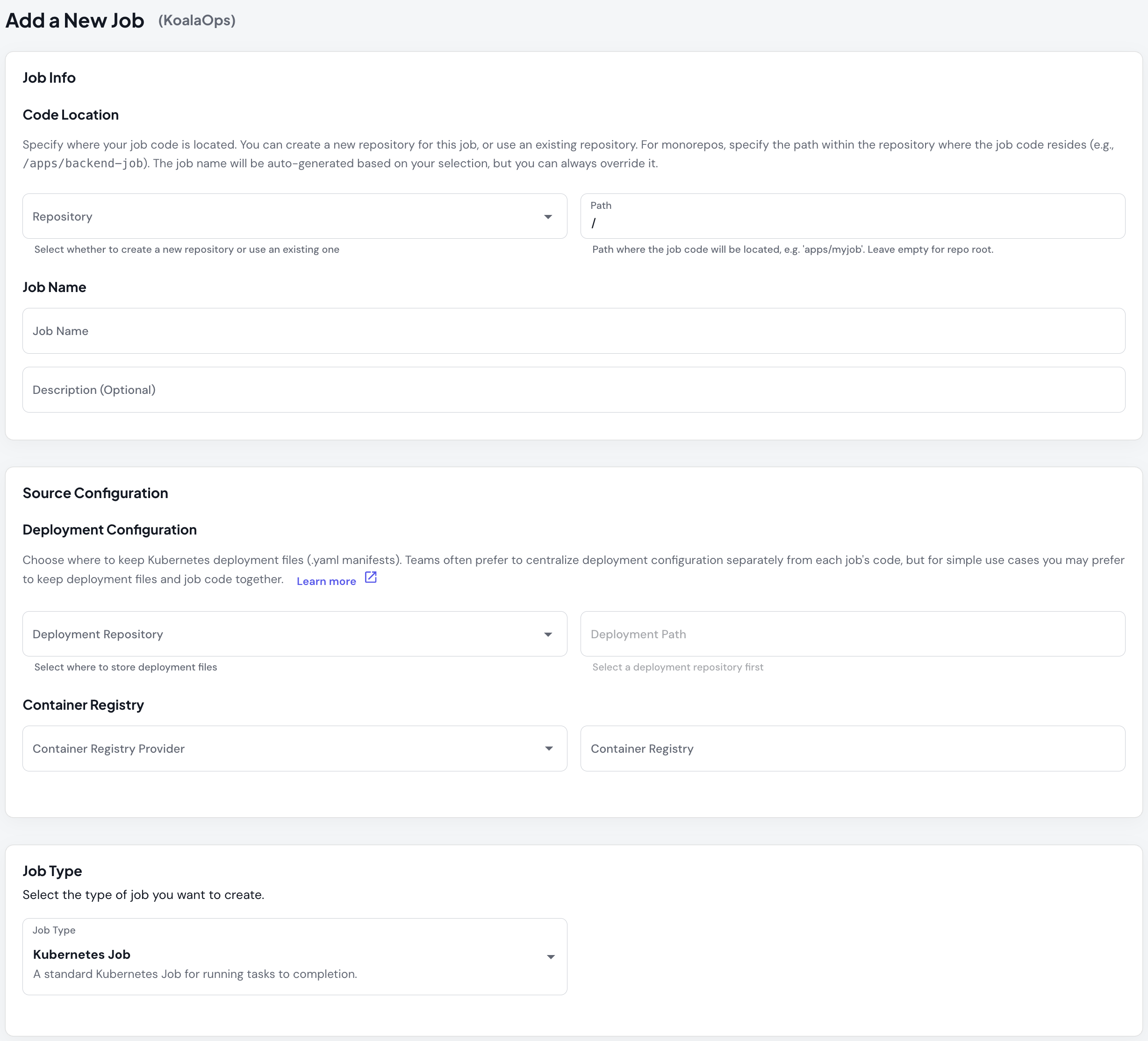 ### 2. Basic Details
Configure your job's fundamental properties:
**Job Name**
* Must be lowercase with no spaces
* Use hyphens for multi-word names (e.g., `daily-data-sync`)
* Must be unique within your organization
**Description** (optional)
* Brief explanation of the job's purpose
* Helps team members understand the job's function
**Container Registry**
* Select where your Docker images will be stored
* Supports ECR, GCR, GHCR, Docker Hub, and custom registries
* Format varies by provider:
* **AWS ECR**: `123456789.dkr.ecr.us-east-1.amazonaws.com`
* **GCP Artifact Registry**: `us-docker.pkg.dev/project-id/repository`
* **GHCR**: `ghcr.io/organization`
### 3. Repository Configuration
Choose how to set up your job's code repository:
**Option A: Create New Repository**
* Skyhook creates a new Git repository for your job
* Initializes with basic job structure
* Best for brand new jobs
**Option B: Use Existing Repository (Multiple Jobs/Services)**
* Add job to an existing repository with multiple jobs or services
* Specify the path within the repository (e.g., `/jobs/my-job`)
* Share code and infrastructure with other jobs/services
* [Learn more about Multiple Services in One Repository](/application/repository/monorepos)
**Option C: Import Existing Repository**
* Connect an existing repository containing job code
* Provide repository URL and path
* Skyhook configures CI/CD for the existing code
**Deployment Repository:**
You'll also choose where to store Kubernetes manifests and deployment configuration:
* **Keep in job repository** - Deployment files alongside code (simpler)
* **Create separate deployment repository** - Dedicated repo for configs
* **Use existing deployment repository** - Add to centralized deployment repo
[Learn more about Deployment Repository Options](/application/repository/deployment-repositories)
### 4. Select Job Type
Choose between Kubernetes Job (one-time), Kubernetes CronJob (scheduled), [Argo Workflow](/application/jobs/argo-workflows), or [Argo CronWorkflow](/application/jobs/argo-workflows).
The dropdown displays each job type with a description to help you choose the right option for your use case.
### 5. Cron Configuration (CronJob only)
When you select CronJob, additional scheduling options appear:
### 2. Basic Details
Configure your job's fundamental properties:
**Job Name**
* Must be lowercase with no spaces
* Use hyphens for multi-word names (e.g., `daily-data-sync`)
* Must be unique within your organization
**Description** (optional)
* Brief explanation of the job's purpose
* Helps team members understand the job's function
**Container Registry**
* Select where your Docker images will be stored
* Supports ECR, GCR, GHCR, Docker Hub, and custom registries
* Format varies by provider:
* **AWS ECR**: `123456789.dkr.ecr.us-east-1.amazonaws.com`
* **GCP Artifact Registry**: `us-docker.pkg.dev/project-id/repository`
* **GHCR**: `ghcr.io/organization`
### 3. Repository Configuration
Choose how to set up your job's code repository:
**Option A: Create New Repository**
* Skyhook creates a new Git repository for your job
* Initializes with basic job structure
* Best for brand new jobs
**Option B: Use Existing Repository (Multiple Jobs/Services)**
* Add job to an existing repository with multiple jobs or services
* Specify the path within the repository (e.g., `/jobs/my-job`)
* Share code and infrastructure with other jobs/services
* [Learn more about Multiple Services in One Repository](/application/repository/monorepos)
**Option C: Import Existing Repository**
* Connect an existing repository containing job code
* Provide repository URL and path
* Skyhook configures CI/CD for the existing code
**Deployment Repository:**
You'll also choose where to store Kubernetes manifests and deployment configuration:
* **Keep in job repository** - Deployment files alongside code (simpler)
* **Create separate deployment repository** - Dedicated repo for configs
* **Use existing deployment repository** - Add to centralized deployment repo
[Learn more about Deployment Repository Options](/application/repository/deployment-repositories)
### 4. Select Job Type
Choose between Kubernetes Job (one-time), Kubernetes CronJob (scheduled), [Argo Workflow](/application/jobs/argo-workflows), or [Argo CronWorkflow](/application/jobs/argo-workflows).
The dropdown displays each job type with a description to help you choose the right option for your use case.
### 5. Cron Configuration (CronJob only)
When you select CronJob, additional scheduling options appear:
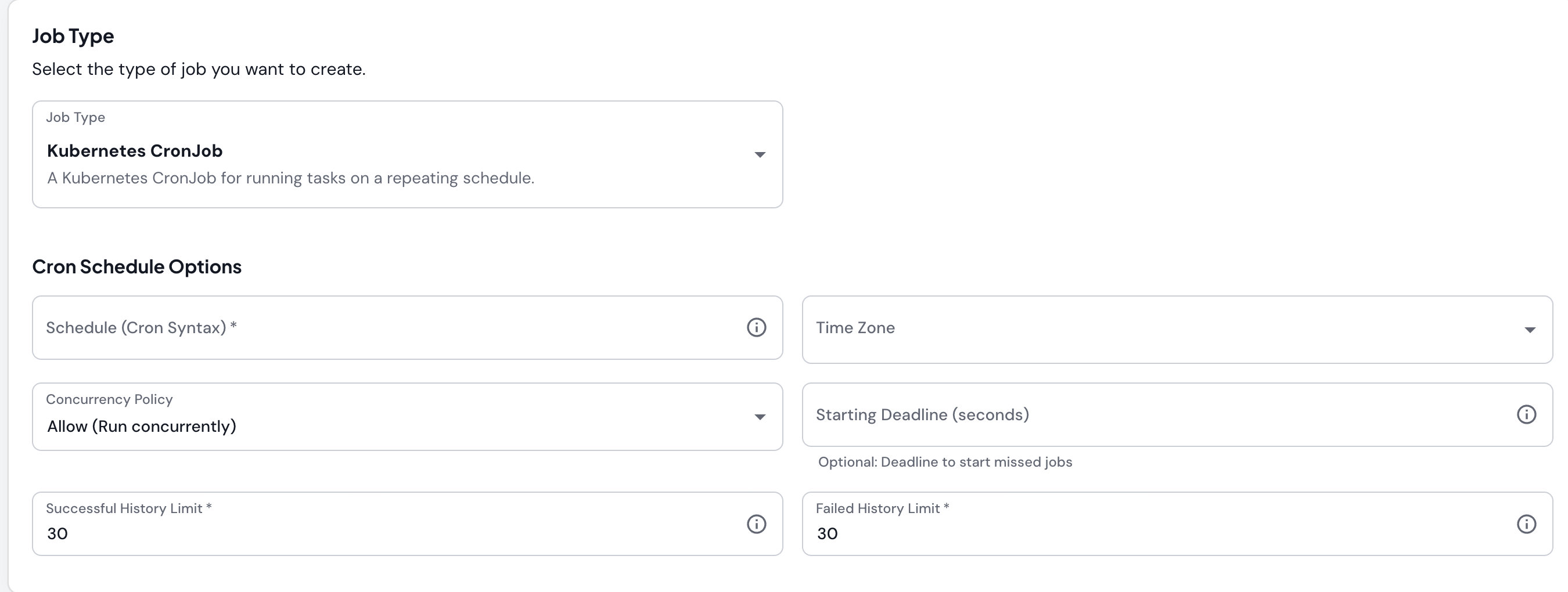 **Cron Schedule** (required)
* Standard 5-field cron expression: `minute hour day month weekday`
* Examples:
* `0 2 * * *` - Every day at 2:00 AM
* `0 */6 * * *` - Every 6 hours
* `0 0 * * 0` - Every Sunday at midnight
* `30 14 1 * *` - At 2:30 PM on the first day of each month
* Shortcuts:
* `@hourly` - Run every hour
* `@daily` or `@midnight` - Run daily at midnight
* `@weekly` - Run weekly on Sunday at midnight
* `@monthly` - Run monthly on the first at midnight
**Timezone** (optional, defaults to UTC)
* Select from searchable dropdown of all IANA timezones
* UI displays current UTC offset for each timezone (e.g., `America/New_York (GMT-5)`)
* Ensures schedule runs at the correct local time regardless of DST changes
**Concurrency Policy** (optional, defaults to Allow)
* **Allow** - Allow concurrent executions (jobs can overlap)
* **Forbid** - Skip new run if previous is still running
* **Replace** - Cancel previous run and start new one
**Starting Deadline Seconds** (optional)
* Maximum seconds to start a missed job
* If job misses its schedule and this deadline passes, skip it
* Useful for preventing backlog of missed jobs
**Successful Jobs History Limit** (optional, default 30)
* Number of successful job pods to retain
* Older successful jobs are automatically cleaned up
* Recommended: 3-30 depending on debugging needs
**Failed Jobs History Limit** (optional, default 30)
* Number of failed job pods to retain
* Keep failed jobs longer for debugging
* Recommended: 1-30 depending on failure frequency
### 6. Add Environments
Configure where your job will run:
1. Click **Add Environment**
2. For each environment, provide:
* **Name** - Environment identifier (dev, staging, prod, etc.)
* **Namespace** - Kubernetes namespace (must exist in cluster)
* **Cluster** - Select from available clusters in your organization
3. Add multiple environments as needed
### 7. Submit and Create
1. Review all configuration
2. Click **Create Job**
3. Skyhook creates the job and redirects to the job detail page
## Executing Jobs
**Cron Schedule** (required)
* Standard 5-field cron expression: `minute hour day month weekday`
* Examples:
* `0 2 * * *` - Every day at 2:00 AM
* `0 */6 * * *` - Every 6 hours
* `0 0 * * 0` - Every Sunday at midnight
* `30 14 1 * *` - At 2:30 PM on the first day of each month
* Shortcuts:
* `@hourly` - Run every hour
* `@daily` or `@midnight` - Run daily at midnight
* `@weekly` - Run weekly on Sunday at midnight
* `@monthly` - Run monthly on the first at midnight
**Timezone** (optional, defaults to UTC)
* Select from searchable dropdown of all IANA timezones
* UI displays current UTC offset for each timezone (e.g., `America/New_York (GMT-5)`)
* Ensures schedule runs at the correct local time regardless of DST changes
**Concurrency Policy** (optional, defaults to Allow)
* **Allow** - Allow concurrent executions (jobs can overlap)
* **Forbid** - Skip new run if previous is still running
* **Replace** - Cancel previous run and start new one
**Starting Deadline Seconds** (optional)
* Maximum seconds to start a missed job
* If job misses its schedule and this deadline passes, skip it
* Useful for preventing backlog of missed jobs
**Successful Jobs History Limit** (optional, default 30)
* Number of successful job pods to retain
* Older successful jobs are automatically cleaned up
* Recommended: 3-30 depending on debugging needs
**Failed Jobs History Limit** (optional, default 30)
* Number of failed job pods to retain
* Keep failed jobs longer for debugging
* Recommended: 1-30 depending on failure frequency
### 6. Add Environments
Configure where your job will run:
1. Click **Add Environment**
2. For each environment, provide:
* **Name** - Environment identifier (dev, staging, prod, etc.)
* **Namespace** - Kubernetes namespace (must exist in cluster)
* **Cluster** - Select from available clusters in your organization
3. Add multiple environments as needed
### 7. Submit and Create
1. Review all configuration
2. Click **Create Job**
3. Skyhook creates the job and redirects to the job detail page
## Executing Jobs
Deploy & Run in one action
Kubernetes Jobs combine deployment and execution in a single action.
**To execute:**
1. Navigate to your job's detail page
2. Click **Deploy & Run**
3. Configure deployment options:
* Build new image or deploy existing image
* Select Git code reference (branch, tag, commit)
* Choose config reference for Kubernetes manifests
* Pick target environment
4. Review deployment summary
5. Click **Deploy**
**What happens:**
* GitHub Actions workflow builds image (if needed)
* Deploys job manifest to cluster
* Job immediately creates pod(s) and starts execution
* Job runs to completion
* Pod cleanup after TTL expiration
**Execution tracking:**
* View workflow progress via GitHub Actions link
* Monitor job status on Executions tab
* Check pod logs once running
Automatic + manual execution
CronJobs execute automatically on schedule but can also be triggered manually.
**Scheduled Execution (Automatic):**
* Runs automatically based on configured cron schedule
* Creates new job instance at each scheduled time
* Timezone-aware scheduling
* No manual action required
**Manual Execution:**
1. Navigate to job's detail page
2. Click **Run Now**
3. Select target environment
4. Click **Execute**
**What happens:**
* CronJob controller creates a new Job instance
* Job executes immediately (outside of schedule)
* Does not affect next scheduled run
* Tracked separately in execution history
**Concurrency behavior:**
* **Allow** - New execution starts even if previous still running
* **Forbid** - Skips execution if previous job still running
* **Replace** - Cancels previous job and starts new one
## Monitoring Executions
### Executions Tab
The Executions tab provides a comprehensive view of all job runs.
**Access:**
1. Navigate to job detail page
2. Click **Executions** tab
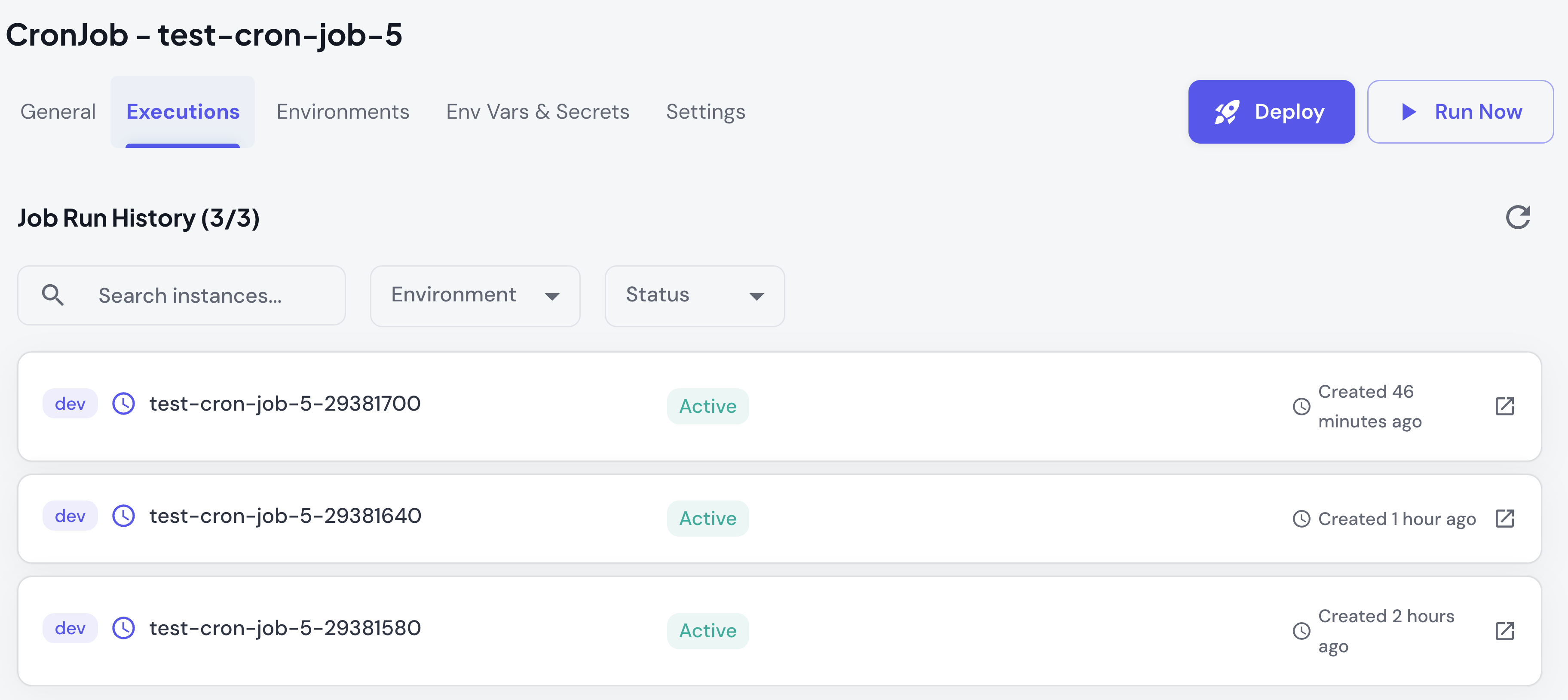 **What you see:**
* List of all job instances/executions
* Status for each execution (Running, Succeeded, Failed, Pending)
* Start time, completion time, duration
* Environment where job ran
* Filter and search capabilities
**Filters:**
* By environment (dev, staging, prod)
* By status (succeeded, failed, running)
* By job name (search/filter)
* Date range (recent executions)
### Execution Status
Jobs display different statuses throughout their lifecycle:
| Status | Description | Indicates |
| --------------- | --------------------------------- | ----------------------------------- |
| 🟡 **Pending** | Job created but not yet running | Waiting for resources or schedule |
| 🔵 **Running** | Job currently executing | Pods are active and processing |
| ✅ **Succeeded** | Job completed successfully | All pods finished with exit code 0 |
| ❌ **Failed** | Job did not complete successfully | Pods failed or retry limit exceeded |
| ⚪ **Unknown** | Status cannot be determined | Possible connectivity issues |
### Job Details
Execution details show:
**Pod Information:**
* **Active Pods** - Currently running
* **Succeeded Pods** - Completed successfully
* **Failed Pods** - Terminated with errors
**Job Specifications:**
* Completions required
* Parallelism (concurrent pods)
* Restart policy
* Active deadline
**Timing:**
* Start time
* Completion time (when finished)
* Duration (total execution time)
**Actions:**
* View pod logs
* Inspect pod details
* Download logs
### Viewing Logs
**Access Pod Logs:**
1. Click on a job execution in the list
2. Expand pod details
3. Click **View Logs**
4. Logs display in real-time
## Managing Your Job
The job detail page provides everything you need to manage your job through the Skyhook UI:
**General Tab**
* View basic details and cron schedule (for CronJobs)
* See next run time and recent execution history
* Quick status overview with badges
**Environments Tab**
* Add, edit, or remove environments
* Update cluster and namespace assignments
* Environment-specific configuration
**Env Vars & Secrets Tab**
* Set global variables (shared across all environments)
* Configure environment-specific variables
* Manage encrypted secrets (integrated with Sealed Secrets)
**Settings Tab**
* Update execution settings (active deadline, retry strategy)
* Configure resource limits (CPU, memory)
* Adjust history retention limits (for CronJobs)
For advanced users, Skyhook uses Kustomize to manage job configurations. Jobs are stored in Git with environment-specific overrides:
```
my-job/
├── base/
│ ├── job.yaml # Job or CronJob definition
│ └── kustomization.yaml
│
└── overlays/
├── dev/
│ ├── kustomization.yaml
│ ├── job-patch.yaml # Dev-specific overrides
│ └── .env
│
└── prod/
├── kustomization.yaml
├── job-patch.yaml # Prod-specific overrides
└── .env
```
**Base configuration** defines the core job specification (container image, command, resources).
**Environment overlays** provide environment-specific customizations (different resources, schedules, env vars per environment).
You can edit these files directly in your Git repository for advanced configuration not available in the UI.
## Common Tasks
1. Go to **Settings** tab
2. Update cron schedule expression
3. Optionally update timezone
4. Click **Save**
5. Deploy changes to environments
1. Navigate to **Env Vars & Secrets** tab
2. Click **Add**
3. Choose variable type (global, environment-specific, or secret)
4. Enter key and value
5. Click **Save**
6. Redeploy job to apply
1. Go to **Settings** → **Execution** section
2. Update CPU or memory limits
3. Click **Save**
4. Redeploy to environment
UI support for pausing CronJobs is coming soon.
For now, use kubectl:
```bash theme={"system"}
kubectl patch cronjob my-job -n namespace -p '{"spec":{"suspend":true}}'
```
To resume, set `suspend` to `false`.
## Best Practices
**Scheduling (for CronJobs):**
* Use timezone-aware schedules to avoid DST issues
* Use **Forbid** concurrency policy for jobs that shouldn't overlap
* Adjust history limits from defaults (30 each) based on debugging needs and storage capacity
* Test cron expressions before deploying: [crontab.guru](https://crontab.guru)
**Resource Management:**
* Set active deadlines to prevent runaway jobs
* Configure resource limits based on actual usage
* Use more resources in production than dev
* Monitor execution duration trends and adjust
**Security:**
* Always use secrets (not env vars) for sensitive data
* Rotate secrets regularly
* Use different secrets per environment
* Never hardcode credentials in code or manifests
**What you see:**
* List of all job instances/executions
* Status for each execution (Running, Succeeded, Failed, Pending)
* Start time, completion time, duration
* Environment where job ran
* Filter and search capabilities
**Filters:**
* By environment (dev, staging, prod)
* By status (succeeded, failed, running)
* By job name (search/filter)
* Date range (recent executions)
### Execution Status
Jobs display different statuses throughout their lifecycle:
| Status | Description | Indicates |
| --------------- | --------------------------------- | ----------------------------------- |
| 🟡 **Pending** | Job created but not yet running | Waiting for resources or schedule |
| 🔵 **Running** | Job currently executing | Pods are active and processing |
| ✅ **Succeeded** | Job completed successfully | All pods finished with exit code 0 |
| ❌ **Failed** | Job did not complete successfully | Pods failed or retry limit exceeded |
| ⚪ **Unknown** | Status cannot be determined | Possible connectivity issues |
### Job Details
Execution details show:
**Pod Information:**
* **Active Pods** - Currently running
* **Succeeded Pods** - Completed successfully
* **Failed Pods** - Terminated with errors
**Job Specifications:**
* Completions required
* Parallelism (concurrent pods)
* Restart policy
* Active deadline
**Timing:**
* Start time
* Completion time (when finished)
* Duration (total execution time)
**Actions:**
* View pod logs
* Inspect pod details
* Download logs
### Viewing Logs
**Access Pod Logs:**
1. Click on a job execution in the list
2. Expand pod details
3. Click **View Logs**
4. Logs display in real-time
## Managing Your Job
The job detail page provides everything you need to manage your job through the Skyhook UI:
**General Tab**
* View basic details and cron schedule (for CronJobs)
* See next run time and recent execution history
* Quick status overview with badges
**Environments Tab**
* Add, edit, or remove environments
* Update cluster and namespace assignments
* Environment-specific configuration
**Env Vars & Secrets Tab**
* Set global variables (shared across all environments)
* Configure environment-specific variables
* Manage encrypted secrets (integrated with Sealed Secrets)
**Settings Tab**
* Update execution settings (active deadline, retry strategy)
* Configure resource limits (CPU, memory)
* Adjust history retention limits (for CronJobs)
For advanced users, Skyhook uses Kustomize to manage job configurations. Jobs are stored in Git with environment-specific overrides:
```
my-job/
├── base/
│ ├── job.yaml # Job or CronJob definition
│ └── kustomization.yaml
│
└── overlays/
├── dev/
│ ├── kustomization.yaml
│ ├── job-patch.yaml # Dev-specific overrides
│ └── .env
│
└── prod/
├── kustomization.yaml
├── job-patch.yaml # Prod-specific overrides
└── .env
```
**Base configuration** defines the core job specification (container image, command, resources).
**Environment overlays** provide environment-specific customizations (different resources, schedules, env vars per environment).
You can edit these files directly in your Git repository for advanced configuration not available in the UI.
## Common Tasks
1. Go to **Settings** tab
2. Update cron schedule expression
3. Optionally update timezone
4. Click **Save**
5. Deploy changes to environments
1. Navigate to **Env Vars & Secrets** tab
2. Click **Add**
3. Choose variable type (global, environment-specific, or secret)
4. Enter key and value
5. Click **Save**
6. Redeploy job to apply
1. Go to **Settings** → **Execution** section
2. Update CPU or memory limits
3. Click **Save**
4. Redeploy to environment
UI support for pausing CronJobs is coming soon.
For now, use kubectl:
```bash theme={"system"}
kubectl patch cronjob my-job -n namespace -p '{"spec":{"suspend":true}}'
```
To resume, set `suspend` to `false`.
## Best Practices
**Scheduling (for CronJobs):**
* Use timezone-aware schedules to avoid DST issues
* Use **Forbid** concurrency policy for jobs that shouldn't overlap
* Adjust history limits from defaults (30 each) based on debugging needs and storage capacity
* Test cron expressions before deploying: [crontab.guru](https://crontab.guru)
**Resource Management:**
* Set active deadlines to prevent runaway jobs
* Configure resource limits based on actual usage
* Use more resources in production than dev
* Monitor execution duration trends and adjust
**Security:**
* Always use secrets (not env vars) for sensitive data
* Rotate secrets regularly
* Use different secrets per environment
* Never hardcode credentials in code or manifests