> ## Documentation Index
> Fetch the complete documentation index at: https://docs.skyhook.io/llms.txt
> Use this file to discover all available pages before exploring further.
# Environment Variables & Secrets
Configure environment variables and secrets for your services to manage configuration across different environments like development, staging, and production.
## Accessing Environment Variables & Secrets
Environment variables and secrets are configured per service:
1. Navigate to **Services** in the sidebar
2. Select your service
3. Click the **Env Vars & Secrets** tab
 ## Environment Variables
### Base Variables (All Environments)
Base variables apply to all environments unless overridden. Use these for configuration that's consistent across environments.
**To add a base variable**:
1. Click **base (default)** in the environment selector
2. Click **Add**
3. Enter the **Key** and **Value**
4. Click **Apply** to save changes
### Environment-Specific Variables
Override base variables or add environment-specific configuration by selecting an environment from the sidebar.
## Environment Variables
### Base Variables (All Environments)
Base variables apply to all environments unless overridden. Use these for configuration that's consistent across environments.
**To add a base variable**:
1. Click **base (default)** in the environment selector
2. Click **Add**
3. Enter the **Key** and **Value**
4. Click **Apply** to save changes
### Environment-Specific Variables
Override base variables or add environment-specific configuration by selecting an environment from the sidebar.
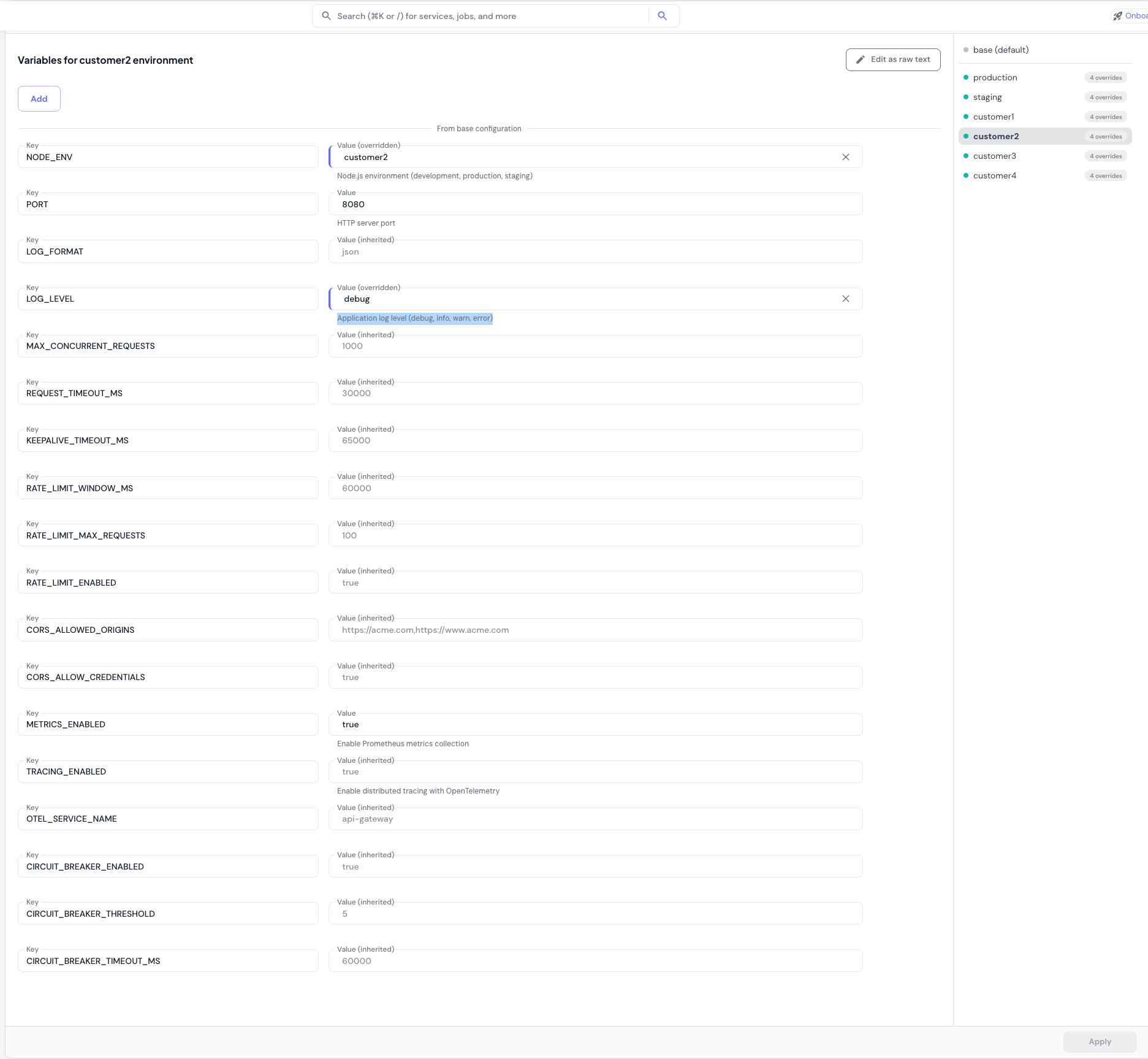 **To add or override environment-specific variables**:
1. Select an environment from the sidebar (e.g., "production")
2. Click **Add** or modify existing variables
3. Variables inherited from base configuration are labeled as "(inherited)"
4. Click **Apply** to save changes
Variables you define in an environment override the base value for that environment only. Other environments continue using the base value.
### Edit as Raw Text
For bulk editing, click **Edit as raw text** to edit variables in `KEY=VALUE` format. This is useful when importing variables from another source or making multiple changes at once.
## Secrets Management
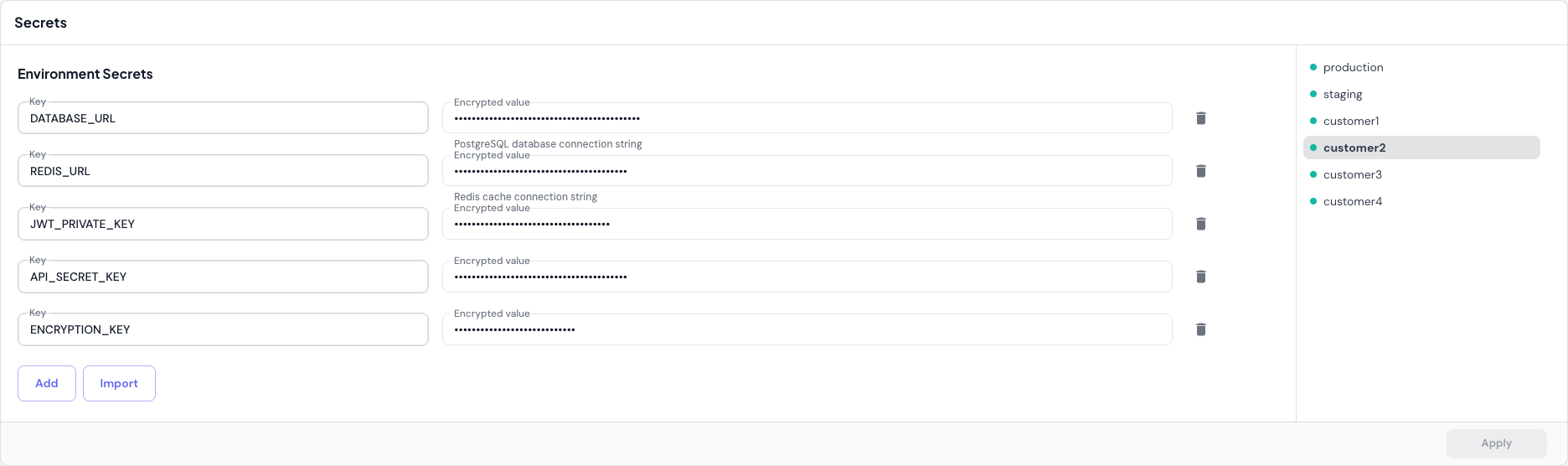
Secrets are environment-specific only. Each environment (production, staging, etc.) has its own set of secrets.
Two places to manage secrets in Skyhook:
* **Per-service Env Vars & Secrets tab** — described on this page, for secrets scoped to a single service
* **Settings → Secrets** — a cluster-wide view where you can see every sealed secret across all services and clusters, create shared secrets that multiple services can reference, and bulk-manage rotations. See the [Secrets settings page](#secrets-settings-page) section below.
### Adding Secrets
Secrets are encrypted using [Bitnami Sealed Secrets](https://github.com/bitnami-labs/sealed-secrets) before being stored in your repository. This ensures sensitive data like API keys, database passwords, and tokens remain secure.
**To add a secret**:
1. Select an environment from the sidebar in the Secrets section
2. Click **Add**
3. Enter the **Key** (e.g., `DATABASE_URL`, `API_KEY`)
4. Enter the plain-text **Value**
5. Click **Apply**
Once saved, secrets are displayed in encrypted form (`sealed:encrypted_content_here`). You can edit the encrypted value, but to change the actual secret, delete it and re-add with a new plain-text value.
### Import Secrets
Click **Import** to import secrets from a file or from another service. The **Copy from another service** dialog lets you:
* Filter to secrets from a specific service (useful when you have many services)
* **Select all** to copy every secret from the picked service — Skyhook deduplicates on name so you don't end up with multiple copies of the same key
* Individually pick specific secrets to copy
This is the fastest way to bootstrap a new environment or a new service with shared credentials from an existing one.
### Shared environment secret
For credentials that apply to **every service in an environment** (like a shared database password or an org-wide API key), enable the **shared environment secret** toggle on the service's deployment settings. When enabled, Skyhook adds a reference to the shared secret `-shared-env-vars` in your service's pod spec. The shared secret itself lives once per environment and is consumed by any service that has the toggle turned on.
The reference uses `envFrom`, which means every key in the shared secret becomes an environment variable automatically — no per-key wiring required. New keys you add to the shared secret become available to all consuming services on the next restart.
The shared secret is marked optional, so your pods still start even if the shared secret hasn't been created yet — they just won't have those variables set. Useful for staged rollouts where you add the toggle first and create the secret later.
### How Sealed Secrets Work
1. **Encryption**: When you add a secret, Skyhook encrypts it with a public key before storing it in your repository
2. **Storage**: Encrypted secrets are safe to store in Git alongside your code
3. **Decryption**: The Sealed Secrets controller in your Kubernetes cluster decrypts secrets at runtime using a private key
4. **Security**: Skyhook never has access to the private decryption key; only your clusters can decrypt secrets
This provides:
* **Version control** for secrets (track changes, revert if needed)
* **Audit trail** (see who modified secrets and when)
* **Secure storage** (encrypted values are safe even if your repository is compromised)
## Secrets settings page
For a cluster-wide view, navigate to **Settings → Secrets** in the sidebar. This page lists every sealed secret in your organization with full create, rename, edit, and delete support across all your clusters.
**To add or override environment-specific variables**:
1. Select an environment from the sidebar (e.g., "production")
2. Click **Add** or modify existing variables
3. Variables inherited from base configuration are labeled as "(inherited)"
4. Click **Apply** to save changes
Variables you define in an environment override the base value for that environment only. Other environments continue using the base value.
### Edit as Raw Text
For bulk editing, click **Edit as raw text** to edit variables in `KEY=VALUE` format. This is useful when importing variables from another source or making multiple changes at once.
## Secrets Management
Secrets are environment-specific only. Each environment (production, staging, etc.) has its own set of secrets.
Two places to manage secrets in Skyhook:
* **Per-service Env Vars & Secrets tab** — described on this page, for secrets scoped to a single service
* **Settings → Secrets** — a cluster-wide view where you can see every sealed secret across all services and clusters, create shared secrets that multiple services can reference, and bulk-manage rotations. See the [Secrets settings page](#secrets-settings-page) section below.
### Adding Secrets
Secrets are encrypted using [Bitnami Sealed Secrets](https://github.com/bitnami-labs/sealed-secrets) before being stored in your repository. This ensures sensitive data like API keys, database passwords, and tokens remain secure.
**To add a secret**:
1. Select an environment from the sidebar in the Secrets section
2. Click **Add**
3. Enter the **Key** (e.g., `DATABASE_URL`, `API_KEY`)
4. Enter the plain-text **Value**
5. Click **Apply**
Once saved, secrets are displayed in encrypted form (`sealed:encrypted_content_here`). You can edit the encrypted value, but to change the actual secret, delete it and re-add with a new plain-text value.
### Import Secrets
Click **Import** to import secrets from a file or from another service. The **Copy from another service** dialog lets you:
* Filter to secrets from a specific service (useful when you have many services)
* **Select all** to copy every secret from the picked service — Skyhook deduplicates on name so you don't end up with multiple copies of the same key
* Individually pick specific secrets to copy
This is the fastest way to bootstrap a new environment or a new service with shared credentials from an existing one.
### Shared environment secret
For credentials that apply to **every service in an environment** (like a shared database password or an org-wide API key), enable the **shared environment secret** toggle on the service's deployment settings. When enabled, Skyhook adds a reference to the shared secret `-shared-env-vars` in your service's pod spec. The shared secret itself lives once per environment and is consumed by any service that has the toggle turned on.
The reference uses `envFrom`, which means every key in the shared secret becomes an environment variable automatically — no per-key wiring required. New keys you add to the shared secret become available to all consuming services on the next restart.
The shared secret is marked optional, so your pods still start even if the shared secret hasn't been created yet — they just won't have those variables set. Useful for staged rollouts where you add the toggle first and create the secret later.
### How Sealed Secrets Work
1. **Encryption**: When you add a secret, Skyhook encrypts it with a public key before storing it in your repository
2. **Storage**: Encrypted secrets are safe to store in Git alongside your code
3. **Decryption**: The Sealed Secrets controller in your Kubernetes cluster decrypts secrets at runtime using a private key
4. **Security**: Skyhook never has access to the private decryption key; only your clusters can decrypt secrets
This provides:
* **Version control** for secrets (track changes, revert if needed)
* **Audit trail** (see who modified secrets and when)
* **Secure storage** (encrypted values are safe even if your repository is compromised)
## Secrets settings page
For a cluster-wide view, navigate to **Settings → Secrets** in the sidebar. This page lists every sealed secret in your organization with full create, rename, edit, and delete support across all your clusters.
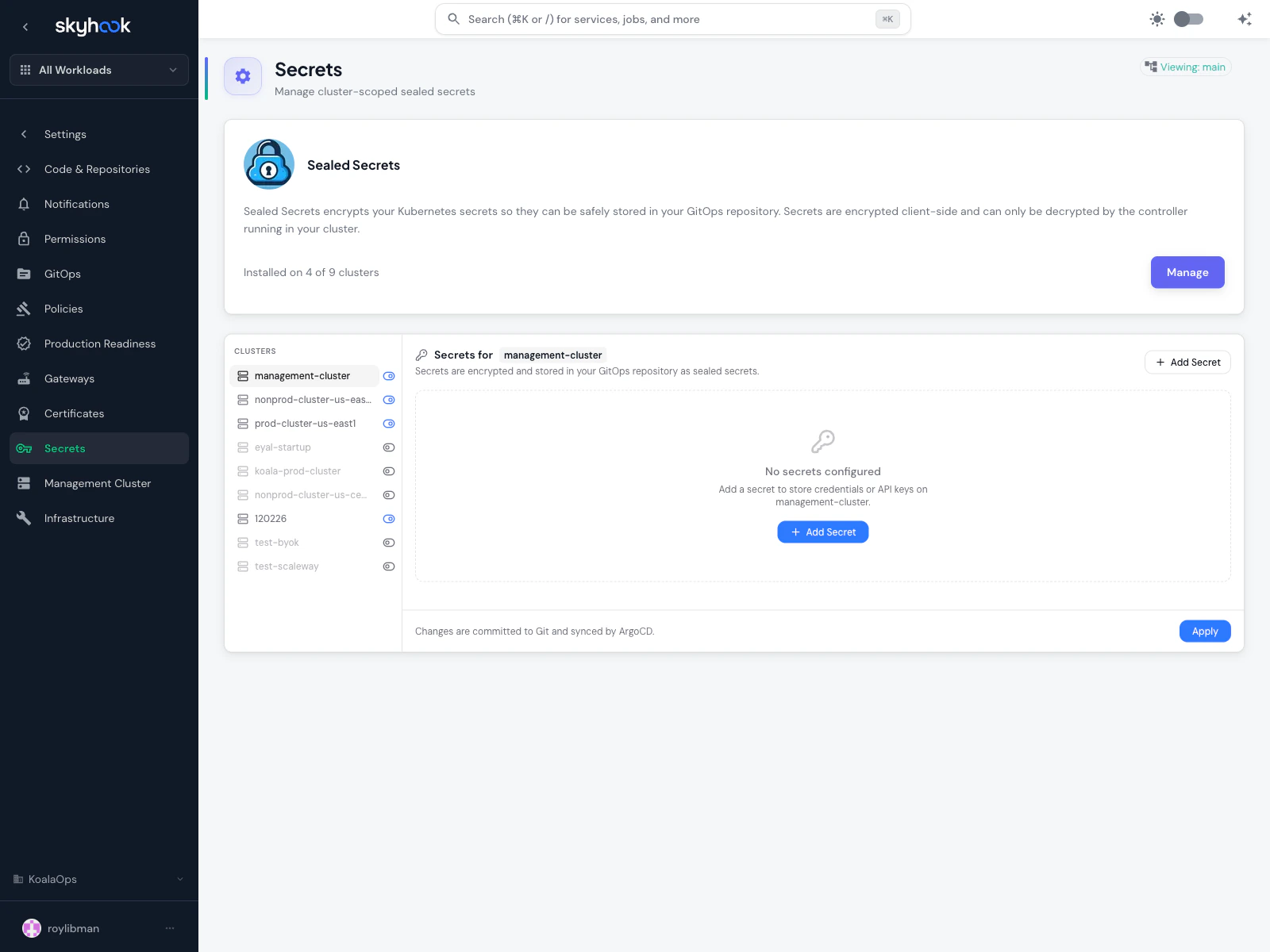 ### What you can do here
* **Cluster picker** — switch between clusters to see secrets scoped to each one
* **Installation check** — at the top, Skyhook tells you how many clusters have the Sealed Secrets addon installed and offers a **Manage** button if you need to add it to more
* **Add Secret** — create a new sealed secret with a name, keys, and values. The secret is encrypted client-side so plain-text values never leave your browser.
* **Rename** — safely rename a secret, which updates every reference across your GitOps repository
* **Edit values** — update the keys or values for an existing secret. Values are re-encrypted on save.
* **Delete** — remove a secret and its references
All changes go through the standard [pull request review](/infrastructure/gitops/branches-and-prs) flow before landing in your clusters.
Use this page for **shared** secrets that multiple services consume (database credentials, third-party API keys). Use the per-service **Env Vars & Secrets** tab for secrets scoped to a single service.
## Auto-Reload on Configuration Changes
By default, Kubernetes does not restart pods when environment variables or secrets change. Enable auto-reload to ensure your service automatically restarts with the latest configuration.
### Enabling Auto-Reload
1. Scroll to the **Deployment Configuration** section
2. Check **Reload on Environment Variables or Secrets Update**
3. Click **Apply**
Auto-reload requires the [Reloader add-on](/infrastructure/addons/overview) to be installed on your clusters. Install it from the [Addons page](https://app.skyhook.io/settings/gitops) before enabling this feature.
### How It Works
When enabled, [Reloader](https://github.com/stakater/Reloader) monitors ConfigMaps and Secrets for changes and triggers a rolling restart of your service pods automatically. This ensures:
* No manual pod restarts needed
* Configuration changes take effect immediately
* Zero-downtime updates with rolling restart strategy
* Better automation in CI/CD and GitOps workflows
## Best Practices
### Environment Variables vs Secrets
Use **environment variables** for:
* Non-sensitive configuration (log levels, feature flags, ports)
* Values that may change between environments
* Public API endpoints or identifiers
Use **secrets** for:
* Passwords, API keys, tokens, certificates
* Database connection strings (if they contain credentials)
* Any sensitive data that shouldn't be exposed
### Managing Secrets Safely
Never commit plain-text secrets to your code repository. Always use Skyhook's Secrets management or environment variables for sensitive data.
* **Rotate secrets regularly**: Update API keys and passwords periodically
* **Use environment-specific secrets**: Production should use different credentials than staging/dev
* **Limit access**: Only grant secret access to team members who need it
* **Delete unused secrets**: Remove old or deprecated secrets to reduce security surface
## Troubleshooting
### Changes Not Taking Effect
If your configuration changes aren't reflected in your running service:
1. **Verify changes were applied**: Check that you clicked **Apply** after making changes
2. **Check for auto-reload**: If auto-reload is disabled, manually restart pods:
```bash theme={"system"}
kubectl rollout restart deployment/ -n
```
3. **Verify Reloader is installed**: If auto-reload is enabled but not working, check that the Reloader add-on is installed on your cluster
### Encrypted Secret Values
If you see `sealed:encrypted_content_here` when viewing secrets, this is expected; secrets are encrypted for security. To update a secret with a new value:
1. Delete the existing secret using the trash icon
2. Add it again with the same key and new plain-text value
3. Click **Apply** to encrypt and save the new secret
### Variables with Quotes
Skyhook detects when variable values contain quotes and warns you if they might be included in the actual environment variable value. If you see a warning:
* **Remove quotes** if they're not intended (e.g., `"true"` should be `true`)
* **Keep quotes** if they're part of the value (e.g., a JSON string or value with spaces)
## Next Steps
* Learn about [service deployment](/application/services/deploy) to deploy configuration changes
* Set up [GitOps workflows](/infrastructure/gitops/overview) for automated deployments
* Configure [Sealed Secrets](/infrastructure/security/envvars-secrets) for your clusters (infrastructure setup)
### What you can do here
* **Cluster picker** — switch between clusters to see secrets scoped to each one
* **Installation check** — at the top, Skyhook tells you how many clusters have the Sealed Secrets addon installed and offers a **Manage** button if you need to add it to more
* **Add Secret** — create a new sealed secret with a name, keys, and values. The secret is encrypted client-side so plain-text values never leave your browser.
* **Rename** — safely rename a secret, which updates every reference across your GitOps repository
* **Edit values** — update the keys or values for an existing secret. Values are re-encrypted on save.
* **Delete** — remove a secret and its references
All changes go through the standard [pull request review](/infrastructure/gitops/branches-and-prs) flow before landing in your clusters.
Use this page for **shared** secrets that multiple services consume (database credentials, third-party API keys). Use the per-service **Env Vars & Secrets** tab for secrets scoped to a single service.
## Auto-Reload on Configuration Changes
By default, Kubernetes does not restart pods when environment variables or secrets change. Enable auto-reload to ensure your service automatically restarts with the latest configuration.
### Enabling Auto-Reload
1. Scroll to the **Deployment Configuration** section
2. Check **Reload on Environment Variables or Secrets Update**
3. Click **Apply**
Auto-reload requires the [Reloader add-on](/infrastructure/addons/overview) to be installed on your clusters. Install it from the [Addons page](https://app.skyhook.io/settings/gitops) before enabling this feature.
### How It Works
When enabled, [Reloader](https://github.com/stakater/Reloader) monitors ConfigMaps and Secrets for changes and triggers a rolling restart of your service pods automatically. This ensures:
* No manual pod restarts needed
* Configuration changes take effect immediately
* Zero-downtime updates with rolling restart strategy
* Better automation in CI/CD and GitOps workflows
## Best Practices
### Environment Variables vs Secrets
Use **environment variables** for:
* Non-sensitive configuration (log levels, feature flags, ports)
* Values that may change between environments
* Public API endpoints or identifiers
Use **secrets** for:
* Passwords, API keys, tokens, certificates
* Database connection strings (if they contain credentials)
* Any sensitive data that shouldn't be exposed
### Managing Secrets Safely
Never commit plain-text secrets to your code repository. Always use Skyhook's Secrets management or environment variables for sensitive data.
* **Rotate secrets regularly**: Update API keys and passwords periodically
* **Use environment-specific secrets**: Production should use different credentials than staging/dev
* **Limit access**: Only grant secret access to team members who need it
* **Delete unused secrets**: Remove old or deprecated secrets to reduce security surface
## Troubleshooting
### Changes Not Taking Effect
If your configuration changes aren't reflected in your running service:
1. **Verify changes were applied**: Check that you clicked **Apply** after making changes
2. **Check for auto-reload**: If auto-reload is disabled, manually restart pods:
```bash theme={"system"}
kubectl rollout restart deployment/ -n
```
3. **Verify Reloader is installed**: If auto-reload is enabled but not working, check that the Reloader add-on is installed on your cluster
### Encrypted Secret Values
If you see `sealed:encrypted_content_here` when viewing secrets, this is expected; secrets are encrypted for security. To update a secret with a new value:
1. Delete the existing secret using the trash icon
2. Add it again with the same key and new plain-text value
3. Click **Apply** to encrypt and save the new secret
### Variables with Quotes
Skyhook detects when variable values contain quotes and warns you if they might be included in the actual environment variable value. If you see a warning:
* **Remove quotes** if they're not intended (e.g., `"true"` should be `true`)
* **Keep quotes** if they're part of the value (e.g., a JSON string or value with spaces)
## Next Steps
* Learn about [service deployment](/application/services/deploy) to deploy configuration changes
* Set up [GitOps workflows](/infrastructure/gitops/overview) for automated deployments
* Configure [Sealed Secrets](/infrastructure/security/envvars-secrets) for your clusters (infrastructure setup)