> ## Documentation Index
> Fetch the complete documentation index at: https://docs.skyhook.io/llms.txt
> Use this file to discover all available pages before exploring further.
# Branches & Pull Requests
> Preview and edit configuration from any Git branch without leaving Skyhook, and review/approve/merge pull requests in-app.
Everything Skyhook manages lives in Git — service configuration, addon values, gateways, certificates, Kyverno policies, observability stacks. That means every time you make a change, Skyhook opens a pull request against your GitOps or deployment repository. Branches and in-app pull request review close the loop so you can see what's already pending, keep editing on an open branch, review the diff, and merge — all without jumping to GitHub.
## Branch indicator
Every page that edits GitOps-backed configuration shows a branch indicator at the top, next to the page title:
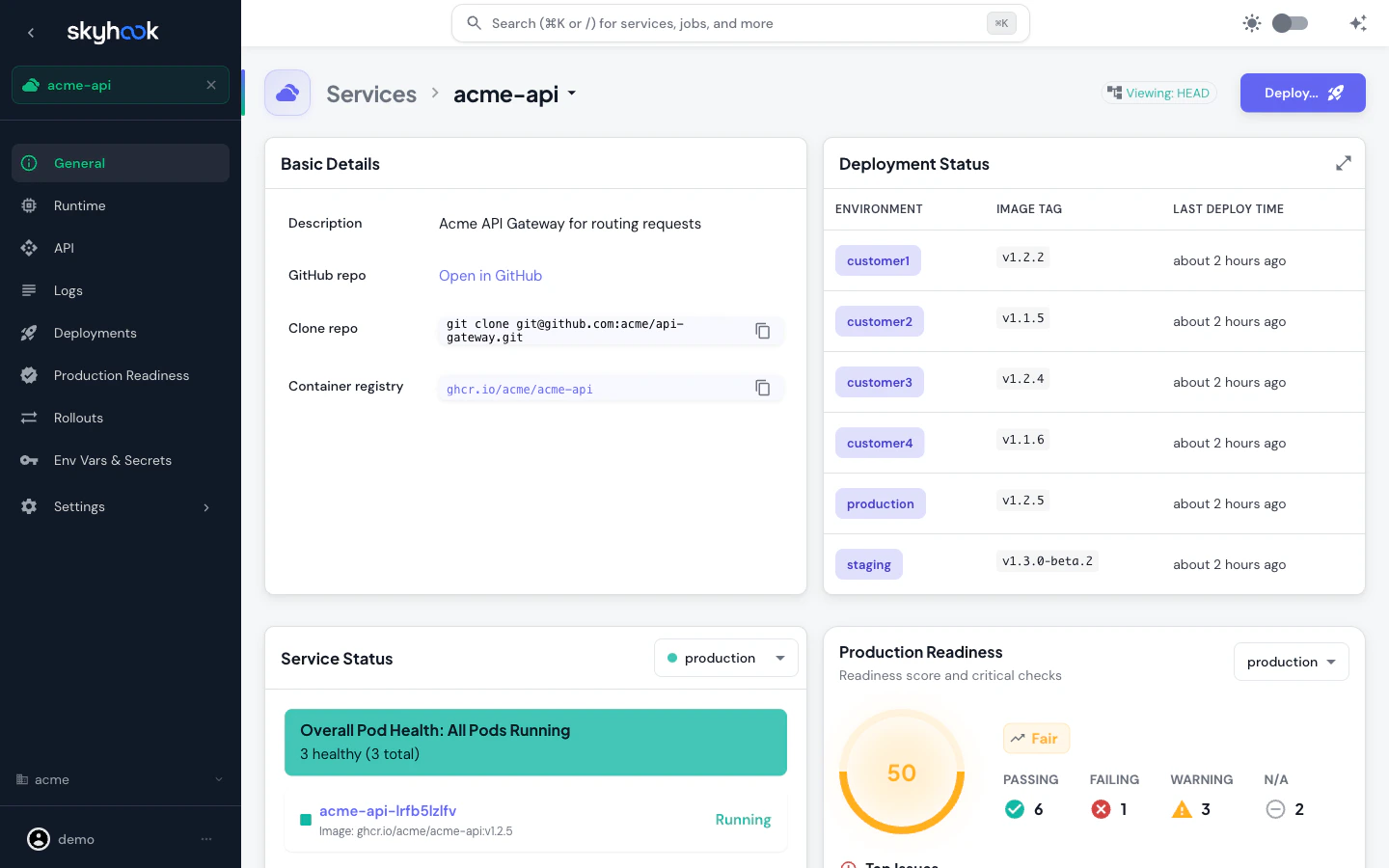 * **Viewing: HEAD** (green) — you're looking at the default branch of the configuration repo, i.e. the production configuration that's actually deployed.
* **Viewing: \** (blue) — you're previewing a specific working branch. Any edits you make get appended to that branch instead of creating a new one.
* **PR #N** chip (green pill) — if the active branch has an open pull request, Skyhook shows the PR number next to the branch chip.
Click the **Viewing** chip to open the branch switcher. Click the **PR** chip to open the in-app review (or ⌘-click / Ctrl-click to jump to GitHub).
### What the branch indicator affects
When you switch to a branch, the page re-fetches configuration from that branch — the values you see and edit reflect that branch's state, not main. This is true across:
* Service detail and settings pages
* Addon configure pages (both Helm and Kustomize editors)
* Gateway and certificate issuer forms
* Observability stack configuration
* Kyverno policies
* Environment configuration
If you switched to a branch in an earlier session, Skyhook remembers it per repository and checks the branch's PR status when you return.
**Branch persistence is per repo.** If you switch to `feature/add-otel` on the services repo, then navigate to an addon page whose config lives in a different repo, the addon page will still show `HEAD` — branch overrides don't leak between repos.
## Branch switcher
Click the branch indicator to open the **Select Git Reference** picker.
* **Viewing: HEAD** (green) — you're looking at the default branch of the configuration repo, i.e. the production configuration that's actually deployed.
* **Viewing: \** (blue) — you're previewing a specific working branch. Any edits you make get appended to that branch instead of creating a new one.
* **PR #N** chip (green pill) — if the active branch has an open pull request, Skyhook shows the PR number next to the branch chip.
Click the **Viewing** chip to open the branch switcher. Click the **PR** chip to open the in-app review (or ⌘-click / Ctrl-click to jump to GitHub).
### What the branch indicator affects
When you switch to a branch, the page re-fetches configuration from that branch — the values you see and edit reflect that branch's state, not main. This is true across:
* Service detail and settings pages
* Addon configure pages (both Helm and Kustomize editors)
* Gateway and certificate issuer forms
* Observability stack configuration
* Kyverno policies
* Environment configuration
If you switched to a branch in an earlier session, Skyhook remembers it per repository and checks the branch's PR status when you return.
**Branch persistence is per repo.** If you switch to `feature/add-otel` on the services repo, then navigate to an addon page whose config lives in a different repo, the addon page will still show `HEAD` — branch overrides don't leak between repos.
## Branch switcher
Click the branch indicator to open the **Select Git Reference** picker.
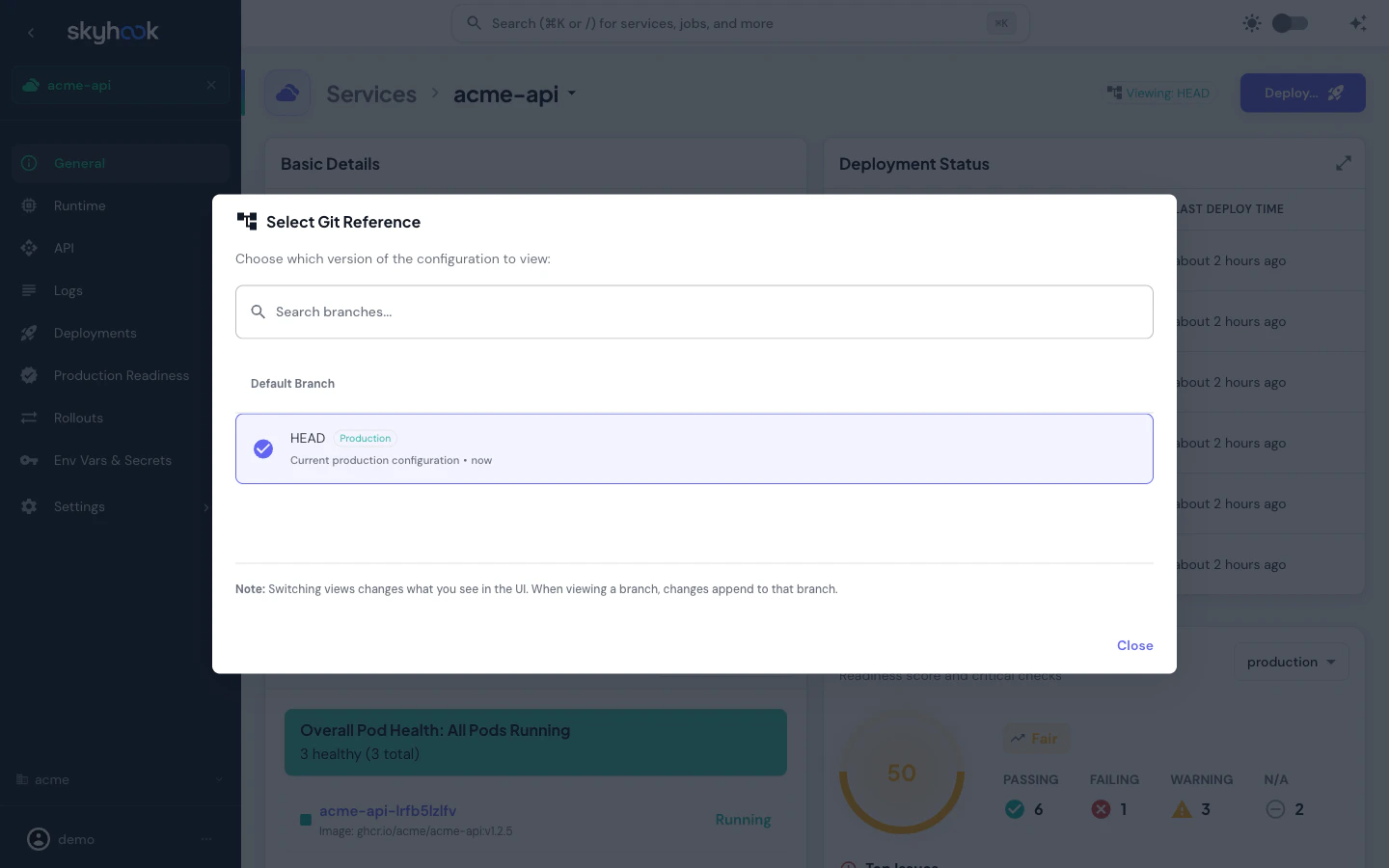 The branch list shows:
* **Default Branch** — the HEAD of main/master/develop, marked as the production configuration.
* **Branches with open PRs** — every branch that has a tracked pull request, with the PR number, branch name, commit SHA link, and last-updated timestamp.
* **All other branches** — everything else in the repository, loaded when you open the picker.
The search box filters the list in real time with highlighted matches. Clicking a branch switches the view; clicking the trash icon on a branch row offers to delete it (only for non-default branches with no open PRs).
Branch switching is repo-scoped. If you're on a service page and you switch to a branch, subsequent navigations within the same repo (other services in the same monorepo, for example) keep the branch active.
### PR status refresh
To keep page loads fast, Skyhook only checks the status of the PR you're currently working with. The full list of tracked PRs is refreshed when you open the branch switcher — the moment you actually need it.
## Reviewing pull requests in-app
Clicking the **PR #N** chip (from the branch indicator, the branch switcher, or the post-save confirmation banner) opens Skyhook's in-app pull request review.
It has two tabs:
### Overview
* PR title and body (rendered as markdown)
* Head → base branch arrows (`feature/add-otel` → `main`)
* Author with avatar
* Status chips — Open / Draft / Merged
* Created/updated timestamps
* Summary: additions, deletions, changed files
### Files Changed
Side-by-side diff for every changed file, like the GitHub "Files changed" view. The tab shows how many files were modified. For very large pull requests, GitHub may truncate the file list — Skyhook will let you know if it does.
### Review and merge
At the bottom of the review view:
* **Review** — approve, request changes, or leave a comment-only review, with an optional message
* **Merge** — merge the pull request using the method your repository allows (merge, squash, or rebase), with a custom commit message
Reviews and merges are made with your GitHub identity — not a bot account — so attribution in your commit history matches who actually approved the change.
The first time you open a review for a private repository, GitHub may ask for additional access. Click **Grant repo access** in the review and sign in again to continue.
### Where else the review opens from
The same in-app review is available from several places:
* **Branch indicator PR chip** — review the PR for the current branch
* **Branch switcher** — review any PR in the list without switching branches
* **Save confirmation banner** — after saving configuration, the banner offers a **Review PR** action
* **Pending PRs banner** — when a service has queued setup PRs, each shows a **Review PR** button
* **Policy creation** — creating a Kyverno policy can open the review inline
## Pending PRs banner
When a service is first created (or migrated from an existing cluster), Skyhook may open multiple setup PRs — one for the deployment repo, one for the service config, one for the GitOps registration, etc. The **Pending PRs banner** on the service page shows all of them in one place.
* Each row shows the branch name, PR number, and a **Review PR** button that opens the in-app review
* Rows automatically disappear as their PRs are merged (Skyhook polls GitHub in the background)
* A single **Dismiss** button clears the entire banner
This is especially useful for service migrations — each step produces its own PR and the banner lets you walk through them without manually tracking which is which.
## Save confirmation banner
After you save a change on any page that writes to Git (addon, service, gateway, certificate, policy), Skyhook shows a confirmation banner:
* A message confirming the change was saved to the active branch
* **Review PR** — opens the in-app review
* **Open in GitHub** — direct GitHub URL
The banner also opens the review automatically the first time a new branch gets a pull request, so you can review immediately without hunting for it.
## Creating new branches
You don't need to create a branch manually — Skyhook creates one automatically the first time you edit configuration from `HEAD`. The branch name is derived from what you're editing (e.g. `skyhook/update-cert-manager-values`), and subsequent edits on the same page append to the same branch until the PR is merged.
To edit on an **existing** branch (for example, picking up work someone else started), open the branch switcher and select that branch. New edits append to it.
## Troubleshooting
Hard-refresh the page. If it still shows the wrong branch, open the branch switcher and re-select the branch you want.
You clicked with ⌘ (macOS) or Ctrl (Windows/Linux) held down — that modifier opens the pull request on GitHub in a new tab. A plain click opens the in-app review.
Your GitHub access needs to include private repository scope. Click **Grant repo access** in the review and re-authenticate — you'll return to the same page.
Close and re-open the branch switcher to refresh the list, or use the **Refresh** button inside it.
The branch list shows:
* **Default Branch** — the HEAD of main/master/develop, marked as the production configuration.
* **Branches with open PRs** — every branch that has a tracked pull request, with the PR number, branch name, commit SHA link, and last-updated timestamp.
* **All other branches** — everything else in the repository, loaded when you open the picker.
The search box filters the list in real time with highlighted matches. Clicking a branch switches the view; clicking the trash icon on a branch row offers to delete it (only for non-default branches with no open PRs).
Branch switching is repo-scoped. If you're on a service page and you switch to a branch, subsequent navigations within the same repo (other services in the same monorepo, for example) keep the branch active.
### PR status refresh
To keep page loads fast, Skyhook only checks the status of the PR you're currently working with. The full list of tracked PRs is refreshed when you open the branch switcher — the moment you actually need it.
## Reviewing pull requests in-app
Clicking the **PR #N** chip (from the branch indicator, the branch switcher, or the post-save confirmation banner) opens Skyhook's in-app pull request review.
It has two tabs:
### Overview
* PR title and body (rendered as markdown)
* Head → base branch arrows (`feature/add-otel` → `main`)
* Author with avatar
* Status chips — Open / Draft / Merged
* Created/updated timestamps
* Summary: additions, deletions, changed files
### Files Changed
Side-by-side diff for every changed file, like the GitHub "Files changed" view. The tab shows how many files were modified. For very large pull requests, GitHub may truncate the file list — Skyhook will let you know if it does.
### Review and merge
At the bottom of the review view:
* **Review** — approve, request changes, or leave a comment-only review, with an optional message
* **Merge** — merge the pull request using the method your repository allows (merge, squash, or rebase), with a custom commit message
Reviews and merges are made with your GitHub identity — not a bot account — so attribution in your commit history matches who actually approved the change.
The first time you open a review for a private repository, GitHub may ask for additional access. Click **Grant repo access** in the review and sign in again to continue.
### Where else the review opens from
The same in-app review is available from several places:
* **Branch indicator PR chip** — review the PR for the current branch
* **Branch switcher** — review any PR in the list without switching branches
* **Save confirmation banner** — after saving configuration, the banner offers a **Review PR** action
* **Pending PRs banner** — when a service has queued setup PRs, each shows a **Review PR** button
* **Policy creation** — creating a Kyverno policy can open the review inline
## Pending PRs banner
When a service is first created (or migrated from an existing cluster), Skyhook may open multiple setup PRs — one for the deployment repo, one for the service config, one for the GitOps registration, etc. The **Pending PRs banner** on the service page shows all of them in one place.
* Each row shows the branch name, PR number, and a **Review PR** button that opens the in-app review
* Rows automatically disappear as their PRs are merged (Skyhook polls GitHub in the background)
* A single **Dismiss** button clears the entire banner
This is especially useful for service migrations — each step produces its own PR and the banner lets you walk through them without manually tracking which is which.
## Save confirmation banner
After you save a change on any page that writes to Git (addon, service, gateway, certificate, policy), Skyhook shows a confirmation banner:
* A message confirming the change was saved to the active branch
* **Review PR** — opens the in-app review
* **Open in GitHub** — direct GitHub URL
The banner also opens the review automatically the first time a new branch gets a pull request, so you can review immediately without hunting for it.
## Creating new branches
You don't need to create a branch manually — Skyhook creates one automatically the first time you edit configuration from `HEAD`. The branch name is derived from what you're editing (e.g. `skyhook/update-cert-manager-values`), and subsequent edits on the same page append to the same branch until the PR is merged.
To edit on an **existing** branch (for example, picking up work someone else started), open the branch switcher and select that branch. New edits append to it.
## Troubleshooting
Hard-refresh the page. If it still shows the wrong branch, open the branch switcher and re-select the branch you want.
You clicked with ⌘ (macOS) or Ctrl (Windows/Linux) held down — that modifier opens the pull request on GitHub in a new tab. A plain click opens the in-app review.
Your GitHub access needs to include private repository scope. Click **Grant repo access** in the review and re-authenticate — you'll return to the same page.
Close and re-open the branch switcher to refresh the list, or use the **Refresh** button inside it.