> ## Documentation Index
> Fetch the complete documentation index at: https://docs.skyhook.io/llms.txt
> Use this file to discover all available pages before exploring further.
# GitOps with ArgoCD
## What is ArgoCD?
ArgoCD is a declarative GitOps continuous delivery tool for Kubernetes. It enables you to define and control the deployment of applications using Git repositories as the source of truth for deployment configurations. ArgoCD automates the process of syncing your applications with their desired state in Git, ensuring cluster configurations match your version-controlled definitions.
### Benefits of ArgoCD
* **Automated Synchronization**: Keeps your environment in sync with configurations stored in Git
* **Declarative Setup**: Manage infrastructure and application definitions declaratively and version them in Git
* **Self-Healing**: Automatically corrects drifts between the desired state in Git and the live state in the cluster
* **Multi-Cluster Management**: Manage deployments across multiple Kubernetes clusters from a single ArgoCD instance
* **Visibility**: Provides a graphical UI and CLI for visualization and management of applications and their dependencies
* **GitOps Best Practices**: Audit trail, rollback capabilities, and declarative configuration management
## ArgoCD in Skyhook
Skyhook provides an integrated setup experience for ArgoCD and simplifies two primary use cases:
1. **Manage cluster addons** - Deploy and manage third-party tools like cert-manager, ingress controllers, Prometheus, and Grafana across your clusters. By managing these with ArgoCD, you can control versions in Git, apply changes declaratively across multiple clusters, and track configuration drift.
2. **Deploy your applications** - Use ArgoCD for application deployments with features like one-click rollbacks, visual diffing, automatic pruning of resources no longer defined in Git, and a UI to view and manage your applications. With Argo Rollouts, you can implement advanced deployment strategies like Blue/Green and Canary deployments.
### What Skyhook Provides
* **GitOps overview page** — a state-driven landing page showing every cluster's GitOps status across your organization, with a tabbed view for Managed and Not-in-GitOps clusters
* **2-step repository configuration** — repo settings first, then per-cluster selection (with addons and endpoints)
* **Per-cluster setup drawer** — a 4-step checklist (endpoint, GitHub credentials, ArgoCD install, bootstrap) that walks you through onboarding a cluster
* **Bulk setup** — select multiple clusters in the Not-in-GitOps tab and run "Set up N clusters" in one operation
* **Incomplete-state CTA** — managed rows with pending setup steps show "Setup incomplete · X/Y" with a Continue setup button so you always know exactly what's left
* **GitHub App integration** — secure, fine-grained repository access with automatic token rotation; flows for OAuth creation, manual entry, and cached credentials
* **Deployment GitHub App setup** — a dedicated flow for installing the Skyhook GitHub App on your deployment repository, covered separately below
The ArgoCD UI itself remains separate and can be accessed via an Ingress if you configure one during setup.
## GitOps overview page
Navigate to **Infrastructure → GitOps** to open the overview.
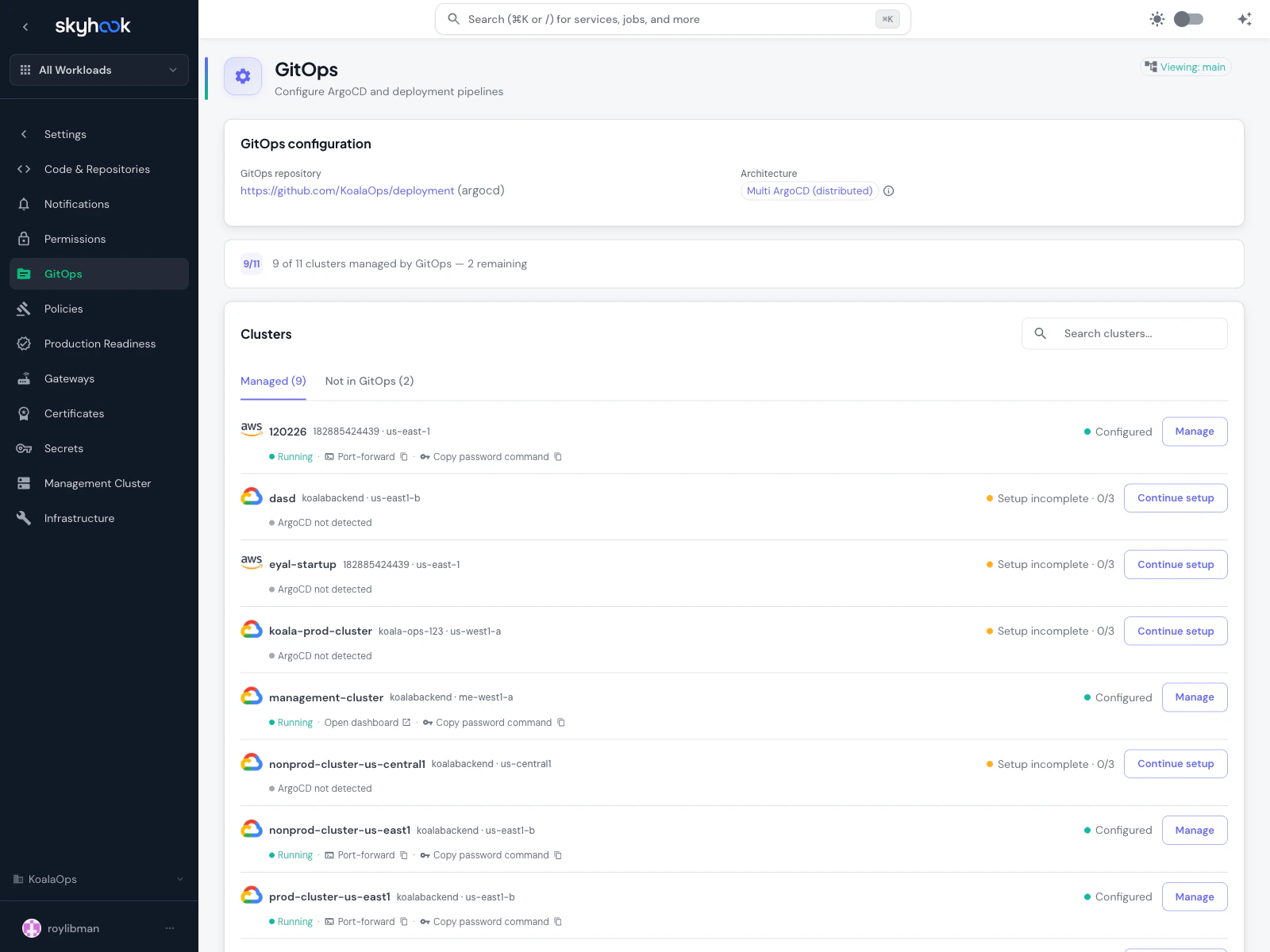 At the top, the **GitOps configuration** card shows the current repository and architecture, followed by a progress indicator summarizing how many clusters are managed out of the total.
The cluster list below is split into two tabs:
* **Managed** — clusters that have GitOps configured. Default tab. Shows cluster name, status (green dot + label), and a single outlined action button that changes based on state: **Manage** for fully configured, **Continue setup** for incomplete rows, **View PR** while a setup change is pending.
* **Not in GitOps** — clusters without GitOps yet. Each row has a **Set up** button that routes through the same single-cluster setup flow. Enable multi-select to run **Set up N clusters** across a group at once.
A search filter at the top applies across both tabs. After a successful save, the page automatically switches you to the Managed tab so you see the cluster in its new state.
### Per-cluster setup drawer
Clicking **Set up** or **Continue setup** opens a drawer with a 4-step checklist:
1. **Endpoint** — API server URL, any connection details
2. **GitHub credentials** — create via GitHub App OAuth, enter manually, or pull from a cached session credential
3. **ArgoCD install** — provision ArgoCD on the cluster (if not already running)
4. **Bootstrap** — write initial manifests so ArgoCD can self-manage
Operation status banners at the top of the drawer show installing, timeout, error, and success states so you always know what's happening.
## Deployment GitHub App
Separately from the ArgoCD/GitOps credentials, Skyhook also offers a **Deployment GitHub App** for accessing your **deployment repository** — the repo where Skyhook writes generated Kubernetes manifests and CI workflows.
### When you need it
You need the Deployment GitHub App installed when:
* Your deployment repository is private and Skyhook needs to push changes to it
* You want Skyhook's deployment pull requests attributed to a GitHub App account (not a user)
* Your CI workflows need secrets from the deployment GitHub App to authenticate back to the repository
### How to set it up
Use either the CLI or the UI — they produce the same result.
**CLI (recommended):**
```bash theme={"system"}
skyhook onboard deploy-auth
```
Walks through creating the GitHub App, installing it on the deployment repository, and storing `GH_APP_ID` / `GH_APP_PK` where the workflows can find them (organization secrets or per-repo, depending on your GitHub plan). Re-runnable if you want to reconfigure.
**UI:**
A **Repository Settings → GitHub App** section in your org settings has a setup dialog that walks through:
1. **Install the Skyhook GitHub App** on your deployment repository from the GitHub marketplace link
2. **Complete the OAuth callback** — Skyhook receives the installation ID and access token
3. **Verify access** — Skyhook polls the repo for read/write access and displays a green status once confirmed
If the app isn't installed or is missing required permissions, Skyhook shows a banner on:
* The Repository Settings page (with a **Configure** button that opens the setup dialog)
* Any service detail page that needs access (with guidance on what's missing)
* The post-creation step of a service import that can't complete without repository write access
The detection logic checks for specific secret keys (`GH_APP_ID`, `GH_APP_PK`) in your CI variables and flags them as missing adaptations you need to resolve before the service is fully operational.
## Installation
### Fastest path: the CLI
#### Before you run this
The CLI automates a lot, but it assumes the basics are in place. Confirm all five before running:
* A [**management cluster**](/infrastructure/gitops/management-cluster) is picked — the one cluster that will host ArgoCD
* At least one cluster is [**connected to Skyhook**](/infrastructure/clusters/connecting-clusters) and shows ONLINE — ArgoCD needs a target to reconcile against
* [**`skyhook auth login`**](/cli-reference/skyhook_auth_login) has run in your terminal so the CLI has API creds
* **`gh` is authenticated** (`gh auth status`) — used to create the ArgoCD GitHub App and push the initial GitOps repo
* **`helm` is installed** plus the cloud CLI for your provider (`gcloud` for GKE, `aws` for EKS, `az` for AKS) — used in the bootstrap step
Without those, the command will either drop into template-only mode or exit with a specific missing-dependency message you can act on.
#### Run it
The Skyhook CLI automates the entire bootstrap end-to-end:
```bash theme={"system"}
skyhook onboard argocd
```
[`skyhook onboard argocd`](/cli-reference/skyhook_onboard_argocd) runs the 4-step setup in order:
1. [`skyhook onboard argocd setup-repo`](/cli-reference/skyhook_onboard_argocd_setup-repo) — creates or reuses a GitOps repository and seeds it with the initial structure
2. [`skyhook onboard argocd configure-access`](/cli-reference/skyhook_onboard_argocd_configure-access) — creates a **GitHub App scoped to ArgoCD** so it can read your GitOps repo. This is a *different* GitHub App from the one used for cross-repo CI/CD access — see the [three GitHub integrations table](/infrastructure/cicd-setup/github-integration#three-github-integrations-three-purposes)
3. [`skyhook onboard argocd bootstrap`](/cli-reference/skyhook_onboard_argocd_bootstrap) — runs `helm install` for ArgoCD on each of your clusters, applies the cluster-admin AppProject, and applies the bootstrap ApplicationSet
4. [`skyhook onboard argocd install`](/cli-reference/skyhook_onboard_argocd_install) — adds ArgoCD itself as a managed addon via GitOps, so from this point on it reconciles itself
You can run any step individually if you need to retry or reconfigure.
#### Verify it landed
After the command finishes, confirm ArgoCD is actually running:
```bash theme={"system"}
# ArgoCD pods should all be Running
kubectl get pods -n argocd
# The bootstrap Application should exist and be Synced/Healthy (may take a minute)
kubectl get application -n argocd
```
If the bootstrap Application shows `OutOfSync`, wait 30–60s and re-check — the first reconcile takes a moment. If it stays `OutOfSync` or shows errors, `kubectl describe application -n argocd ` points at the cause (usually a repo access issue from step 2).
Once everything is Healthy, skip ahead to [Managing Addons](#managing-addons). The rest of this section covers the UI flow and the manual install for users who want to do it by hand.
### Prerequisites
Before installing ArgoCD, ensure you have:
* A [management cluster](/infrastructure/gitops/management-cluster) selected (the cluster that will host ArgoCD)
* `kubectl` access to your management cluster
* A GitHub repository for storing GitOps configurations (or plan to create one)
* Sufficient cluster resources (ArgoCD requires \~500MB memory minimum)
At the top, the **GitOps configuration** card shows the current repository and architecture, followed by a progress indicator summarizing how many clusters are managed out of the total.
The cluster list below is split into two tabs:
* **Managed** — clusters that have GitOps configured. Default tab. Shows cluster name, status (green dot + label), and a single outlined action button that changes based on state: **Manage** for fully configured, **Continue setup** for incomplete rows, **View PR** while a setup change is pending.
* **Not in GitOps** — clusters without GitOps yet. Each row has a **Set up** button that routes through the same single-cluster setup flow. Enable multi-select to run **Set up N clusters** across a group at once.
A search filter at the top applies across both tabs. After a successful save, the page automatically switches you to the Managed tab so you see the cluster in its new state.
### Per-cluster setup drawer
Clicking **Set up** or **Continue setup** opens a drawer with a 4-step checklist:
1. **Endpoint** — API server URL, any connection details
2. **GitHub credentials** — create via GitHub App OAuth, enter manually, or pull from a cached session credential
3. **ArgoCD install** — provision ArgoCD on the cluster (if not already running)
4. **Bootstrap** — write initial manifests so ArgoCD can self-manage
Operation status banners at the top of the drawer show installing, timeout, error, and success states so you always know what's happening.
## Deployment GitHub App
Separately from the ArgoCD/GitOps credentials, Skyhook also offers a **Deployment GitHub App** for accessing your **deployment repository** — the repo where Skyhook writes generated Kubernetes manifests and CI workflows.
### When you need it
You need the Deployment GitHub App installed when:
* Your deployment repository is private and Skyhook needs to push changes to it
* You want Skyhook's deployment pull requests attributed to a GitHub App account (not a user)
* Your CI workflows need secrets from the deployment GitHub App to authenticate back to the repository
### How to set it up
Use either the CLI or the UI — they produce the same result.
**CLI (recommended):**
```bash theme={"system"}
skyhook onboard deploy-auth
```
Walks through creating the GitHub App, installing it on the deployment repository, and storing `GH_APP_ID` / `GH_APP_PK` where the workflows can find them (organization secrets or per-repo, depending on your GitHub plan). Re-runnable if you want to reconfigure.
**UI:**
A **Repository Settings → GitHub App** section in your org settings has a setup dialog that walks through:
1. **Install the Skyhook GitHub App** on your deployment repository from the GitHub marketplace link
2. **Complete the OAuth callback** — Skyhook receives the installation ID and access token
3. **Verify access** — Skyhook polls the repo for read/write access and displays a green status once confirmed
If the app isn't installed or is missing required permissions, Skyhook shows a banner on:
* The Repository Settings page (with a **Configure** button that opens the setup dialog)
* Any service detail page that needs access (with guidance on what's missing)
* The post-creation step of a service import that can't complete without repository write access
The detection logic checks for specific secret keys (`GH_APP_ID`, `GH_APP_PK`) in your CI variables and flags them as missing adaptations you need to resolve before the service is fully operational.
## Installation
### Fastest path: the CLI
#### Before you run this
The CLI automates a lot, but it assumes the basics are in place. Confirm all five before running:
* A [**management cluster**](/infrastructure/gitops/management-cluster) is picked — the one cluster that will host ArgoCD
* At least one cluster is [**connected to Skyhook**](/infrastructure/clusters/connecting-clusters) and shows ONLINE — ArgoCD needs a target to reconcile against
* [**`skyhook auth login`**](/cli-reference/skyhook_auth_login) has run in your terminal so the CLI has API creds
* **`gh` is authenticated** (`gh auth status`) — used to create the ArgoCD GitHub App and push the initial GitOps repo
* **`helm` is installed** plus the cloud CLI for your provider (`gcloud` for GKE, `aws` for EKS, `az` for AKS) — used in the bootstrap step
Without those, the command will either drop into template-only mode or exit with a specific missing-dependency message you can act on.
#### Run it
The Skyhook CLI automates the entire bootstrap end-to-end:
```bash theme={"system"}
skyhook onboard argocd
```
[`skyhook onboard argocd`](/cli-reference/skyhook_onboard_argocd) runs the 4-step setup in order:
1. [`skyhook onboard argocd setup-repo`](/cli-reference/skyhook_onboard_argocd_setup-repo) — creates or reuses a GitOps repository and seeds it with the initial structure
2. [`skyhook onboard argocd configure-access`](/cli-reference/skyhook_onboard_argocd_configure-access) — creates a **GitHub App scoped to ArgoCD** so it can read your GitOps repo. This is a *different* GitHub App from the one used for cross-repo CI/CD access — see the [three GitHub integrations table](/infrastructure/cicd-setup/github-integration#three-github-integrations-three-purposes)
3. [`skyhook onboard argocd bootstrap`](/cli-reference/skyhook_onboard_argocd_bootstrap) — runs `helm install` for ArgoCD on each of your clusters, applies the cluster-admin AppProject, and applies the bootstrap ApplicationSet
4. [`skyhook onboard argocd install`](/cli-reference/skyhook_onboard_argocd_install) — adds ArgoCD itself as a managed addon via GitOps, so from this point on it reconciles itself
You can run any step individually if you need to retry or reconfigure.
#### Verify it landed
After the command finishes, confirm ArgoCD is actually running:
```bash theme={"system"}
# ArgoCD pods should all be Running
kubectl get pods -n argocd
# The bootstrap Application should exist and be Synced/Healthy (may take a minute)
kubectl get application -n argocd
```
If the bootstrap Application shows `OutOfSync`, wait 30–60s and re-check — the first reconcile takes a moment. If it stays `OutOfSync` or shows errors, `kubectl describe application -n argocd ` points at the cause (usually a repo access issue from step 2).
Once everything is Healthy, skip ahead to [Managing Addons](#managing-addons). The rest of this section covers the UI flow and the manual install for users who want to do it by hand.
### Prerequisites
Before installing ArgoCD, ensure you have:
* A [management cluster](/infrastructure/gitops/management-cluster) selected (the cluster that will host ArgoCD)
* `kubectl` access to your management cluster
* A GitHub repository for storing GitOps configurations (or plan to create one)
* Sufficient cluster resources (ArgoCD requires \~500MB memory minimum)
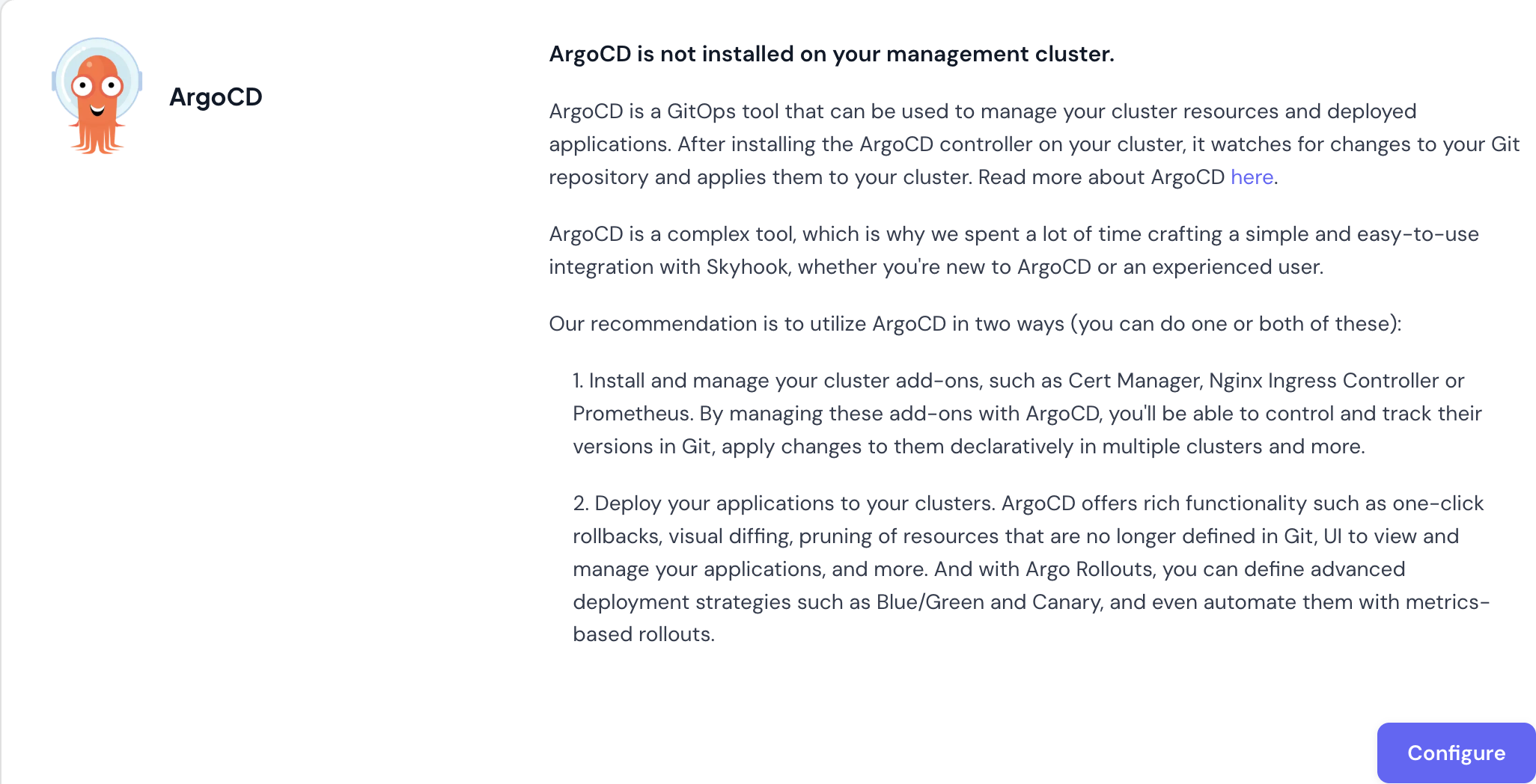 ### Step 1: Install ArgoCD on Your Cluster
Navigate to [Organization Settings > GitOps](https://app.skyhook.io/settings/gitops) and click **Configure** to start the setup wizard.
### Step 1: Install ArgoCD on Your Cluster
Navigate to [Organization Settings > GitOps](https://app.skyhook.io/settings/gitops) and click **Configure** to start the setup wizard.
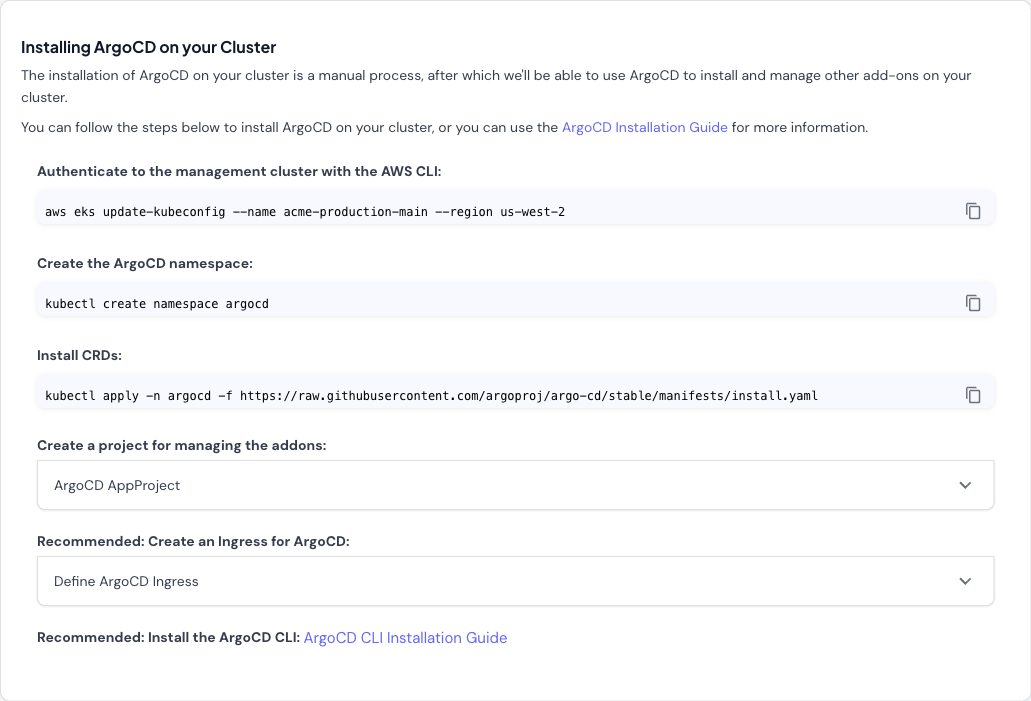 The first tab provides step-by-step installation commands:
1. **Authenticate to your management cluster**:
```bash theme={"system"}
# For AWS EKS
aws eks update-kubeconfig --name --region
# For GCP GKE
gcloud container clusters get-credentials --region
# For Azure AKS
az aks get-credentials --name --resource-group
```
2. **Create the ArgoCD namespace**:
```bash theme={"system"}
kubectl create namespace argocd
```
3. **Install ArgoCD CRDs and components**:
```bash theme={"system"}
kubectl apply -n argocd -f https://raw.githubusercontent.com/argoproj/argo-cd/stable/manifests/install.yaml
```
4. **Create an AppProject for managing addons** (expandable section in wizard):
The wizard provides a pre-configured AppProject resource. This project scopes ArgoCD's permissions and defines allowed repositories and clusters.
5. **Recommended: Create an Ingress for ArgoCD** (expandable section in wizard):
If you want to access the ArgoCD UI from outside your cluster, configure an Ingress. The wizard provides template configuration.
6. **Recommended: Install the ArgoCD CLI**:
Follow the [ArgoCD CLI installation guide](https://argo-cd.readthedocs.io/en/stable/cli_installation/) for your operating system.
### Step 2: Configure GitOps Repository
The first tab provides step-by-step installation commands:
1. **Authenticate to your management cluster**:
```bash theme={"system"}
# For AWS EKS
aws eks update-kubeconfig --name --region
# For GCP GKE
gcloud container clusters get-credentials --region
# For Azure AKS
az aks get-credentials --name --resource-group
```
2. **Create the ArgoCD namespace**:
```bash theme={"system"}
kubectl create namespace argocd
```
3. **Install ArgoCD CRDs and components**:
```bash theme={"system"}
kubectl apply -n argocd -f https://raw.githubusercontent.com/argoproj/argo-cd/stable/manifests/install.yaml
```
4. **Create an AppProject for managing addons** (expandable section in wizard):
The wizard provides a pre-configured AppProject resource. This project scopes ArgoCD's permissions and defines allowed repositories and clusters.
5. **Recommended: Create an Ingress for ArgoCD** (expandable section in wizard):
If you want to access the ArgoCD UI from outside your cluster, configure an Ingress. The wizard provides template configuration.
6. **Recommended: Install the ArgoCD CLI**:
Follow the [ArgoCD CLI installation guide](https://argo-cd.readthedocs.io/en/stable/cli_installation/) for your operating system.
### Step 2: Configure GitOps Repository
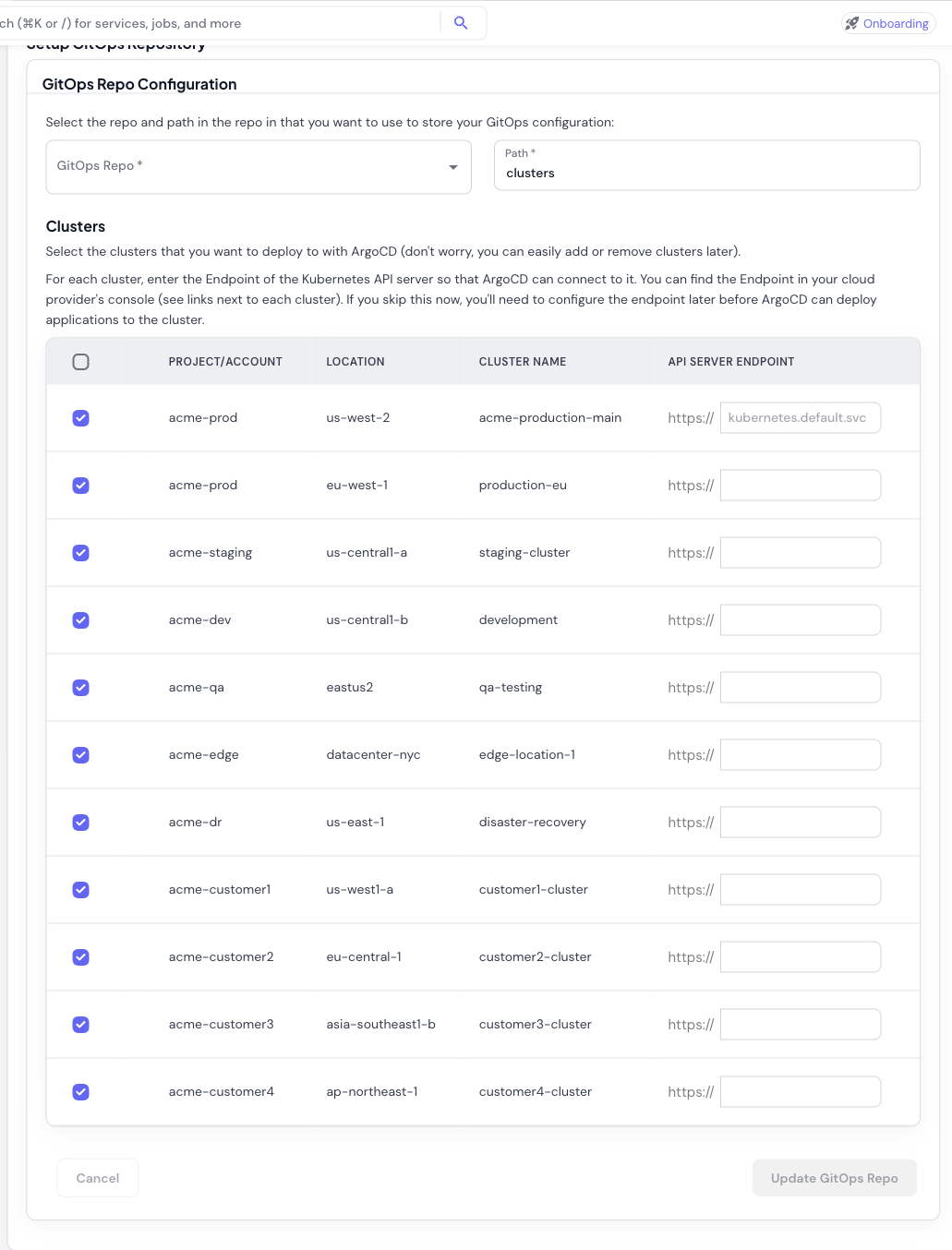 In the second tab, configure your GitOps repository and select clusters:
1. **Select GitOps Repository**: Choose the GitHub repository where ArgoCD will look for application manifests and addon configurations.
2. **Set Repository Path**: Specify the path within the repository (default: `clusters`). ArgoCD will monitor this path for Kubernetes manifests.
3. **Select Clusters**: Choose which clusters ArgoCD should manage. All connected clusters are shown in the table with:
* Project/Account
* Location (region)
* Cluster name
* API Server Endpoint field
4. **Configure API Endpoints**: Enter the Kubernetes API server endpoint for each cluster:
* The **management cluster** uses `kubernetes.default.svc` (pre-filled, since ArgoCD runs there)
* For **remote clusters**, find the endpoint in your cloud provider's console:
* **AWS EKS**: EKS Console > Clusters > API server endpoint
* **GCP GKE**: GKE Console > Clusters > Endpoint
* **Azure AKS**: AKS Console > Properties > API server address
You can skip endpoint configuration during initial setup and add it later. ArgoCD won't be able to deploy to clusters without configured endpoints.
### Step 3: Configure GitHub Integration
In the second tab, configure your GitOps repository and select clusters:
1. **Select GitOps Repository**: Choose the GitHub repository where ArgoCD will look for application manifests and addon configurations.
2. **Set Repository Path**: Specify the path within the repository (default: `clusters`). ArgoCD will monitor this path for Kubernetes manifests.
3. **Select Clusters**: Choose which clusters ArgoCD should manage. All connected clusters are shown in the table with:
* Project/Account
* Location (region)
* Cluster name
* API Server Endpoint field
4. **Configure API Endpoints**: Enter the Kubernetes API server endpoint for each cluster:
* The **management cluster** uses `kubernetes.default.svc` (pre-filled, since ArgoCD runs there)
* For **remote clusters**, find the endpoint in your cloud provider's console:
* **AWS EKS**: EKS Console > Clusters > API server endpoint
* **GCP GKE**: GKE Console > Clusters > Endpoint
* **Azure AKS**: AKS Console > Properties > API server address
You can skip endpoint configuration during initial setup and add it later. ArgoCD won't be able to deploy to clusters without configured endpoints.
### Step 3: Configure GitHub Integration
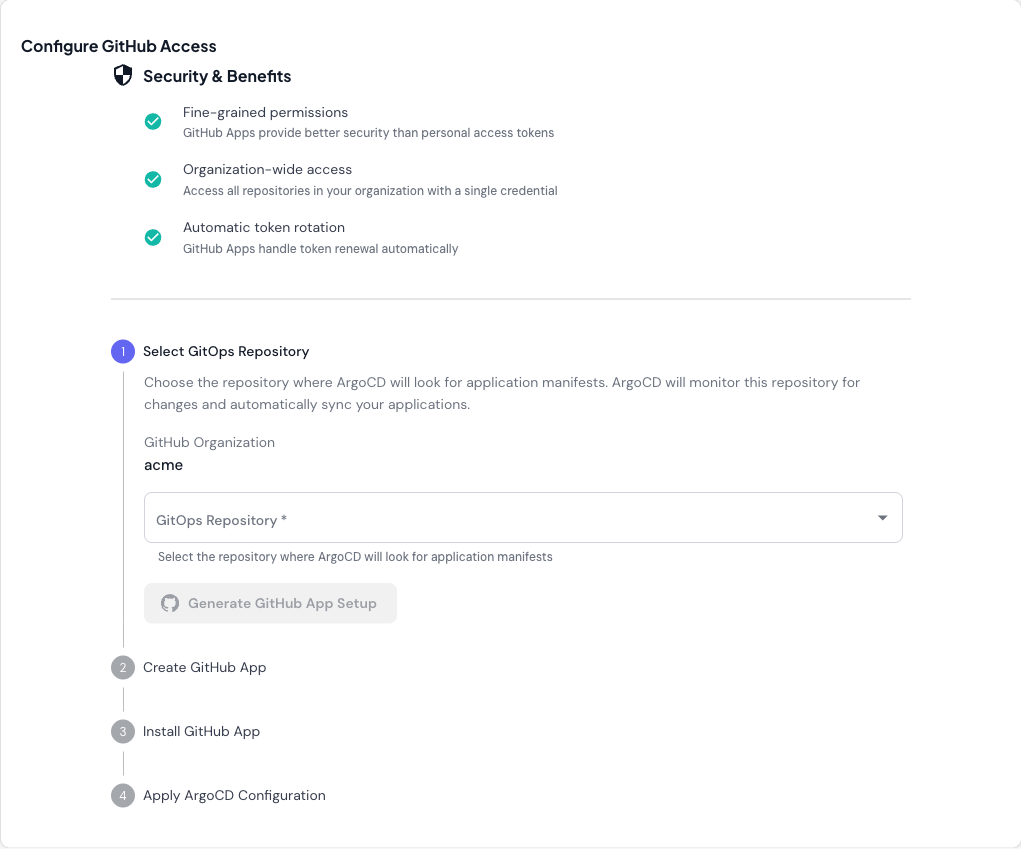 The third tab sets up GitHub App integration for secure repository access:
**Benefits of using GitHub Apps**:
* **Fine-grained permissions**: Better security than personal access tokens
* **Organization-wide access**: Access all repositories with a single credential
* **Automatic token rotation**: GitHub Apps handle token renewal automatically
**Setup process**:
1. **Select GitOps Repository**: Choose the repository from the dropdown
2. **Generate GitHub App Setup**: Click the button to generate GitHub App configuration
3. **Create GitHub App**: Follow the generated instructions to create the app in GitHub
4. **Install GitHub App**: Install the app to your organization
5. **Apply ArgoCD Configuration**: Apply the generated Kubernetes resources to configure ArgoCD
## Managing Addons
Once ArgoCD is installed, you can install and configure cluster addons — cert-manager, Kyverno, Karpenter, OpenCost, Prometheus, and many others — from the **Addons** section in the sidebar. Skyhook generates ArgoCD Application resources for each addon you enable, commits them to your GitOps repository, and ArgoCD handles the rollout.
See [Addons](/infrastructure/addons/overview) for the full walkthrough covering the addon catalog, per-cluster configuration, importing existing addons, and secret management.
## Deploying Applications
For deploying your own applications with ArgoCD:
1. Define your application manifests in your GitOps repository
2. Create ArgoCD Application resources (either through the ArgoCD UI or by adding YAML to your GitOps repo)
3. ArgoCD syncs the application to your clusters based on the defined configuration
4. Monitor application status and health in the ArgoCD UI
For advanced deployment strategies (Blue/Green, Canary), see [Argo Rollouts documentation](https://argoproj.github.io/argo-rollouts/).
## Troubleshooting
If the `argocd` namespace already exists, you can either:
* Delete the existing namespace: `kubectl delete namespace argocd`
* Skip the namespace creation step and proceed with installing CRDs
Verify ArgoCD isn't already installed:
```bash theme={"system"}
kubectl get pods -n argocd
```
If ArgoCD can't connect to a cluster:
1. Verify the endpoint is correct:
```bash theme={"system"}
kubectl cluster-info
```
2. Check cluster credentials are configured:
```bash theme={"system"}
kubectl config get-contexts
```
3. Ensure ArgoCD has network access to the cluster API (check firewall rules, security groups)
If GitHub App setup doesn't work:
* Verify the app is installed to the correct organization
* Check the app has access to the GitOps repository
* Ensure the generated credentials were applied to the cluster correctly
* Review ArgoCD logs: `kubectl logs -n argocd -l app.kubernetes.io/name=argocd-repo-server`
If addons aren't deploying:
1. Check ArgoCD Application status:
```bash theme={"system"}
kubectl get applications -n argocd
```
2. View application details:
```bash theme={"system"}
kubectl describe application -n argocd
```
3. Check ArgoCD can access your GitOps repository
4. Verify the repository path contains valid Kubernetes manifests
## Next Steps
* Configure your [management cluster](/infrastructure/gitops/management-cluster) settings
* Learn about [helmify-kustomize](/infrastructure/gitops/helmify-kustomize) for converting Kustomize configs to Helm charts
* Explore [ArgoCD documentation](https://argo-cd.readthedocs.io/) for advanced features
* [How to Set Up ArgoCD on Kubernetes: Step-by-Step Guide](https://www.skyhook.io/blog/how-to-set-up-argocd-on-kubernetes) - deep-dive on ArgoCD installation and configuration
* [ArgoCD Multi-Cluster Architecture](https://www.skyhook.io/blog/argocd-multi-cluster-architecture) - centralized vs per-cluster patterns
The third tab sets up GitHub App integration for secure repository access:
**Benefits of using GitHub Apps**:
* **Fine-grained permissions**: Better security than personal access tokens
* **Organization-wide access**: Access all repositories with a single credential
* **Automatic token rotation**: GitHub Apps handle token renewal automatically
**Setup process**:
1. **Select GitOps Repository**: Choose the repository from the dropdown
2. **Generate GitHub App Setup**: Click the button to generate GitHub App configuration
3. **Create GitHub App**: Follow the generated instructions to create the app in GitHub
4. **Install GitHub App**: Install the app to your organization
5. **Apply ArgoCD Configuration**: Apply the generated Kubernetes resources to configure ArgoCD
## Managing Addons
Once ArgoCD is installed, you can install and configure cluster addons — cert-manager, Kyverno, Karpenter, OpenCost, Prometheus, and many others — from the **Addons** section in the sidebar. Skyhook generates ArgoCD Application resources for each addon you enable, commits them to your GitOps repository, and ArgoCD handles the rollout.
See [Addons](/infrastructure/addons/overview) for the full walkthrough covering the addon catalog, per-cluster configuration, importing existing addons, and secret management.
## Deploying Applications
For deploying your own applications with ArgoCD:
1. Define your application manifests in your GitOps repository
2. Create ArgoCD Application resources (either through the ArgoCD UI or by adding YAML to your GitOps repo)
3. ArgoCD syncs the application to your clusters based on the defined configuration
4. Monitor application status and health in the ArgoCD UI
For advanced deployment strategies (Blue/Green, Canary), see [Argo Rollouts documentation](https://argoproj.github.io/argo-rollouts/).
## Troubleshooting
If the `argocd` namespace already exists, you can either:
* Delete the existing namespace: `kubectl delete namespace argocd`
* Skip the namespace creation step and proceed with installing CRDs
Verify ArgoCD isn't already installed:
```bash theme={"system"}
kubectl get pods -n argocd
```
If ArgoCD can't connect to a cluster:
1. Verify the endpoint is correct:
```bash theme={"system"}
kubectl cluster-info
```
2. Check cluster credentials are configured:
```bash theme={"system"}
kubectl config get-contexts
```
3. Ensure ArgoCD has network access to the cluster API (check firewall rules, security groups)
If GitHub App setup doesn't work:
* Verify the app is installed to the correct organization
* Check the app has access to the GitOps repository
* Ensure the generated credentials were applied to the cluster correctly
* Review ArgoCD logs: `kubectl logs -n argocd -l app.kubernetes.io/name=argocd-repo-server`
If addons aren't deploying:
1. Check ArgoCD Application status:
```bash theme={"system"}
kubectl get applications -n argocd
```
2. View application details:
```bash theme={"system"}
kubectl describe application -n argocd
```
3. Check ArgoCD can access your GitOps repository
4. Verify the repository path contains valid Kubernetes manifests
## Next Steps
* Configure your [management cluster](/infrastructure/gitops/management-cluster) settings
* Learn about [helmify-kustomize](/infrastructure/gitops/helmify-kustomize) for converting Kustomize configs to Helm charts
* Explore [ArgoCD documentation](https://argo-cd.readthedocs.io/) for advanced features
* [How to Set Up ArgoCD on Kubernetes: Step-by-Step Guide](https://www.skyhook.io/blog/how-to-set-up-argocd-on-kubernetes) - deep-dive on ArgoCD installation and configuration
* [ArgoCD Multi-Cluster Architecture](https://www.skyhook.io/blog/argocd-multi-cluster-architecture) - centralized vs per-cluster patterns