
Deployment Permissions
Default Behavior
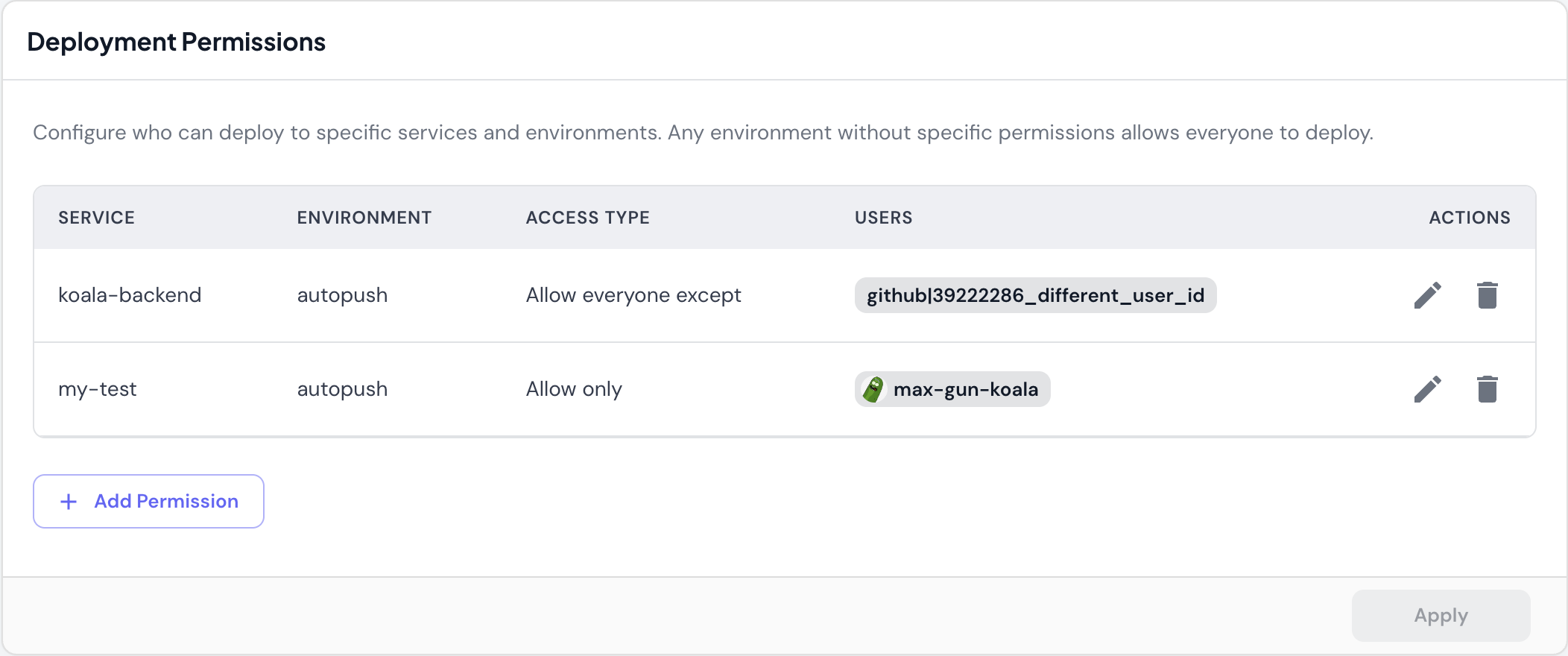
Any environment without specific permissions allows everyone to deploy. This means you only need to configure permissions where you want to restrict access. All other services and environments remain open to all team members.Access Types
Allow only Grant deployment access to specific users only.- Example:
my-serviceinprodcan only be deployed bymax-gun-koala - Use case: Restrict production deployments to approved team members
- Effect: Only listed users can deploy; all others are blocked
- Example:
koala-backendinautopushcan be deployed by anyone exceptgithub|39222286_different_user_id - Use case: Block specific users while allowing the rest of the team
- Effect: All users can deploy except those listed
Permission Components
Each permission rule includes:- Service: Which service the rule applies to (e.g.,
koala-backend,my-test) - Environment: Which environment the rule applies to (e.g.,
dev,staging,prod,autopush) - Access Type: Either “Allow only” or “Allow everyone except”
- Users: GitHub usernames or user IDs
- With avatar:
max-gun-koala(GitHub username) - Without avatar:
github|39222286_different_user_id(user ID)
- With avatar:
Managing Permissions
- Add Permission: Create a new deployment permission rule
- Edit: Modify an existing rule’s access type or users
- Delete: Remove a rule (environment reverts to “allow everyone”)
Common Scenarios
Restrict Production Deployments
Limit who can deploy to production:- Click Add Permission
- Select service:
my-service - Select environment:
prod - Choose access type: Allow only
- Add approved users:
senior-dev-1,senior-dev-2
senior-dev-1 and senior-dev-2 can deploy to my-service in prod.
Block Specific Users
Prevent a user from deploying to a sensitive environment:- Click Add Permission
- Select service:
payment-service - Select environment:
prod - Choose access type: Allow everyone except
- Add blocked user:
intern-username
intern-username can deploy payment-service to prod.
Temporary Access Restriction
Block deployments during a freeze or incident:- Click Add Permission
- Select service:
all-services(or specific service) - Select environment:
prod - Choose access type: Allow only
- Add users:
on-call-engineer
Important Notes
GitHub integration required. Users are identified by their GitHub username or GitHub user ID. Ensure your team members have connected their GitHub accounts to Skyhook.
Best Practices
Start Permissive
Don’t over-restrict initially:- Leave most environments open (default behavior)
- Only restrict production or sensitive environments
- Add restrictions as needed based on team growth
Use Allow-Only for Critical Environments
For production or other critical environments:- Use “Allow only” with a list of trusted deployers
- Keeps control explicit and visible
- Easy to audit who has production access
Use Except for Temporary Blocks
When you need to temporarily restrict someone:- Use “Allow everyone except” to block specific users
- Easier to remove the exception later
- Doesn’t require maintaining a full allow list
Document Your Permissions
Keep track of why permissions exist:- Add comments in your team’s documentation
- Explain the reasoning for production restrictions
- Note temporary restrictions and when to remove them
Related Documentation
- Team Management - Overall RBAC and team access
- Environments - Understanding environments
- Service Deployment - How deployments work
- CI/CD - CI/CD pipeline permissions