Argo Workflows in Skyhook provide workflow orchestration for multi-step batch processes. Built on Argo Workflows, they enable you to model workflows as sequences of steps or directed acyclic graphs (DAGs), with support for parameters, artifact passing, conditional logic, and advanced retry strategies. Use Argo Workflows when you need to coordinate multiple steps with dependencies, pass data between steps, or reuse workflow templates with different parameters - regardless of whether each individual step is simple or complex.

Workflow Types

Skyhook supports two Argo workflow types:

Argo Workflow

Multi-step orchestrationWorkflows with multiple steps, dependencies, and data flow. Best for ETL pipelines, ML training, and processes requiring step coordination.

Argo CronWorkflow

Scheduled orchestrationRecurring multi-step workflows with cron scheduling. Best for periodic data pipelines and processes with coordinated stages.

Argo Workflow

One-time multi-step workflows perfect for ETL pipelines, ML training, and complex data processing. What Skyhook provides:
  • Template deployment through UI
  • Parameter management and execution
  • Real-time monitoring with Argo UI integration
  • Step-by-step logs and status tracking
Learn more about Argo Workflows →

Argo CronWorkflow

Scheduled multi-step workflows that combine Argo’s orchestration with cron scheduling. What Skyhook provides:
  • Common Argo Workflow features + cron scheduling in the UI
  • Timezone-aware schedule configuration
  • Manual execution outside schedule (“Execute Now” button)
  • Parameter support for each execution
Learn more about Argo CronWorkflows →

Template-Based Architecture

Argo workflows use a template/instance model optimized for reusability. The WorkflowTemplate (reusable definition) is stored in Git and deployed to your cluster. Each execution creates a Workflow instance dynamically at runtime. These instances are ephemeral and cleaned up based on TTL settings. Execution flow:

Repository Structure

Your workflow lives in Git with Kustomize-based structure for environment-specific overrides:
my-workflow/
├── base/
│   ├── argo-workflowtemplate.yaml       # Reusable workflow definition
│   └── kustomization.yaml

└── overlays/
    ├── dev/
    │   ├── kustomization.yaml
    │   ├── argo-workflowtemplate-patch.yaml   # Dev template overrides
    │   └── .env

    ├── staging/
    │   ├── kustomization.yaml
    │   ├── argo-workflowtemplate-patch.yaml   # Staging template overrides
    │   └── .env

    └── prod/
        ├── kustomization.yaml
        ├── argo-workflowtemplate-patch.yaml   # Prod template overrides
        └── .env

WorkflowTemplate Example

The WorkflowTemplate in the base directory defines reusable workflow logic:
apiVersion: argoproj.io/v1alpha1
kind: WorkflowTemplate
metadata:
  name: data-processing-template
  namespace: default
  labels:
    app: data-processing
spec:
  entrypoint: main

  arguments:
    parameters:
    - name: input-file
      value: "default-input.csv"
    - name: batch-size
      value: "1000"

  templates:
  - name: main
    container:
      image: my-registry/data-processor:latest
      command: ["python", "process.py"]
      args:
        - "--input={{workflow.parameters.input-file}}"
        - "--batch={{workflow.parameters.batch-size}}"
      resources:
        requests:
          cpu: "1"
          memory: "2Gi"
        limits:
          cpu: "2"
          memory: "4Gi"
Learn more about WorkflowTemplates →

Environment-Specific Patches

Each environment can override settings using Kustomize patches: Development (overlays/dev/argo-workflowtemplate-patch.yaml):
apiVersion: argoproj.io/v1alpha1
kind: WorkflowTemplate
metadata:
  name: data-processing-template
spec:
  templates:
  - name: main
    container:
      resources:
        requests:
          cpu: "500m"
          memory: "1Gi"
      env:
      - name: LOG_LEVEL
        value: "debug"
Production (overlays/prod/argo-workflowtemplate-patch.yaml):
apiVersion: argoproj.io/v1alpha1
kind: WorkflowTemplate
metadata:
  name: data-processing-template
spec:
  templates:
  - name: main
    container:
      resources:
        requests:
          cpu: "4"
          memory: "8Gi"
      env:
      - name: LOG_LEVEL
        value: "warning"

Workflow Instance Creation

When you execute a workflow from the Skyhook UI:
  1. GitHub Actions workflow (execute_job.yml) is triggered
  2. Workflow authenticates with your cluster
  3. Uses argo submit CLI command to create a Workflow instance
  4. Passes parameters you provided in the execution dialog
  5. Workflow executes in your cluster
Example Argo CLI command:
argo submit --from workflowtemplate/data-processing-template \
  -p input-file="prod-data-2024-01-15.csv" \
  -p batch-size="5000" \
  --name data-processing-20240115
Benefits:
  • Template defined once, executed many times with different parameters
  • Environment-specific overrides without duplicating workflow logic
  • Clean Git history (only templates tracked, not ephemeral instances)

Creating a Workflow

1. Access the Job Creation Form

  1. Navigate to Jobs in the Skyhook UI
  2. Click Create New Job
  3. Select Argo Workflow or Argo CronWorkflow as job type
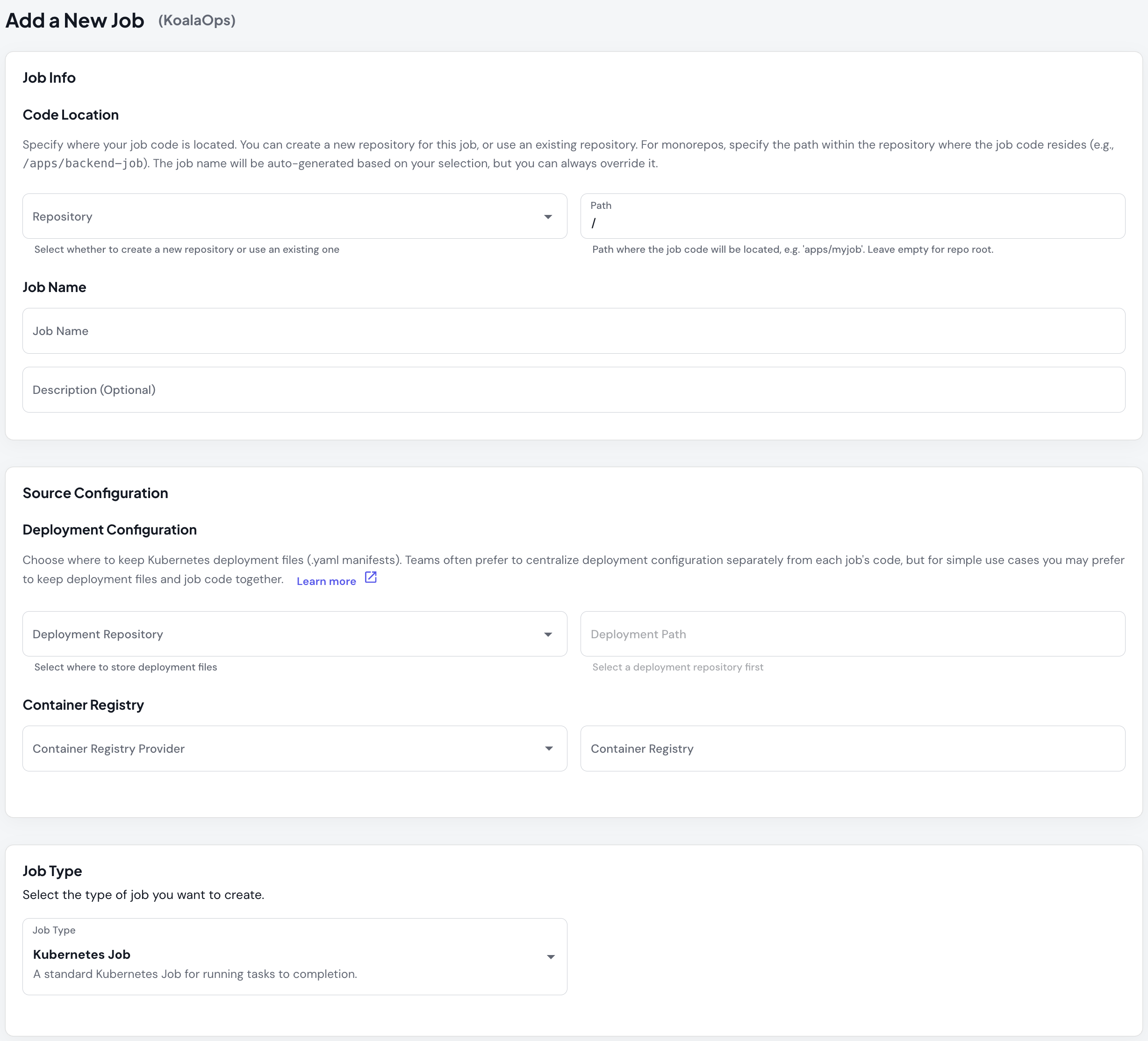
Job Creation Form

2. Basic Details

Same as Kubernetes Jobs - configure name, description, container registry, and repository.

3. Job Type Selection

Choose Argo Workflow (one-time) or Argo CronWorkflow (scheduled). For CronWorkflow, configure:
  • Cron Schedule - Standard cron expression
  • Timezone - IANA timezone for accurate scheduling
  • Concurrency Policy - How to handle overlapping runs

4. Add Environments

Configure where your workflow will run (dev, staging, prod).
Repository Configuration: Like Kubernetes Jobs, Argo Workflows support multiple jobs in one repository and flexible deployment repository options. See the Kubernetes Jobs documentation for detailed repository configuration options.

5. Configure Parameters (Optional)

After creating the workflow, go to the Settings tab to define parameters under Workflow Parameters: Each parameter has:
  • Name - Identifier used in your workflow (e.g., input-file, batch-size)
  • Default Value - Used if not overridden at execution time
  • Description - Help text displayed to users in the Execute dialog
Parameters are referenced in your workflow YAML using {{workflow.parameters.parameter-name}} syntax. When users execute the workflow, they can override default values via the execution dialog.

Executing Workflows

  • Argo Workflow
  • Argo CronWorkflow

Template deployment + parameterized execution

Argo Workflows separate template deployment from workflow execution:1. Deploy Template First (one-time setup, or when workflow logic changes)
  1. Click Deploy Template
  2. Select deployment options (build new or deploy existing)
  3. Choose Git references
  4. Deploy to environment
This installs/updates the WorkflowTemplate in your cluster.2. Execute Workflow (run the workflow with specific parameters)
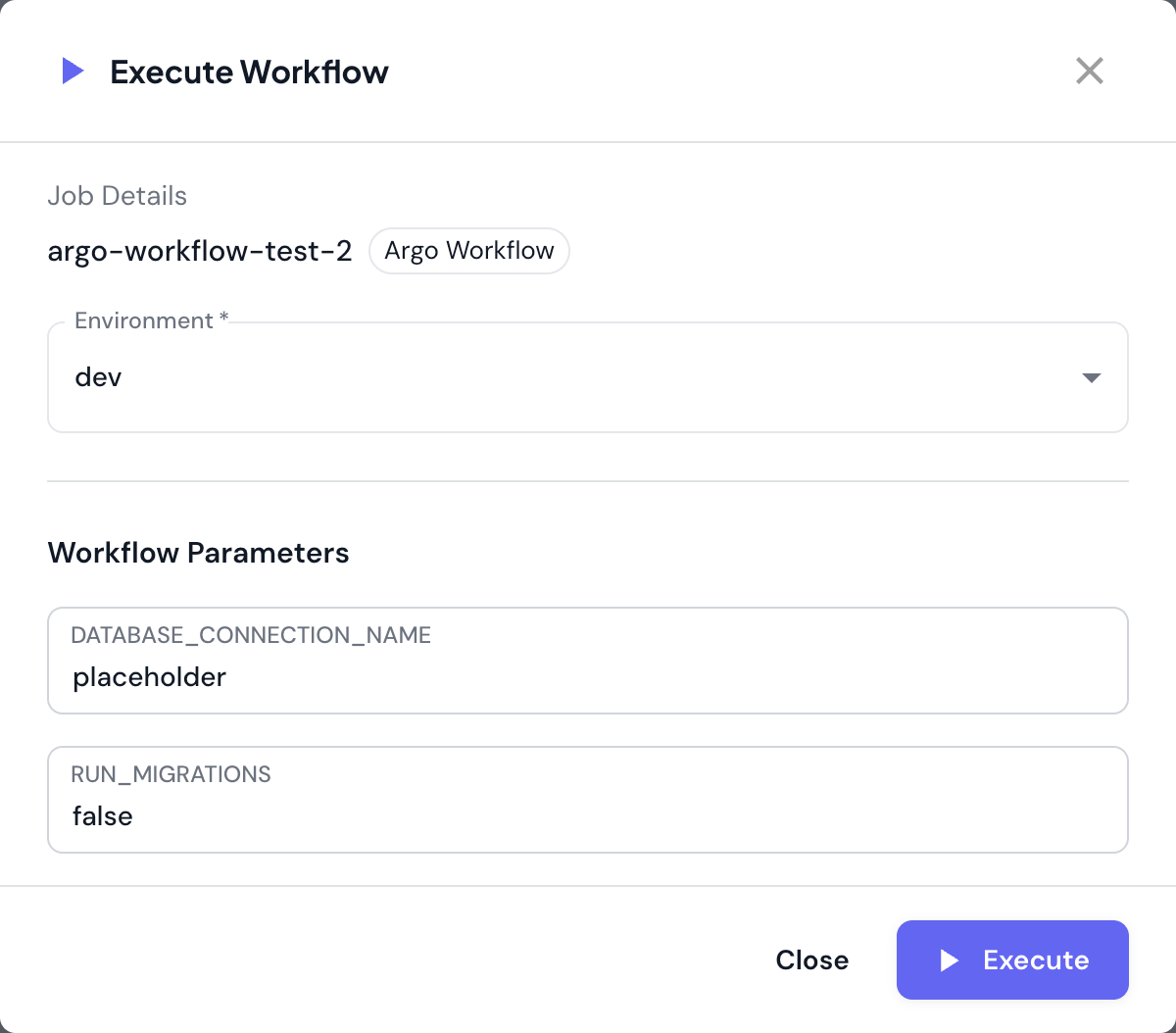
  1. Click Execute Workflow
  2. Execution dialog appears with:
    • Environment - Select where to execute
    • Parameters - Fill in parameter values (if defined)
  3. Review parameter values
  4. Click Execute
This creates a Workflow instance from the template.
Execute Workflow Dialog
What happens:
  • Workflow instance created from template
  • Parameters injected into workflow
  • Workflow orchestrator executes steps in sequence
  • Each step creates pods as needed
  • Workflow tracks progress through completion

Monitoring Workflows

Executions Tab
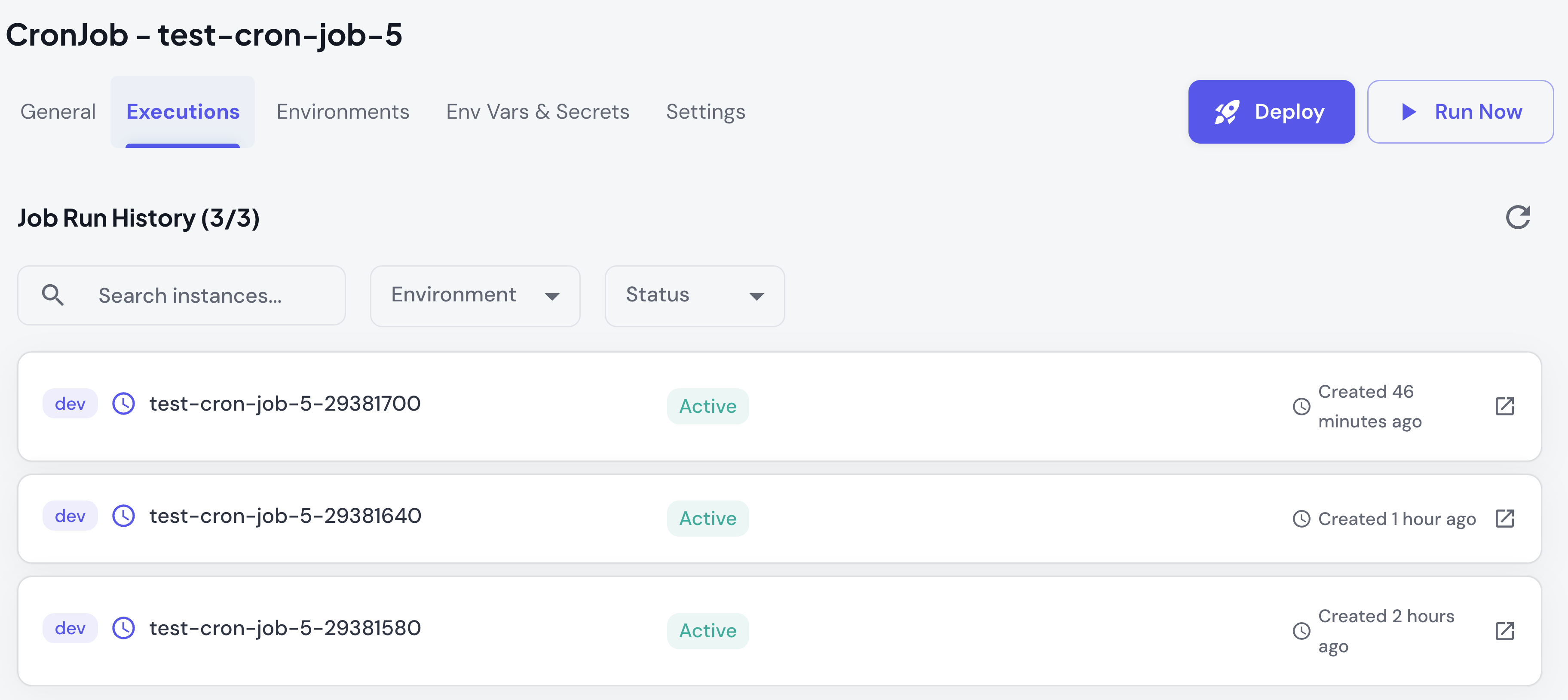
Job Executions Tab
What you see:
  • List of all workflow instances
  • Status (Pending/Running/Succeeded/Failed)
  • Start time, completion time, duration
  • Environment where workflow ran
StatusDescriptionIndicates
🟡 PendingWorkflow created but not yet runningWaiting to start
🔵 RunningWorkflow currently executingSteps are running
SucceededWorkflow completed successfullyAll steps succeeded
FailedWorkflow did not completeOne or more steps failed

Workflow Details

Execution details show:
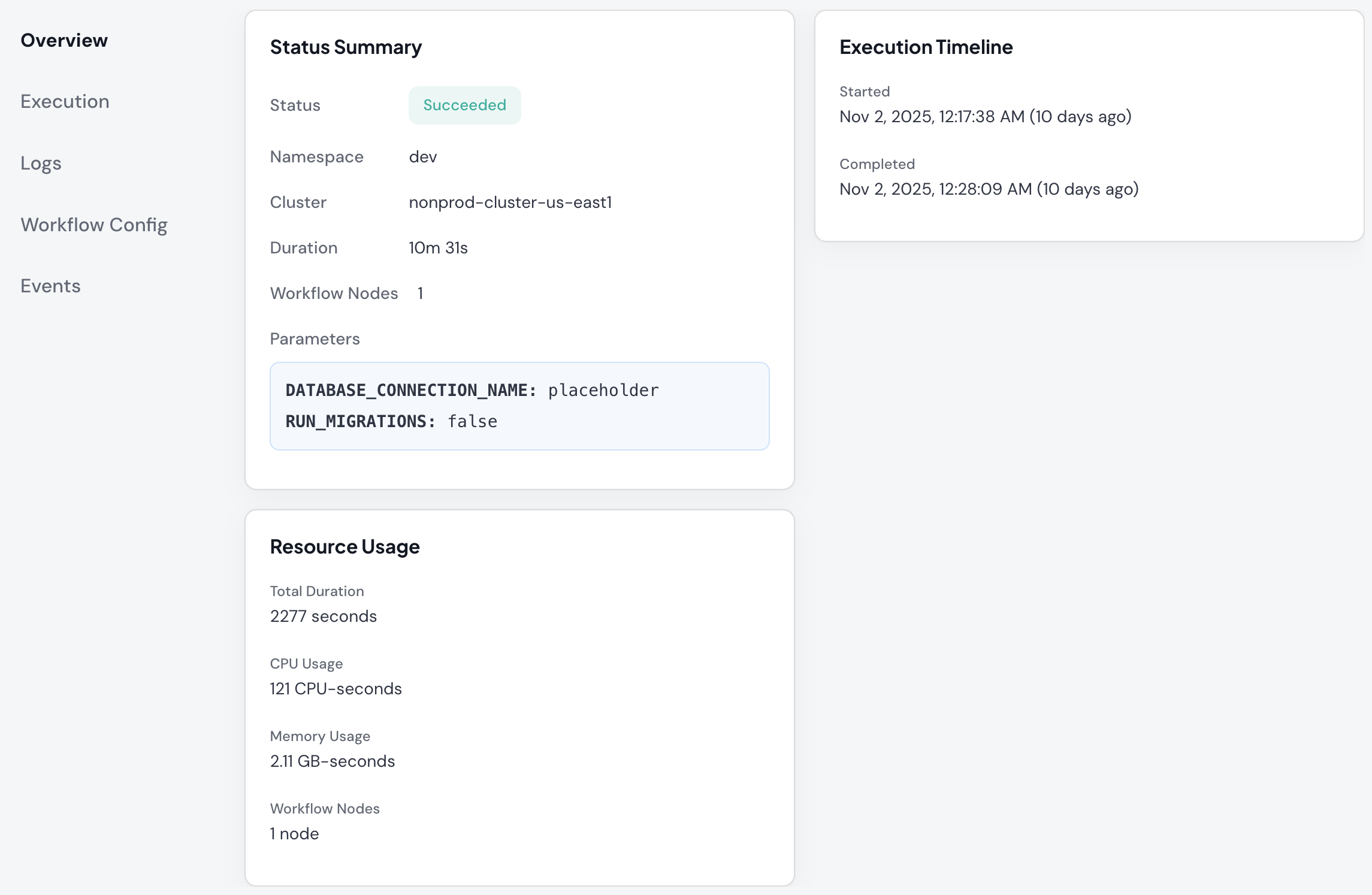
Argo Workflow Execution Details
Workflow Phase:
  • Overall workflow status
Node Information:
  • Total nodes (steps) in workflow
  • Completed nodes
  • Current executing node
  • Failed nodes (if any)
Step Progress:
  • Visual representation of workflow steps
  • Individual step status
  • Step dependencies and execution order
  • Time spent per step
Workflow Specifications:
  • Workflow template used
  • Parameters provided
  • Service account
  • Execution limits
Actions:
  • View individual step logs
  • Inspect step containers
  • Access Argo UI for detailed visualization

Argo UI Integration

For advanced visualization, access the Argo Workflows UI:
  1. Click on a workflow execution
  2. Click View in Argo UI link
  3. Opens Argo Workflows dashboard
Argo UI features:
  • Graphical workflow visualization
  • DAG (Directed Acyclic Graph) view
  • Step-by-step execution timeline
  • Artifact browser
  • Advanced debugging tools

Viewing Logs

Access Step Logs:
  1. Click on a workflow execution
  2. Select specific step/container
  3. Click View Logs
  4. See logs for that step

Advanced Configuration

Advanced Argo Workflow configuration options using WorkflowTemplate YAML.
Define parameters that can be passed at execution time.In WorkflowTemplate:
spec:
  arguments:
    parameters:
    - name: input-file
      value: "default.csv"
    - name: batch-size
      value: "1000"
    - name: environment
      value: "dev"
Use in templates:
templates:
- name: process
  container:
    args:
      - "--input={{workflow.parameters.input-file}}"
      - "--batch={{workflow.parameters.batch-size}}"
      - "--env={{workflow.parameters.environment}}"
Override at execution via the Skyhook UI when you click “Execute Workflow” - you’ll be prompted to provide values for each parameter.
Configure automatic retry behavior for failed steps.Exponential Backoff (Recommended):
templates:
- name: flaky-step
  retryStrategy:
    limit: "3"
    retryPolicy: "OnFailure"
    backoff:
      duration: "30s"
      factor: "2"
      maxDuration: "5m"
Fixed Delay:
retryStrategy:
  limit: "3"
  backoff:
    duration: "30s"
    factor: "1"
Immediate Retry:
retryStrategy:
  limit: "3"
  retryPolicy: "Always"
  # No backoff = immediate
Good candidates for retries:
  • Network operations (API calls, database connections)
  • External service dependencies
  • Transient infrastructure issues
  • Resource contention scenarios
Poor candidates for retries:
  • Logic errors in code
  • Missing required files or data
  • Authentication failures
  • Resource exhaustion (will keep failing)
Automatically clean up completed workflows.Clean up all workflows after 1 hour:
spec:
  ttlStrategy:
    secondsAfterCompletion: 3600
Different TTL for success vs failure:
spec:
  ttlStrategy:
    secondsAfterSuccess: 3600      # 1 hour for successful
    secondsAfterFailure: 86400     # 24 hours for failed (debugging)
Recommended TTL values:
  • Development: 1-6 hours
  • Staging: 6-24 hours
  • Production: 24-72 hours (keep longer for audit)
Control when workflow pods are deleted.Delete pods when workflow completes:
spec:
  podGC:
    strategy: OnWorkflowCompletion
Delete pods only on success:
spec:
  podGC:
    strategy: OnWorkflowSuccess
    # Failed workflow pods retained for debugging
Delete each pod when it completes:
spec:
  podGC:
    strategy: OnPodCompletion
    # Minimizes resource usage
Never delete pods automatically:
spec:
  podGC:
    strategy: Never
    # Manual cleanup required
Configure CPU and memory for workflow steps.Per-template resources:
templates:
- name: process-data
  container:
    resources:
      requests:
        cpu: "2"
        memory: "4Gi"
      limits:
        cpu: "4"
        memory: "8Gi"
Template defaults (apply to all steps):
spec:
  templateDefaults:
    container:
      resources:
        requests:
          cpu: "1"
          memory: "2Gi"
        limits:
          cpu: "2"
          memory: "4Gi"
GPU resources:
resources:
  limits:
    nvidia.com/gpu: "1"
Set time limits for workflow execution.Active deadline (workflow timeout):
spec:
  activeDeadlineSeconds: 3600  # 1 hour max
Per-step timeout:
templates:
- name: api-call
  container:
    image: my-app:v1
  activeDeadlineSeconds: 300  # 5 minutes
Recommended limits:
  • API calls: 5-15 minutes
  • Data processing: 30-60 minutes
  • ML training: 2-6 hours
  • ETL pipelines: 2-12 hours
Execute steps sequentially.
templates:
- name: multi-step-workflow
  steps:
  - - name: fetch-data
      template: fetch

  - - name: process-data
      template: process
      arguments:
        parameters:
        - name: input
          value: "{{steps.fetch-data.outputs.result}}"

  - - name: upload-results
      template: upload
Learn more about Steps →
Execute steps in parallel with dependencies.
templates:
- name: dag-workflow
  dag:
    tasks:
    - name: fetch-data
      template: fetch

    - name: process-a
      dependencies: [fetch-data]
      template: process
      arguments:
        parameters:
        - name: type
          value: "A"

    - name: process-b
      dependencies: [fetch-data]
      template: process
      arguments:
        parameters:
        - name: type
          value: "B"

    - name: combine
      dependencies: [process-a, process-b]
      template: combine
Learn more about DAGs →
Configure environment variables for workflow steps.Static env vars:
templates:
- name: process
  container:
    env:
    - name: LOG_LEVEL
      value: "info"
    - name: ENVIRONMENT
      value: "production"
From parameters:
env:
- name: INPUT_FILE
  value: "{{workflow.parameters.input-file}}"
From secrets:
env:
- name: API_KEY
  valueFrom:
    secretKeyRef:
      name: my-secrets
      key: api-key
From ConfigMaps:
env:
- name: CONFIG
  valueFrom:
    configMapKeyRef:
      name: my-config
      key: config.json
Control where workflow pods run.Node selector:
templates:
- name: gpu-task
  nodeSelector:
    gpu: "true"
    instance-type: "g4dn.xlarge"
Tolerations:
tolerations:
- key: "special"
  operator: "Equal"
  value: "true"
  effect: "NoSchedule"
Affinity:
affinity:
  nodeAffinity:
    requiredDuringSchedulingIgnoredDuringExecution:
      nodeSelectorTerms:
      - matchExpressions:
        - key: gpu
          operator: In
          values:
          - "true"

Best Practices

Workflow Design:
  • Keep each step focused on a single responsibility
  • Use DAGs for parallelizable work
  • Set appropriate timeouts and retries per step
  • Pass data between steps via parameters or artifacts
Parameters & Resource Management:
  • Provide clear parameter descriptions with sensible defaults
  • Validate parameter values in your code
  • Set realistic resource requests/limits based on actual usage
  • Use larger resources in production than development
  • Enable TTL cleanup to prevent workflow accumulation
Security:
  • Always use secrets for sensitive data (API keys, credentials)
  • Rotate secrets regularly
  • Use different secrets per environment
  • Never hardcode credentials in workflow definitions