
Accessing Environment Variables & Secrets
Environment variables and secrets are configured per service:- Navigate to Services in the sidebar
- Select your service
- Click the Env Vars & Secrets tab
Environment Variables
Base Variables (All Environments)
Base variables apply to all environments unless overridden. Use these for configuration that’s consistent across environments. To add a base variable:- Click base (default) in the environment selector
- Click Add
- Enter the Key and Value
- Click Apply to save changes
Environment-Specific Variables
Override base variables or add environment-specific configuration by selecting an environment from the sidebar.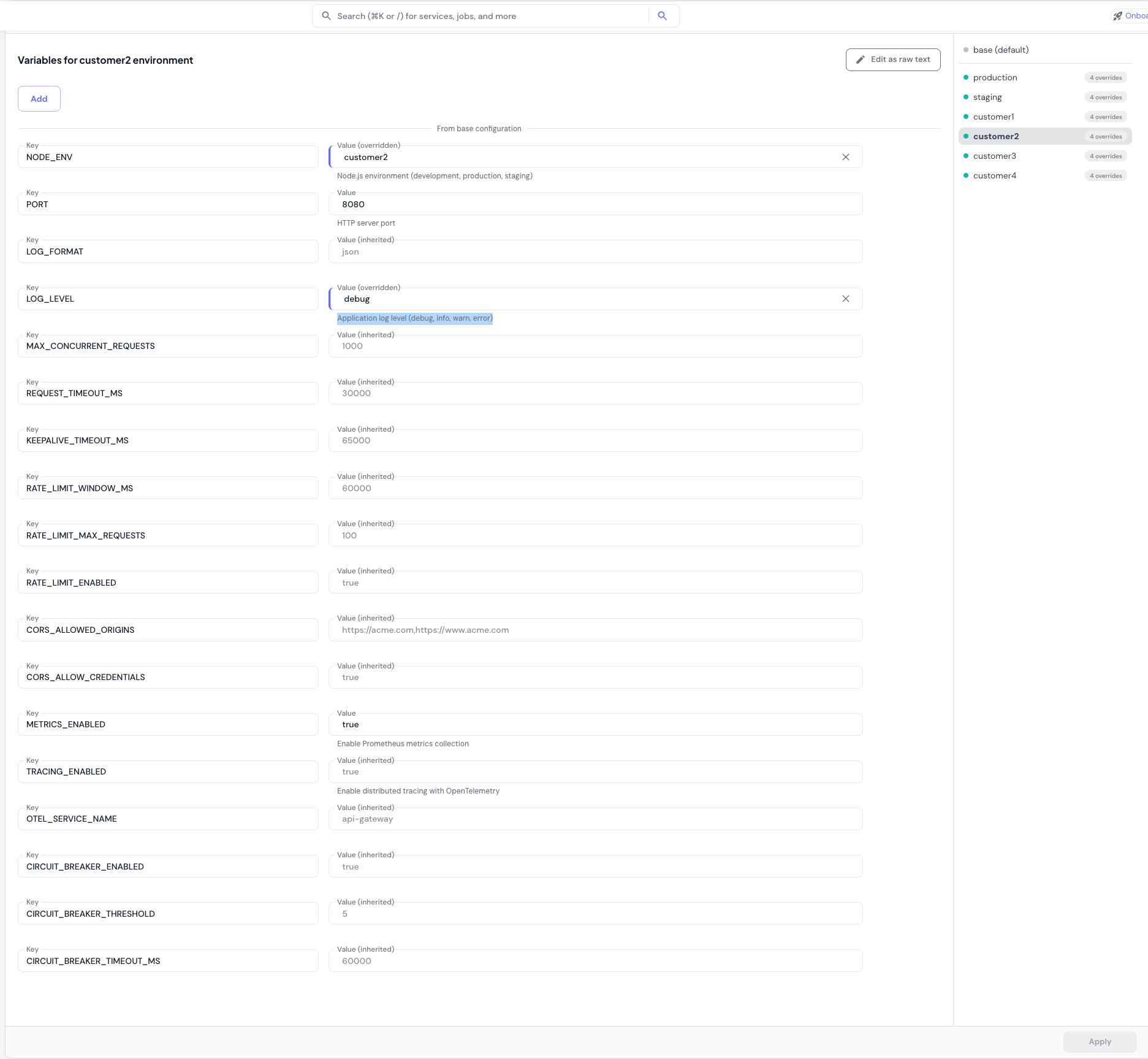
- Select an environment from the sidebar (e.g., “production”)
- Click Add or modify existing variables
- Variables inherited from base configuration are labeled as “(inherited)”
- Click Apply to save changes
Edit as Raw Text
For bulk editing, click Edit as raw text to edit variables inKEY=VALUE format. This is useful when importing variables from another source or making multiple changes at once.
Secrets Management
Two places to manage secrets in Skyhook:- Per-service Env Vars & Secrets tab — described on this page, for secrets scoped to a single service
- Settings → Secrets — a cluster-wide view where you can see every sealed secret across all services and clusters, create shared secrets that multiple services can reference, and bulk-manage rotations. See the Secrets settings page section below.
Adding Secrets
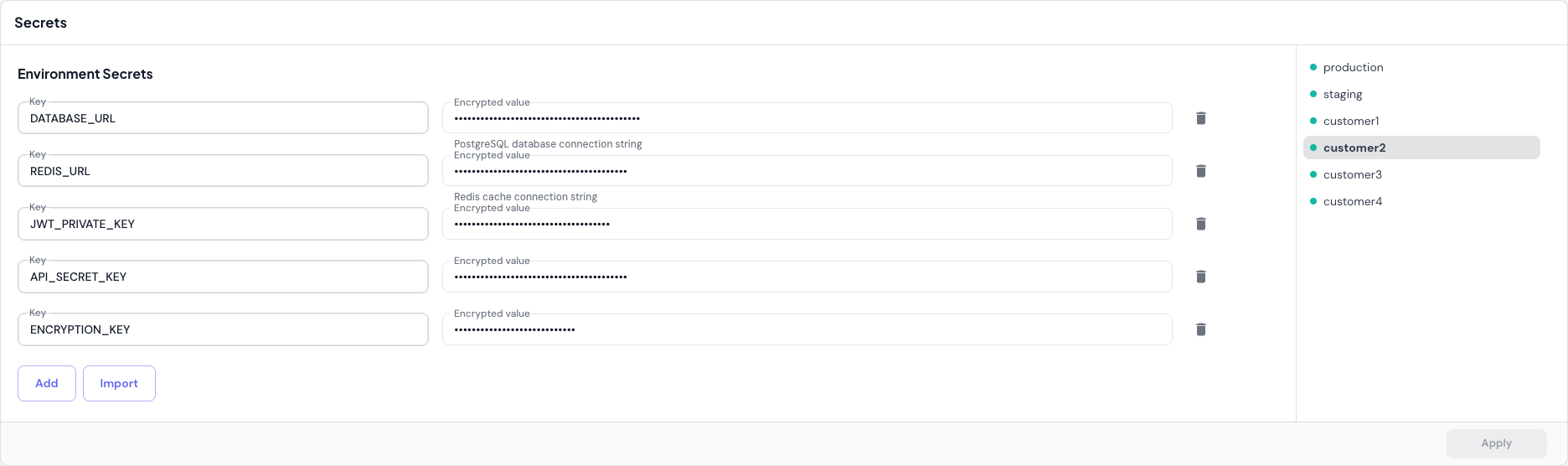
Secrets are encrypted using Bitnami Sealed Secrets before being stored in your repository. This ensures sensitive data like API keys, database passwords, and tokens remain secure. To add a secret:- Select an environment from the sidebar in the Secrets section
- Click Add
- Enter the Key (e.g.,
DATABASE_URL,API_KEY) - Enter the plain-text Value
- Click Apply
Once saved, secrets are displayed in encrypted form (
sealed:encrypted_content_here). You can edit the encrypted value, but to change the actual secret, delete it and re-add with a new plain-text value.Import Secrets
Click Import to import secrets from a file or from another service. The Copy from another service dialog lets you:- Filter to secrets from a specific service (useful when you have many services)
- Select all to copy every secret from the picked service — Skyhook deduplicates on name so you don’t end up with multiple copies of the same key
- Individually pick specific secrets to copy
Shared environment secret
For credentials that apply to every service in an environment (like a shared database password or an org-wide API key), enable the shared environment secret toggle on the service’s deployment settings. When enabled, Skyhook adds a reference to the shared secret<env-name>-shared-env-vars in your service’s pod spec. The shared secret itself lives once per environment and is consumed by any service that has the toggle turned on.
The reference uses envFrom, which means every key in the shared secret becomes an environment variable automatically — no per-key wiring required. New keys you add to the shared secret become available to all consuming services on the next restart.
The shared secret is marked optional, so your pods still start even if the shared secret hasn’t been created yet — they just won’t have those variables set. Useful for staged rollouts where you add the toggle first and create the secret later.
How Sealed Secrets Work
- Encryption: When you add a secret, Skyhook encrypts it with a public key before storing it in your repository
- Storage: Encrypted secrets are safe to store in Git alongside your code
- Decryption: The Sealed Secrets controller in your Kubernetes cluster decrypts secrets at runtime using a private key
- Security: Skyhook never has access to the private decryption key; only your clusters can decrypt secrets
- Version control for secrets (track changes, revert if needed)
- Audit trail (see who modified secrets and when)
- Secure storage (encrypted values are safe even if your repository is compromised)
Secrets settings page
For a cluster-wide view, navigate to Settings → Secrets in the sidebar. This page lists every sealed secret in your organization with full create, rename, edit, and delete support across all your clusters.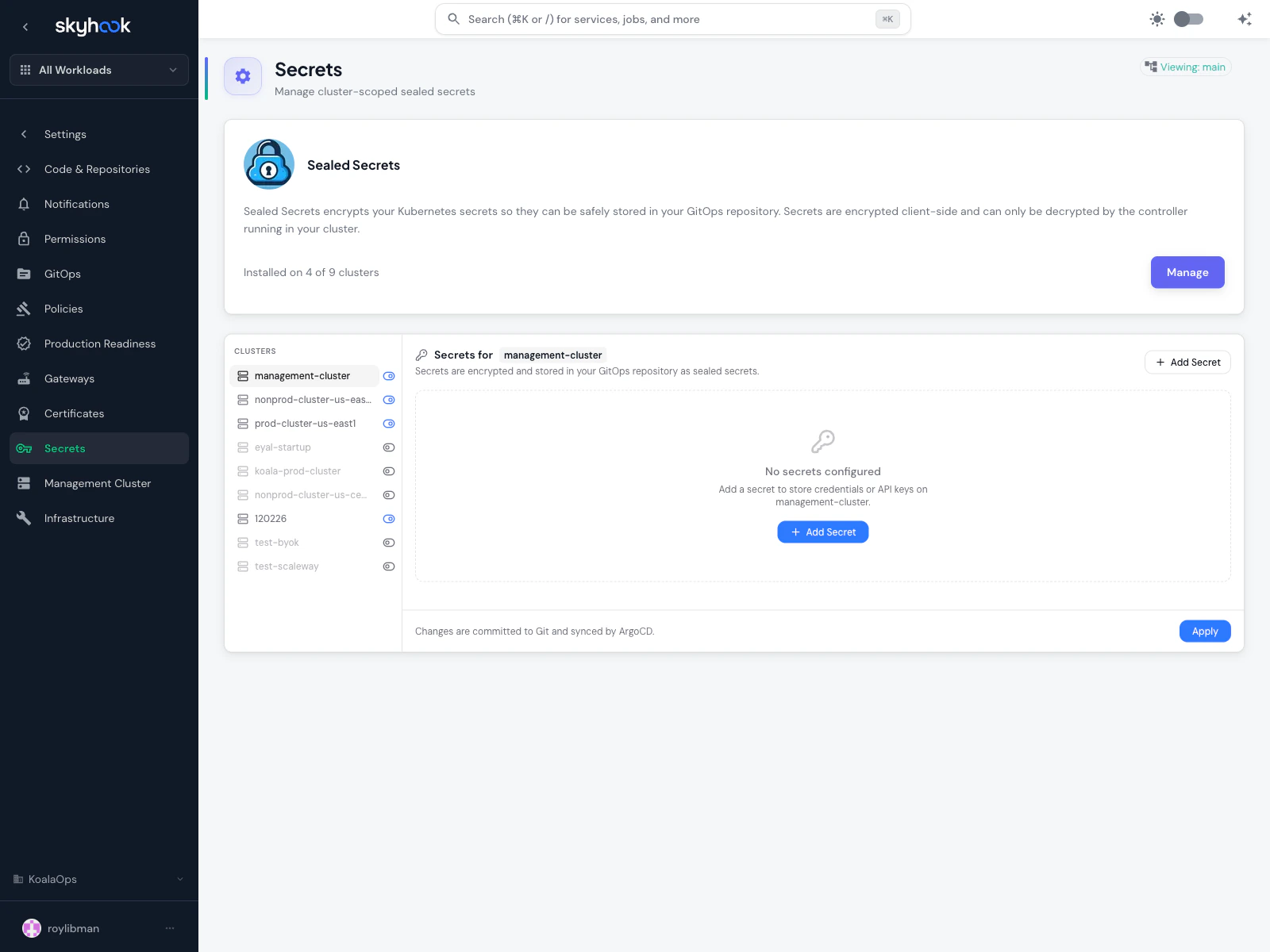
What you can do here
- Cluster picker — switch between clusters to see secrets scoped to each one
- Installation check — at the top, Skyhook tells you how many clusters have the Sealed Secrets addon installed and offers a Manage button if you need to add it to more
- Add Secret — create a new sealed secret with a name, keys, and values. The secret is encrypted client-side so plain-text values never leave your browser.
- Rename — safely rename a secret, which updates every reference across your GitOps repository
- Edit values — update the keys or values for an existing secret. Values are re-encrypted on save.
- Delete — remove a secret and its references
Auto-Reload on Configuration Changes
By default, Kubernetes does not restart pods when environment variables or secrets change. Enable auto-reload to ensure your service automatically restarts with the latest configuration.Enabling Auto-Reload
- Scroll to the Deployment Configuration section
- Check Reload on Environment Variables or Secrets Update
- Click Apply
How It Works
When enabled, Reloader monitors ConfigMaps and Secrets for changes and triggers a rolling restart of your service pods automatically. This ensures:- No manual pod restarts needed
- Configuration changes take effect immediately
- Zero-downtime updates with rolling restart strategy
- Better automation in CI/CD and GitOps workflows
Best Practices
Environment Variables vs Secrets
Use environment variables for:- Non-sensitive configuration (log levels, feature flags, ports)
- Values that may change between environments
- Public API endpoints or identifiers
- Passwords, API keys, tokens, certificates
- Database connection strings (if they contain credentials)
- Any sensitive data that shouldn’t be exposed
Managing Secrets Safely
- Rotate secrets regularly: Update API keys and passwords periodically
- Use environment-specific secrets: Production should use different credentials than staging/dev
- Limit access: Only grant secret access to team members who need it
- Delete unused secrets: Remove old or deprecated secrets to reduce security surface
Troubleshooting
Changes Not Taking Effect
If your configuration changes aren’t reflected in your running service:- Verify changes were applied: Check that you clicked Apply after making changes
- Check for auto-reload: If auto-reload is disabled, manually restart pods:
- Verify Reloader is installed: If auto-reload is enabled but not working, check that the Reloader add-on is installed on your cluster
Encrypted Secret Values
If you seesealed:encrypted_content_here when viewing secrets, this is expected; secrets are encrypted for security. To update a secret with a new value:
- Delete the existing secret using the trash icon
- Add it again with the same key and new plain-text value
- Click Apply to encrypt and save the new secret
Variables with Quotes
Skyhook detects when variable values contain quotes and warns you if they might be included in the actual environment variable value. If you see a warning:- Remove quotes if they’re not intended (e.g.,
"true"should betrue) - Keep quotes if they’re part of the value (e.g., a JSON string or value with spaces)
Next Steps
- Learn about service deployment to deploy configuration changes
- Set up GitOps workflows for automated deployments
- Configure Sealed Secrets for your clusters (infrastructure setup)