
- Horizontal Pod Autoscaler (HPA) — scale the number of pod replicas up and down based on CPU or memory usage
- Vertical Pod Autoscaler (VPA) — automatically adjust the CPU and memory requests of individual pods to match real usage
- KEDA — event-driven autoscaling that scales on queue depth, message rate, or any metric HPA can’t target, including scale-to-zero
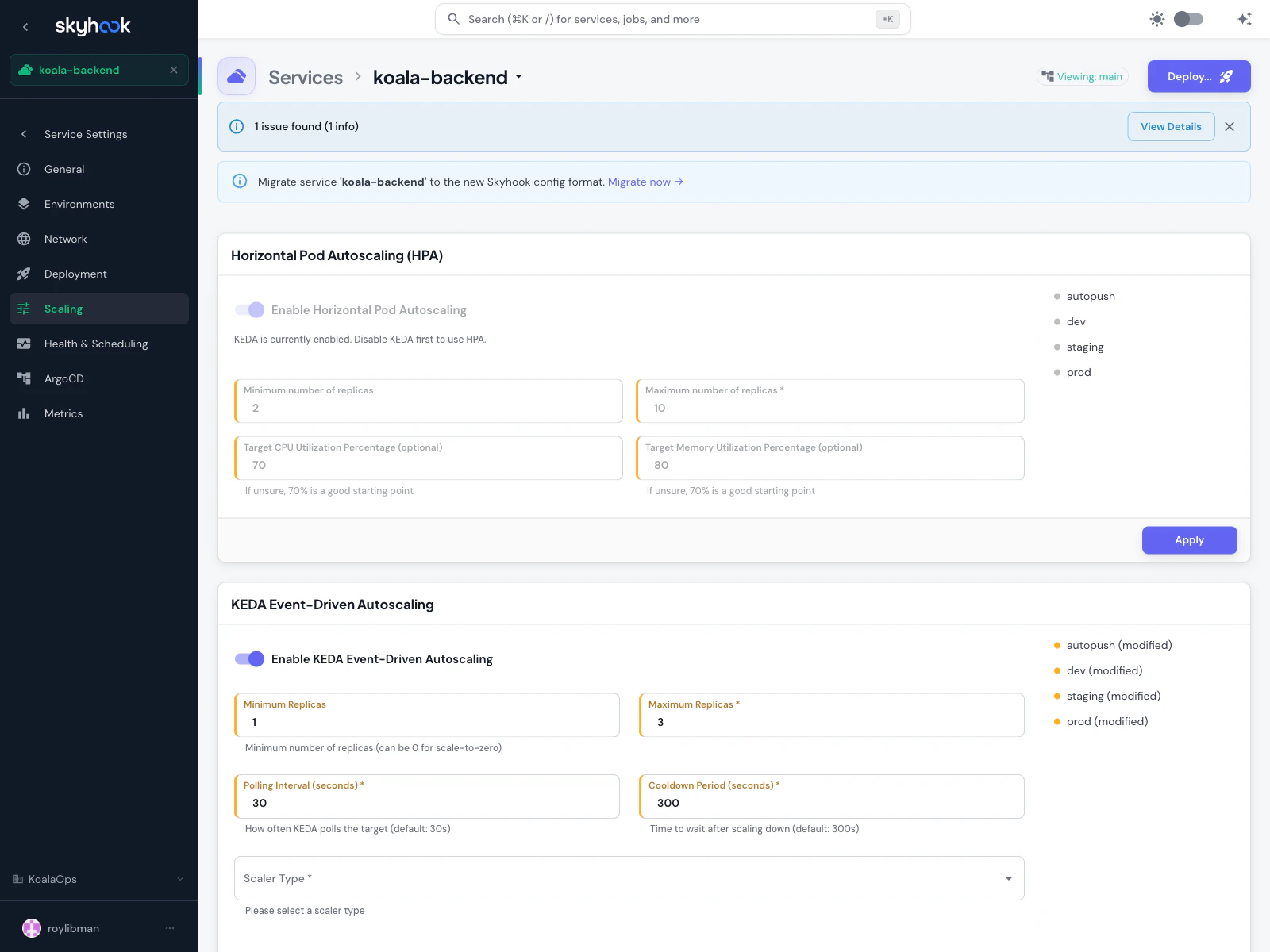
Horizontal Pod Autoscaling (HPA)
HPA adjusts the number of pod replicas in response to CPU and memory load. Use it when:- Your workload can safely scale horizontally (stateless or shared-state via cache/db)
- Traffic varies predictably or spikily over time
- You want to trade cost for capacity — more pods when busy, fewer pods when idle
Fields
Vertical Pod Autoscaling (VPA)
VPA watches real CPU and memory usage of your pods and automatically adjusts theirrequests (and optionally limits) to match. Use it when:
- You don’t know what resource requests to set and want data-driven recommendations
- Your workload has variable per-pod cost but a stable replica count
- You want to fix over-provisioning (paying for reserved capacity you never use) or under-provisioning (OOMKills, CPU throttling)
Update Modes
VPA has several update modes that control how aggressively it applies its recommendations:Off
Recommend only. VPA watches usage and produces recommendations but doesn’t change anything. Good for gathering data before you commit to automated changes.
Initial
Apply once at pod start. New pods get VPA-recommended requests, but running pods are left alone. Safe for stateful workloads where you don’t want restarts.
Recreate
Evict and recreate pods when recommendations drift significantly from actual requests. Causes brief downtime per pod during replacement.
InPlaceOrRecreate
Update in-place when possible, fall back to recreate otherwise. Requires a Kubernetes version that supports in-place pod resize.
Per-container resource policies
VPA can be scoped per container — useful for multi-container pods where you want to control the main app but leave sidecars alone. For each container you can set:- Minimum CPU and memory — lower bounds VPA won’t go below
- Maximum CPU and memory — upper bounds VPA won’t exceed
- Controlled resources — whether VPA manages CPU only, memory only, or both
VPA + HPA together
HPA and VPA can both be enabled on the same workload, but not on the same resource. The supported pattern is:- HPA on CPU — HPA scales the replica count based on CPU utilization
- VPA on memory — VPA adjusts memory requests based on observed usage
KEDA Event-Driven Autoscaling
KEDA scales on external signals: queue depth, message rate, cron schedules, Prometheus metrics, database row counts — anything KEDA has a scaler for. Use it when HPA’s CPU/memory signals don’t describe what you actually care about. KEDA also supports scale-to-zero — you can set minimum replicas to 0 and the workload will spin down completely when idle, then spin back up when the first event arrives.Fields
Best practices
Start with HPA
If you’re unsure which to use, start with HPA on CPU or memory — it’s the simplest, most battle-tested option, and most workloads scale fine on resource utilization alone.Use VPA for right-sizing, not autoscaling
VPA’s real value is finding the right resource requests. Run it in Off or Initial mode for a few weeks, look at the recommendations via the FinOps Efficiency page, and apply the right numbers manually or via Recreate mode once you’re confident.KEDA for queue-based workloads
If your service processes messages from a queue, KEDA scaling on queue depth is almost always better than HPA on CPU — CPU usage lags behind queue growth, but queue depth is a leading indicator.Test with load
After enabling any autoscaler, generate realistic load (not a simple ramp) and verify that scale-up and scale-down happen when you expect. Tune the target utilization or minimum replicas based on what you see.Troubleshooting
HPA shows 'unknown' for target utilization
HPA shows 'unknown' for target utilization
HPA needs a metrics source to compute utilization. Install the Metrics Server addon on the cluster if it isn’t already — it’s a one-click install from the Addons catalog. Without it, HPA can’t read pod CPU/memory.
VPA toggle is disabled on a cluster
VPA toggle is disabled on a cluster
The VPA addon isn’t installed on that cluster. Install it from the Addons catalog. Skyhook detects the VPA CRD and re-enables the toggle automatically once it’s available.
Pods keep restarting after enabling VPA
Pods keep restarting after enabling VPA
You’re probably in Recreate mode, which evicts pods when recommendations drift. Switch to Initial mode to apply recommendations only to new pods, or tighten the per-container minimum/maximum bounds to reduce churn.
KEDA isn't scaling up despite events in the queue
KEDA isn't scaling up despite events in the queue
Check three things:
- The KEDA addon is installed on the target cluster
- The scaler credentials (e.g. SQS region + access key, RabbitMQ URL) are correct and accessible from within the cluster
- KEDA’s polling interval hasn’t elapsed yet — if you just published an event, wait
pollingIntervalseconds for KEDA to notice