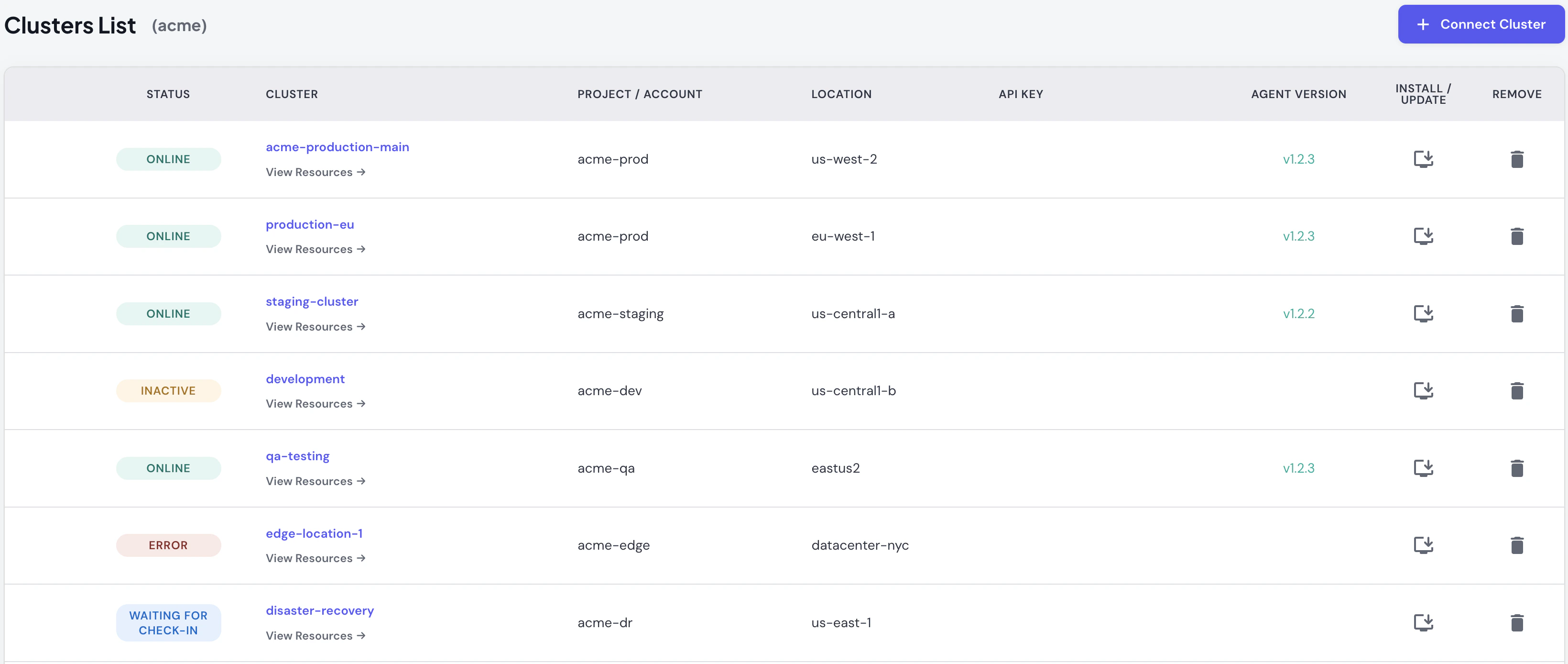
The Clusters List shows all Kubernetes clusters connected to your Skyhook organization. Use this page to monitor cluster status, manage agent versions, and access cluster details.
Accessing the Clusters List
Navigate to Clusters → List in the Skyhook UI, or click Clusters in the sidebar.
Understanding Cluster Status
Each cluster displays a color-coded status badge:
- ONLINE (green) - Cluster is connected and actively syncing data (last check-in <2 minutes ago)
- WAITING FOR CHECK-IN (blue) - Cluster registered but agent hasn’t reported yet or is still initializing
- INACTIVE (orange) - Cluster hasn’t communicated with Skyhook for >5 minutes (may be offline or network issues)
- ERROR (red) - Cluster agent encountered an error or authentication failure
If a cluster shows WAITING FOR CHECK-IN for more than 5 minutes after installing the agent:Check for authentication errors, firewall issues, or RBAC permission problems. What You’ll See
The table shows all connected clusters with their cloud provider (GCP/AWS/Azure icons), cluster name, project/account ID, location (region/zone), agent version, and connection status. Click any cluster name to open the Cluster View.
API Keys are unique authentication tokens for each cluster. The agent uses these to securely sync data to Skyhook. They’re shown in the table but you rarely need to reference them directly; they’re already embedded in the helm commands. Treat them like passwords (don’t commit to git).
Agent Version shows which Cluster Connector version is running. If an update is available, you’ll see an “(update required)” indicator. Click Install / Update to get the helm upgrade command. Updates have zero downtime: the new pod comes up before the old one terminates.
Managing Clusters
Updating the agent:
- Click Install / Update
- Copy the
helm upgrade command
- Run in your terminal (authenticated to the cluster)
Your API key is preserved automatically; no need to copy it separately.
Removing a cluster:
Stops syncing data and removes the cluster from Skyhook’s views and reports.
Removing a cluster doesn’t uninstall the agent from your Kubernetes cluster. You’ll need to run helm uninstall skyhook-cluster-connector -n skyhook-cluster-connector manually if you want it completely removed.