
helm install per cluster and tracking values files in Git by yourself, you pick addons from a catalog, edit shared base values (with per-cluster overrides), and Skyhook generates a PR against your GitOps repository. ArgoCD then rolls the change out to every selected cluster.
Prerequisites
- GitOps configured — Skyhook needs to know where to write addon manifests. See GitOps overview.
- At least one connected cluster — addons are per-cluster, so you need somewhere to install them. See Connecting Clusters.
- ArgoCD running on each target cluster — ArgoCD is what actually applies the manifests after Skyhook writes them.
The Addons page
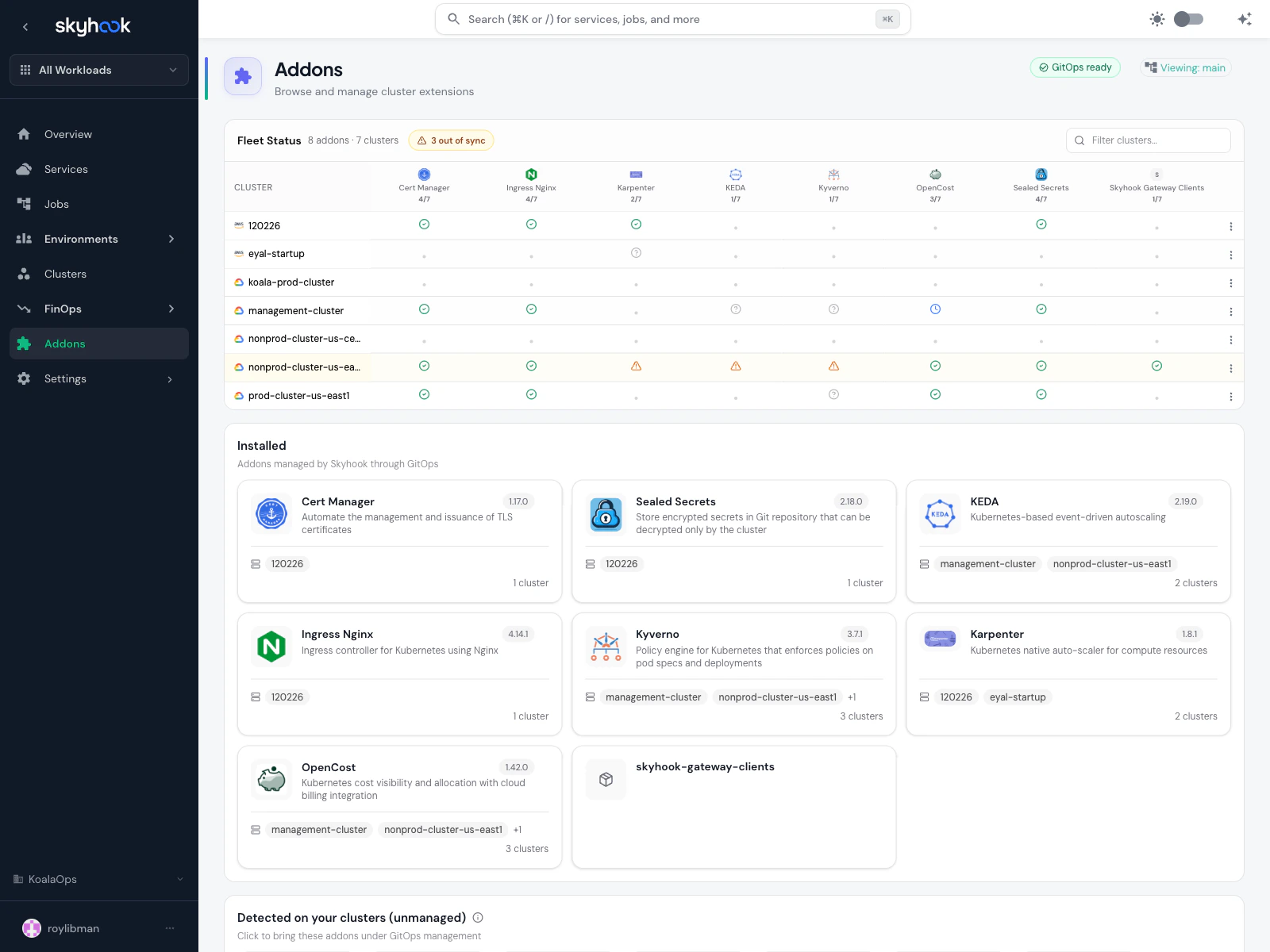
Addons in the sidebar opens the main catalog view. It has three sections stacked from top to bottom.Fleet Status
A clusters × addons matrix above everything else. Each cell shows the sync and health status of that addon on that cluster, with a tooltip for any errors and a clickable link into the addon or cluster.- Green check — installed and in sync
- Amber warning — installed but drifted or out of sync
- Red error — installed but unhealthy (see tooltip for the ArgoCD error)
- Empty cell — addon not installed on that cluster
Installed
“Addons managed by Skyhook through GitOps.” Each card shows:- Addon logo + name and current chart version
- One-line description
- Cluster pills for the first few installed-on clusters and a
+N morebadge - Custom Helm charts (installed via the search box below) appear here too, with a generic package icon if no logo is available
Install any Helm chart + Suggested addons
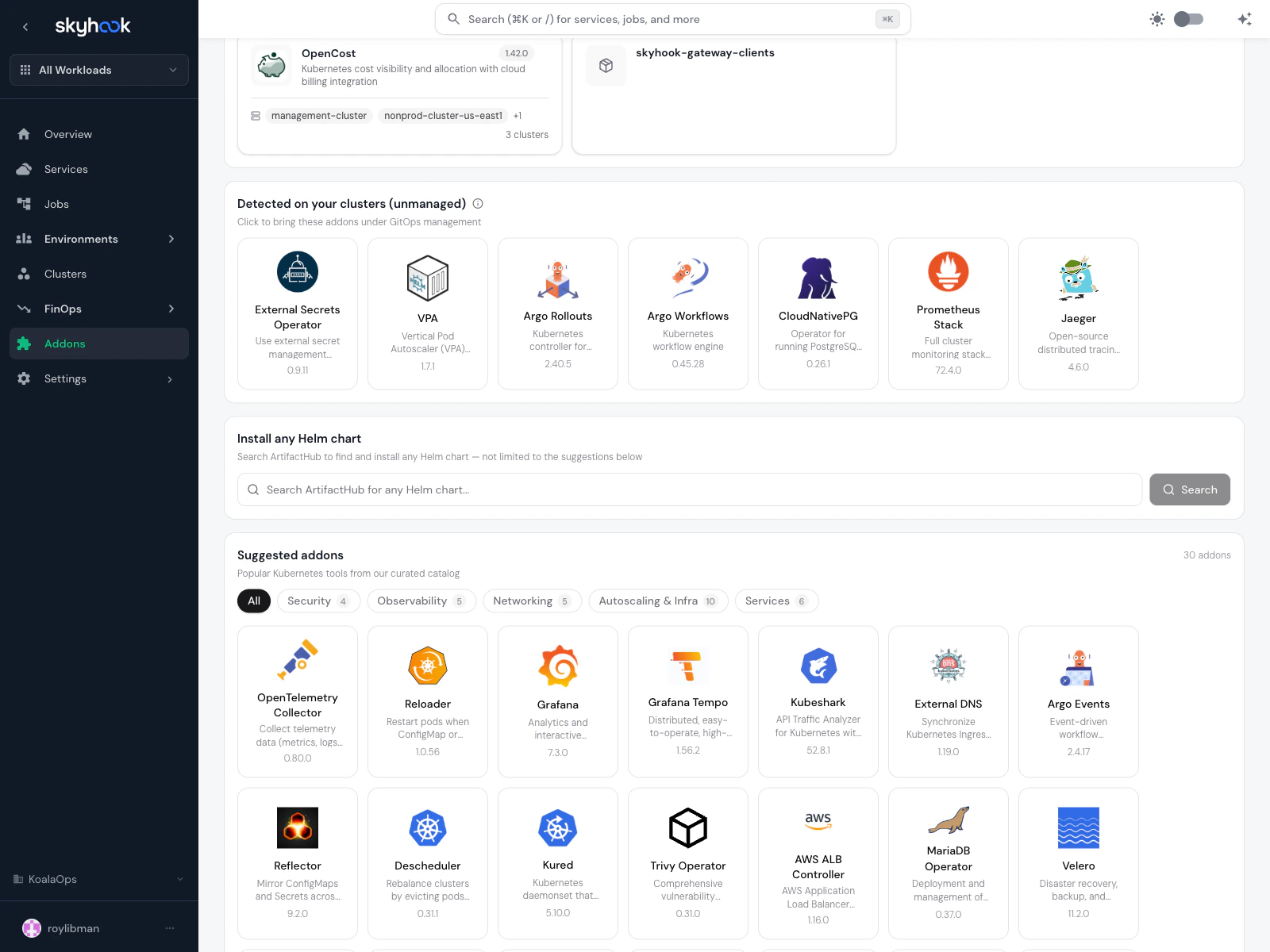
A search box wired to ArtifactHub lets you install any public Helm chart — not just curated ones. Below the search, the Suggested addons catalog lists 34+ popular tools organized by category:- Security — Kyverno, Falco, Polaris, HashiCorp Vault, Trivy Operator
- Observability — Grafana, Tempo, Loki, Prometheus Stack, Jaeger, OpenTelemetry Collector, Alloy
- Networking — Istio, Cilium, Traefik, Envoy Gateway, External DNS
- Autoscaling & Infra — Karpenter, KEDA, VPA, Metrics Server, Descheduler, Argo Rollouts / Workflows / Events
- Services — CloudNativePG, MariaDB Operator, MinIO Operator, Strimzi Kafka, RabbitMQ Operator, Redis Operator, Harbor
Addon detail page
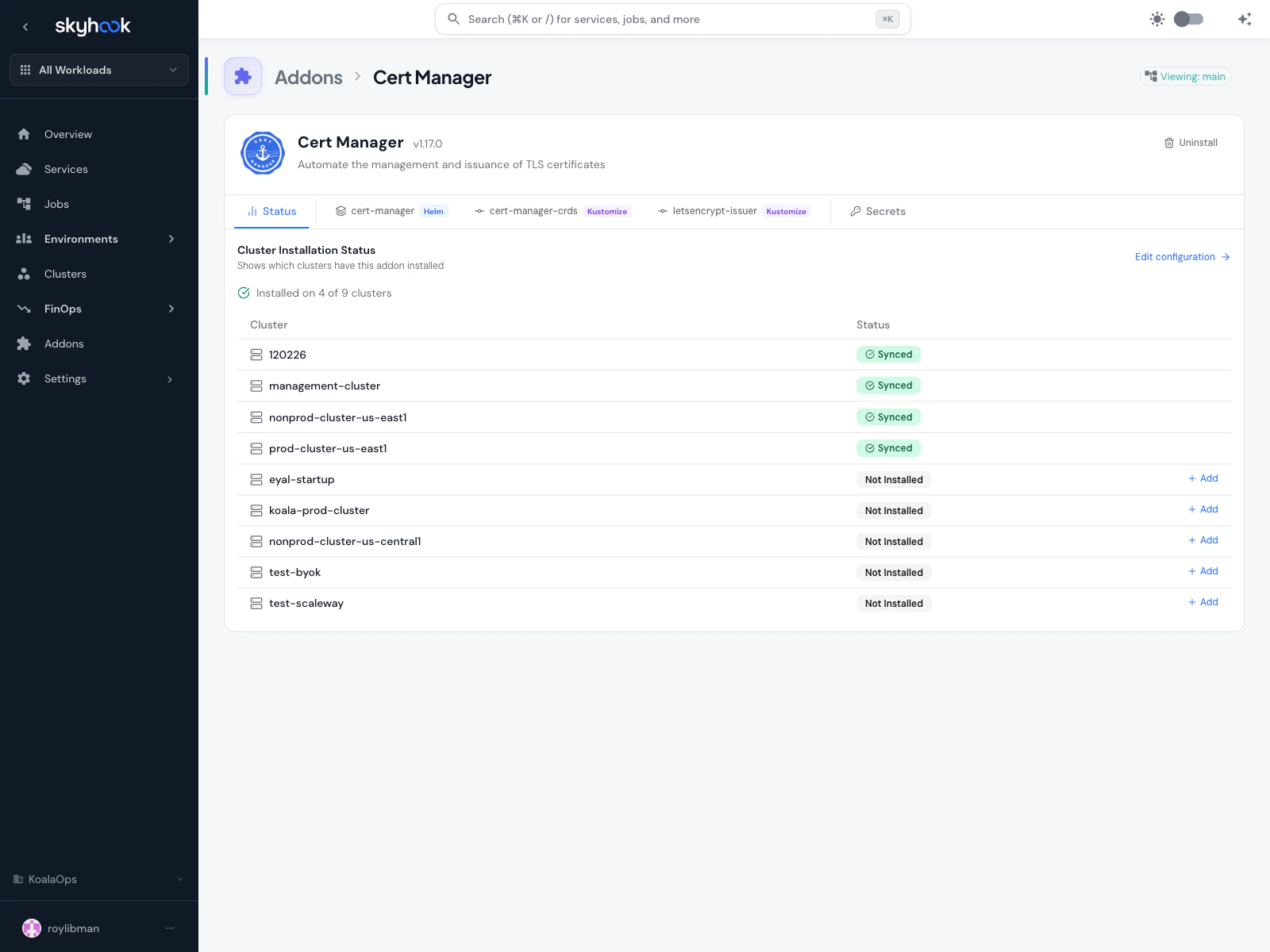
Clicking any addon (installed or catalog) opens the detail page. The top shows the logo, version dropdown, description, and an Uninstall button. Below that, a flat tab row contains:- Status — per-cluster installation status table
- One tab per component — e.g.
cert-manager (Helm),cert-manager-crds (Kustomize),letsencrypt-issuer (Kustomize)— each addon declares what pieces it needs. Multi-component addons like cert-manager or OpenCost install several things at once. - Secrets — manage Kubernetes secrets consumed by this addon
Status tab
The status tab lists every cluster in your organization and whether the addon is configured on each one. Not-installed clusters show an Add button. Click Edit configuration at the top of the table to jump to the component editor.Configuring an addon
Each component tab opens an editor with three stacked sections: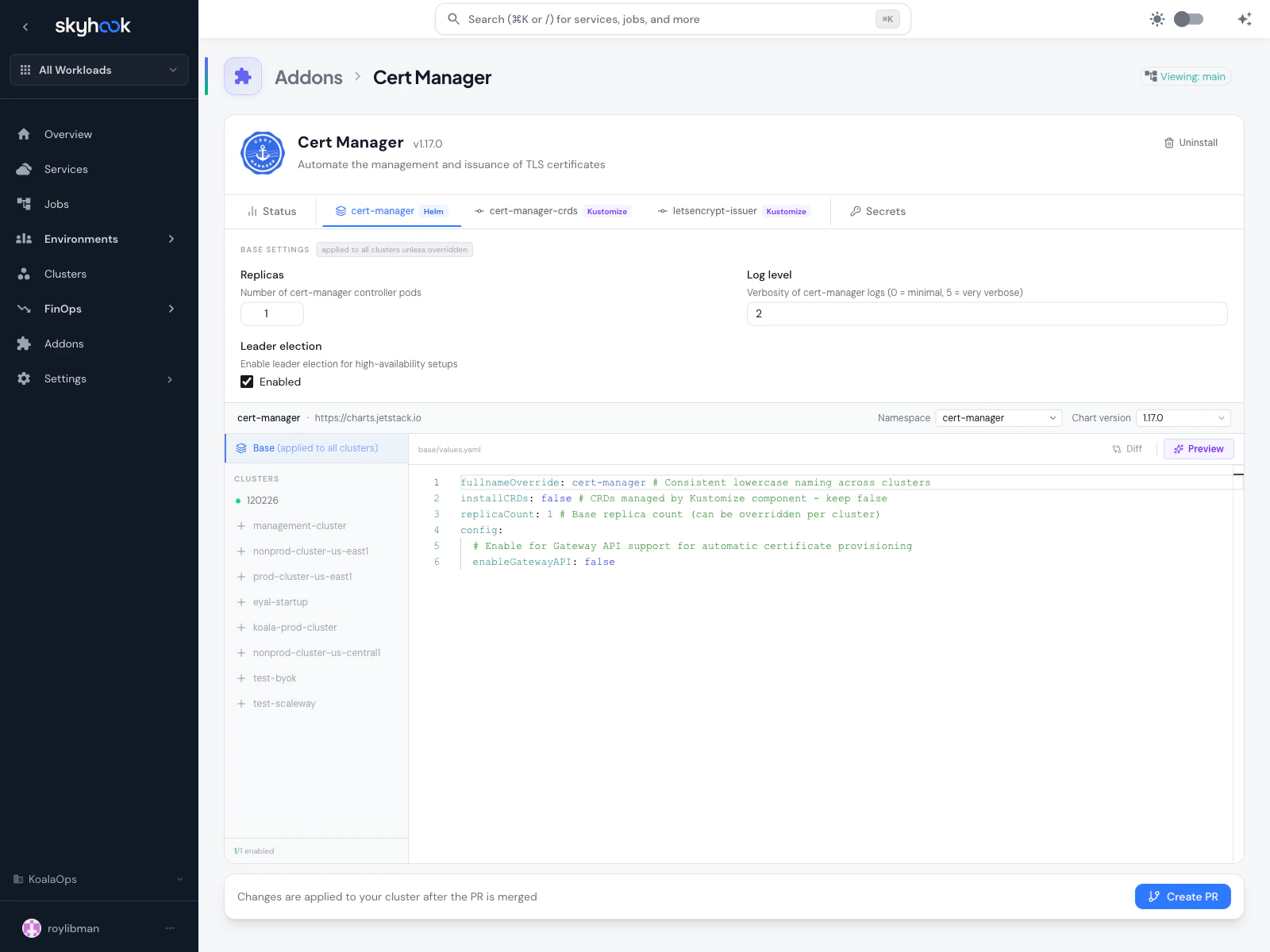
Base Settings (curated fields)
The top panel exposes commonly-edited values as native form controls — sliders, toggles, text inputs — rather than raw YAML. Edits here are applied to all clusters unless overridden. Supported addons include cert-manager, KEDA, and others; curated fields are additive — anything not exposed is still editable in the YAML panel below. Curated-field edits preserve comments and formatting in the underlying YAML.Clusters sidebar
A unified list of every cluster in your org. Configured clusters appear first with their values, an enable/disable toggle, and a remove button. Clusters not yet configured appear below with a + button to add them. Adding a cluster enables it automatically. The counter (e.g.3 / 3 enabled) shows how many of the configured clusters are currently enabled.
YAML editor
The right pane is a YAML editor showing either:- base/values.yaml — the shared base applied to all clusters, or
- <cluster>-values.yaml — the per-cluster override when a specific cluster is selected in the sidebar
- Diff — shows what’s changed since the version you started editing
- Preview — renders the Helm chart with your current values and shows the resulting Kubernetes manifests, so you can catch template errors before creating the pull request
- vs Base — when viewing a per-cluster file, shows the effective merged values (base + overrides) for that specific cluster
Saving changes
Click Create PR at the bottom to write your changes as a pull request against the GitOps repository. The button label reminds you: Changes are applied to your cluster after the PR is merged. Once the PR merges, ArgoCD syncs the new values to the target clusters.Importing addons from existing clusters
If you already have addons running on a cluster — either in GitOps or installed by hand — you can import them into Skyhook instead of re-configuring from scratch.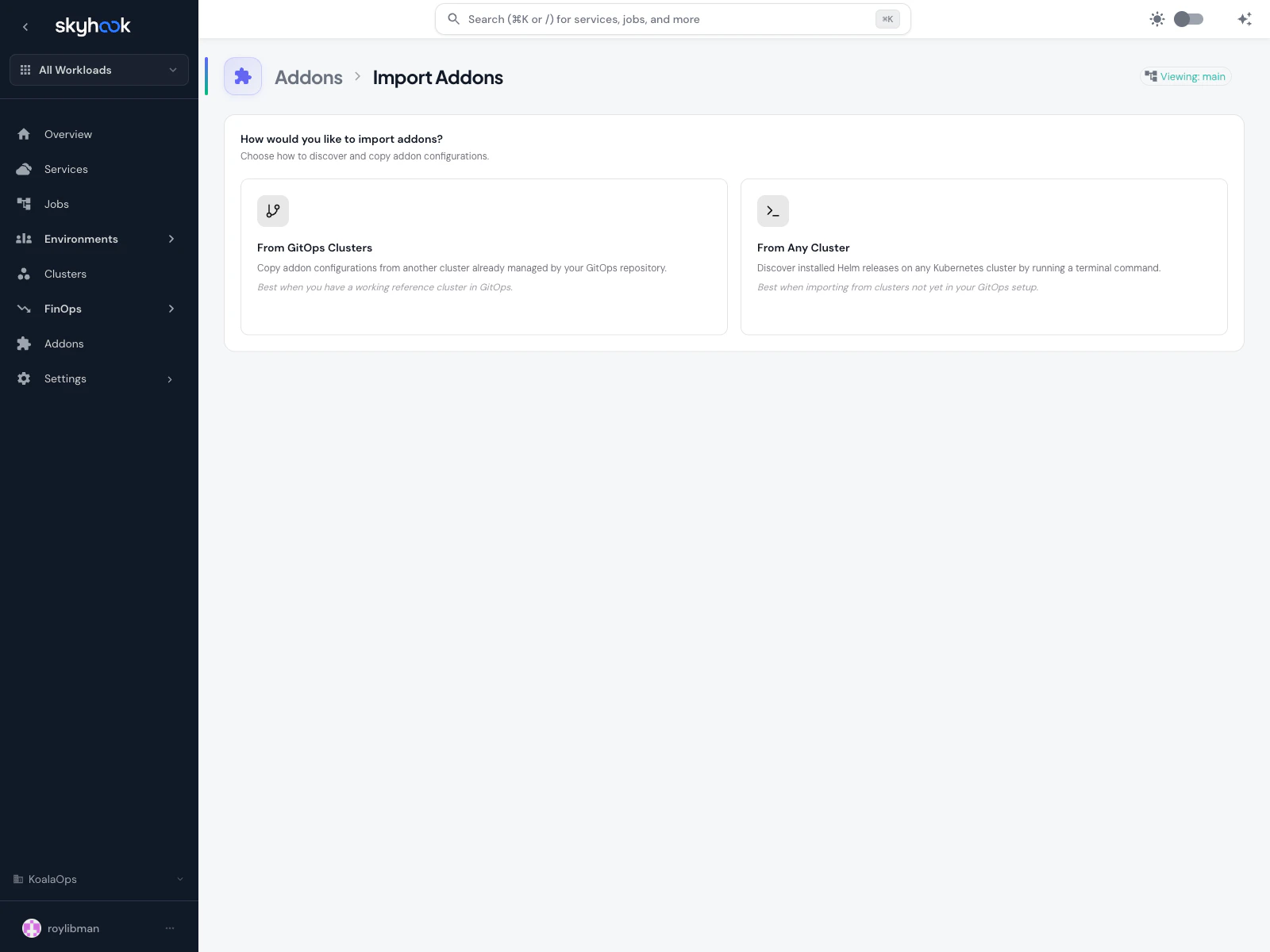
From GitOps Clusters
Multi-step wizard (Addons > Import > From GitOps Clusters) for when you have a working reference cluster already in GitOps:1
Select source cluster
Pick the cluster that has the addons you want to copy.
2
Pick addons
Search and filter across all addons installed on the source cluster, then select which to copy. Multi-component addons show all their pieces.
3
Pick target clusters
Select one or more clusters to copy the addons onto.
4
Review (optional)
Per-addon tabs show each cluster-specific values override and YAML editor before creating the PR. Badges show the count of detected values per addon.
5
Create PR
Skyhook generates a single PR with all the copied configurations. After merge, ArgoCD applies them.
From Any Cluster (Helm snapshot)
For clusters not yet in GitOps — a brownfield cluster with existinghelm install releases — Skyhook provides a terminal command that captures a snapshot of the current Helm releases and uploads it. The snapshot is then used as the import source for the same wizard flow.
This is useful for onboarding an existing environment without manually reverse-engineering every values file.
Secrets tab
The Secrets tab on an addon detail page manages Kubernetes secrets the addon depends on, per cluster.- Namespace is auto-detected from the addon’s target namespace (editable if you need to override).
- Each secret has a name, namespace, and a list of key/value pairs.
- Saves go through the same Create PR flow as config changes — Skyhook batches secret updates alongside values edits.
Missing secret detection
As you edit a component, Skyhook scans the rendered manifests in the background for Kubernetes secret references. Any secret the chart expects but isn’t configured yet shows up as a warning on the Secrets tab with a Create button that pre-fills the name and keys for you. If the background scan temporarily fails, the previously-detected results are kept so transient errors don’t wipe out your list.ArgoCD sync status
Sync and health status come from ArgoCD itself and are surfaced in multiple places:- Fleet Status matrix on the main addons page — at-a-glance cluster × addon coverage
- Installed cards — sync status badge
- Cluster detail page — a Cluster Addons Health card shows installed addons with sync status, chart version, and namespace, plus a quick link to Copy Addons from another cluster
- Addon Configuration tab sidebar — per-cluster
errbadges with expandable error strips for clusters whose background preview failed
Troubleshooting
I installed an addon but it doesn't appear on the cluster
I installed an addon but it doesn't appear on the cluster
Check three things in order:
- PR merged? Addon changes only apply after the generated pull request is merged into your GitOps repository.
- ArgoCD synced? Open the addon’s Fleet Status cell or the cluster’s Addons Health card — if it shows an error, follow the tooltip to the ArgoCD application for details.
- Cluster enabled? Open the addon’s Status tab and verify the cluster shows as enabled. If it’s listed but not enabled, re-save the configuration.
Custom Helm chart isn't showing in Installed section
Custom Helm chart isn't showing in Installed section
Custom Helm charts (installed via the Install any Helm chart search) appear in the Installed section once Skyhook has processed the install. If it’s still not showing, try a hard refresh.
Preview shows 'analyzing…' forever
Preview shows 'analyzing…' forever
The background Helm template is running. Large multi-component addons can take a few seconds. Switching to the Secrets tab flushes any pending preview immediately to trigger missing-secret detection.
Copy-from wizard is missing some components
Copy-from wizard is missing some components
Disabled cluster entries (
enabled: false) in the source cluster are still valid configured components and show up in the copy-from wizard — this was fixed for multi-component addons like OpenCost where one sub-component may be disabled intentionally. If a component is truly missing, verify it exists in the source cluster’s capability list.Uninstalling an addon
Uninstalling an addon
Click Uninstall at the top of an addon detail page. Skyhook generates a PR that removes the addon’s manifests from the GitOps repo; ArgoCD prunes the resources on sync. Uninstalling does not delete the addon’s namespace or persistent volumes — clean those up manually if needed.